ComfyUI Video Stabilizer
ComfyUI Video Stabilizer is a custom node for stabilizing video inside ComfyUI.
It mainly has three features.
- Stabilize camera shake in a video
- Restore the original camera shake after stabilization
- Add artificial camera shake
Installation
nomadoor/ComfyUI-Video-Stabilizer
- Install it from
ComfyUI Manager.
Video Stabilization
Use Video Stabilizer Classic or Video Stabilizer Flow for stabilization.
They provide the same functionality, but use different processing methods.
Flow is a little heavier, but performs much better, so I generally recommend Flow.
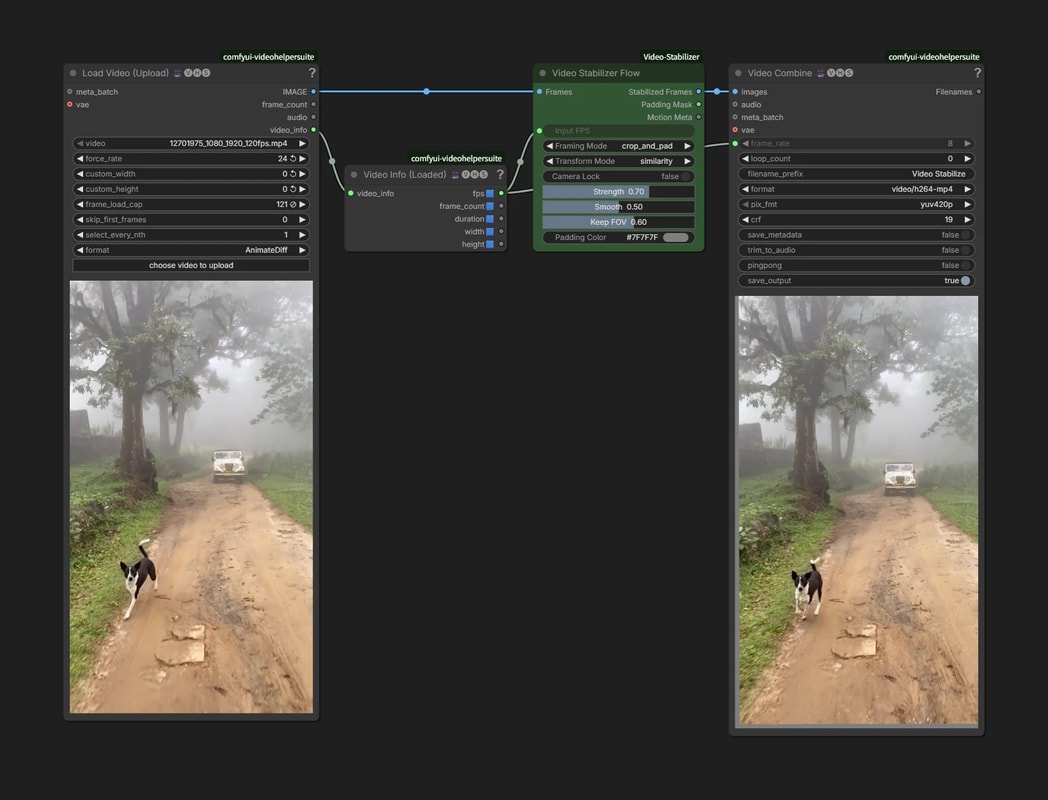
Parameters
Video Stabilizer Classic and Video Stabilizer Flow share the same parameters.
| Parameter | Description |
|---|---|
frame_rate |
The input video FPS. This is used as the basis for temporal smoothing. |
🎞️ framing_mode |
Controls how to handle missing edges created by stabilization. This is an important parameter where the difference is easy to see in video. |
transform_mode |
Controls which transform model is used to estimate camera motion. |
🔒 camera_lock |
Pushes the result toward a much more fixed, tripod-like shot. |
strength |
Controls how much of the estimated camera motion is removed. 0.0 keeps the original motion almost as-is, while 1.0 applies stronger stabilization. |
smooth |
Controls how smooth the camera motion should become. Higher values suppress sudden shake more strongly. |
keep_fov |
Only applies when framing_mode is crop. Controls how much of the original field of view to preserve. 1.0 means less zoom, while 0.0 sacrifices FOV to remove borders. |
padding_color |
The color used for padding. If you use padding_mask for later inpaint / outpaint steps, the color itself is not very important. |
🎞️ framing_mode
crop- Slightly zooms / crops the video so the empty borders are not visible.
- The stronger the shake, the narrower the field of view becomes.
crop_and_pad- Preserves as much of the original field of view as possible and fills the missing areas with padding.
- The padded area is also output as
padding_mask.
expand- Does not crop at all, and expands the canvas as much as needed.
Most video editing tools only provide something close to crop, but with video generation models, you can use the padded area as a mask and outpaint it. That opens up some interesting workflows.
🔒 camera_lock
When camera_lock is enabled, it tries to make the video look closer to a fixed tripod shot, though it is not perfect.
Normal stabilization only makes the camera motion smoother, but camera_lock tries to stop the camera motion as much as possible.
Restoring Camera Shake
In video editing, processing can be more stable if you remove camera shake first, but leaving it removed can also erase the original sense of presence.
With Video Stabilizer Motion Apply, you can apply the shake removed by Video Stabilizer in reverse, restoring the original motion.
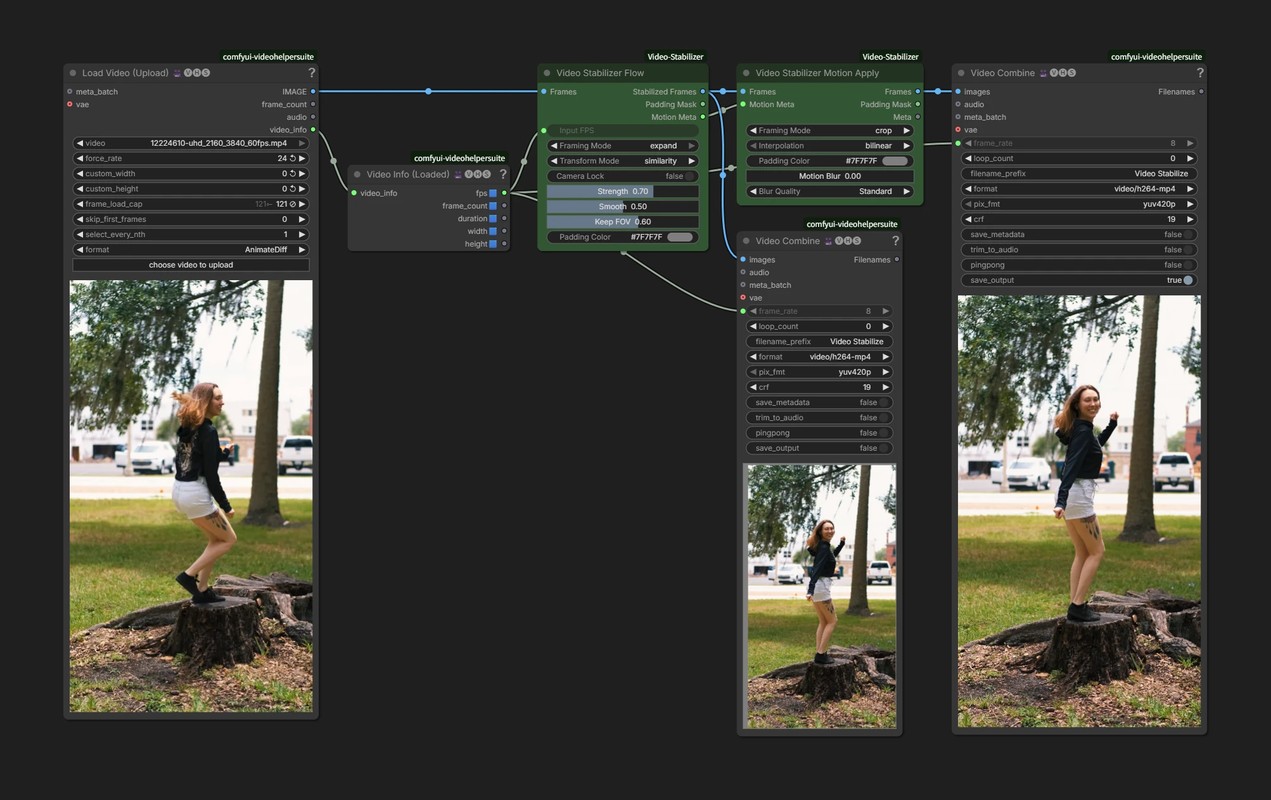
If you stabilized with
croporcrop_and_pad, pixels that were already cropped away cannot be recovered. If you plan to restore the shake later, I recommend usingexpandfor the first stabilization step.
Adding Artificial Camera Shake
This is not limited to AI-generated video, but when camera work is too smooth, it can feel a little CG-like.
By intentionally adding camera shake, you can create a stronger sense of presence and rawness.
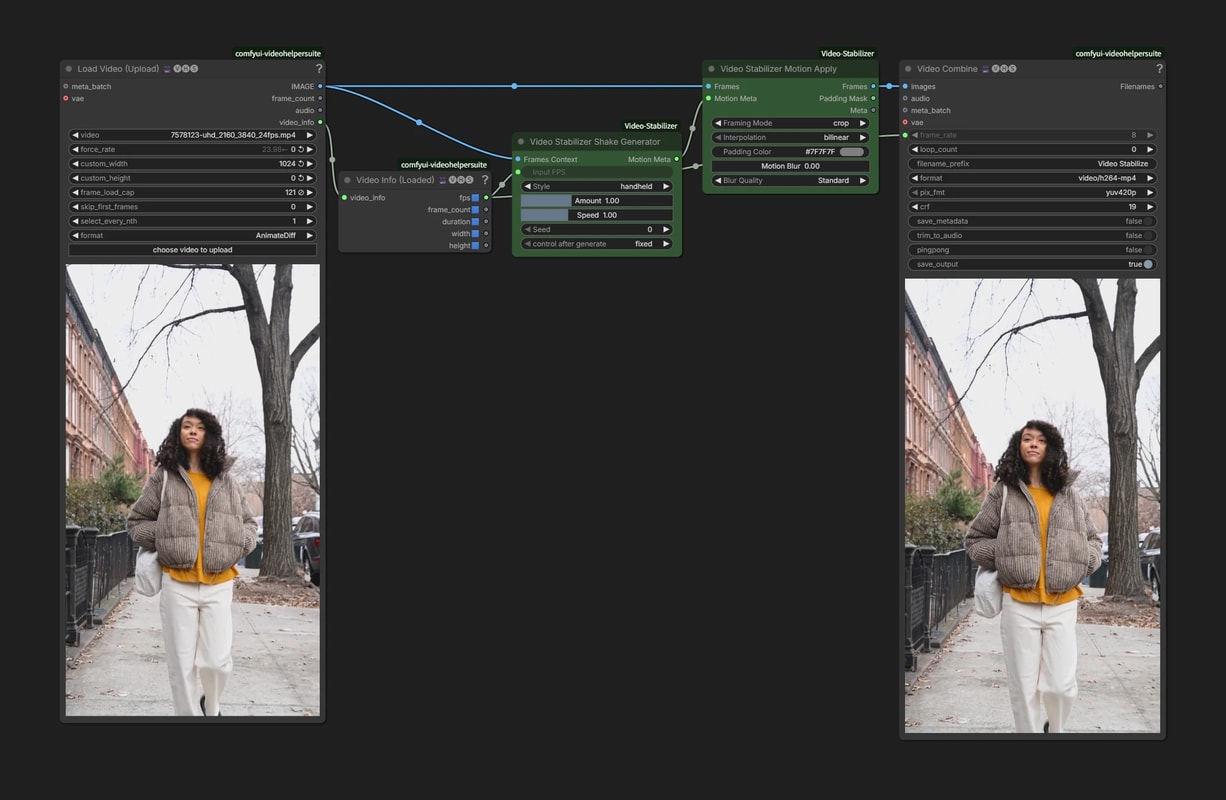
Video Stabilizer Shake Generator creates artificial camera motion, and Video Stabilizer Motion Apply applies that motion to the video.
Parameters
| Parameter | Description |
|---|---|
frame_rate |
The input video FPS. Used as a fallback when FPS metadata is not available from the video. |
style |
The type of shake. |
amount |
The strength of the shake. Lower values are enough if you only want to add a little naturalness. Too much can easily make the video uncomfortable to watch. |
speed |
The speed of the shake. Lower it for slower handheld motion, or raise it for busier, finer shake. |
seed |
The random seed for the shake. Changing seed changes the shake pattern even with the same settings. |
style
tripod: Adds a very weak shake, close to a fixed camera.handheld: Adds natural handheld-style motion.walking: Adds vertical and horizontal shake like walking while filming.action: Adds stronger, rougher motion.vibration: Adds fine vibration.
There is also a node called
Video Stabilizer Shake Generator Manual. Instead of using presets, it lets you fine-tune the motion through internal parameters.
Motion Blur
Video Stabilizer Motion Apply can also add motion blur.
Adding a little motion blur makes the result feel closer to real camera footage.