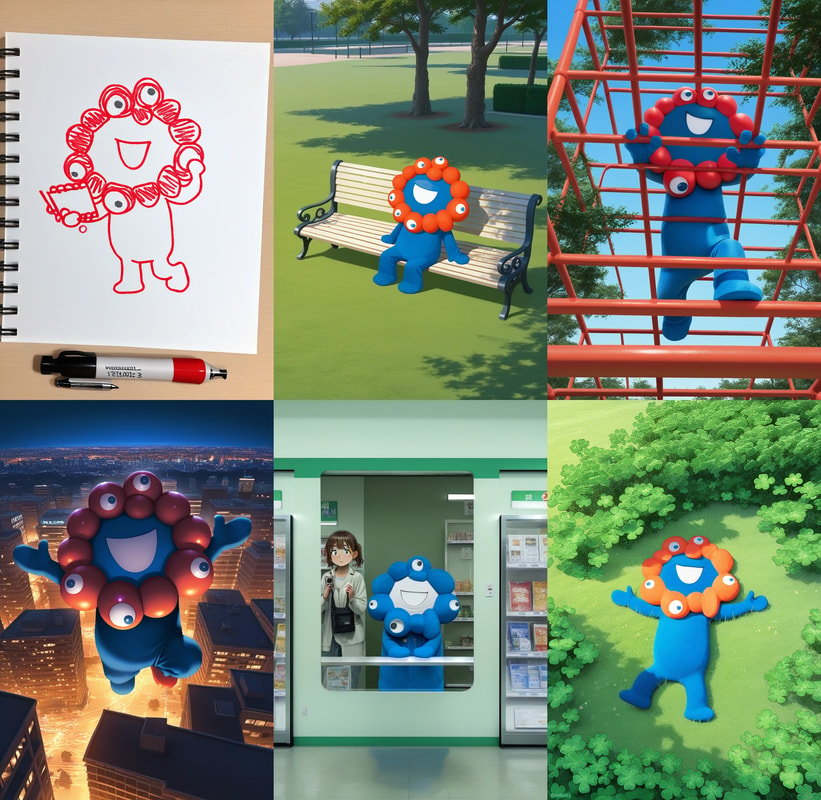
Training an SDXL (Illustrious) LoRA with AI Toolkit
This note walks through training a LoRA for SDXL-style models with AI Toolkit.
Here I use WAI-illustrious-SDXL v16.0, but the same general flow works for SDXL-style models.
This example trains a character LoRA, but the basic flow is similar for outfit LoRAs and style LoRAs as well.
Prepare the dataset
For LoRA training, dataset quality matters more than anything else. Take your time here.
1. Collect images
Collect images where the subject you want to train is easy to recognize.
- Quality matters more than quantity. Try to use high-resolution images.
- This example uses 15 images, but training can work with fewer images too.
The model learns the shared concept across multiple images.
It is better if the images are not all the same composition. Variation in pose, angle, and background helps.
2. Lightly clean up the images
If the subject is too small, if something else stands out too much, or if another character is mixed in, crop the image lightly.
You do not need to cut out only the subject too strictly.
Leaving a little background or alternate clothing can help the model understand what is the character itself and what is just the situation.
3. Create captions
For each image, create a text file with the same filename.
images/
├── 0001.png
├── 0001.txt
├── 0002.png
├── 0002.txt
├── ...
├── 0020.png
└── 0020.txt
In each text file, write a description of that image. This is the caption.
Captions can be written as natural language or as tags. For SDXL, a comma-separated tag style is usually easier to use.
4. How to write captions
Let's look at the Myaku-Myaku example.
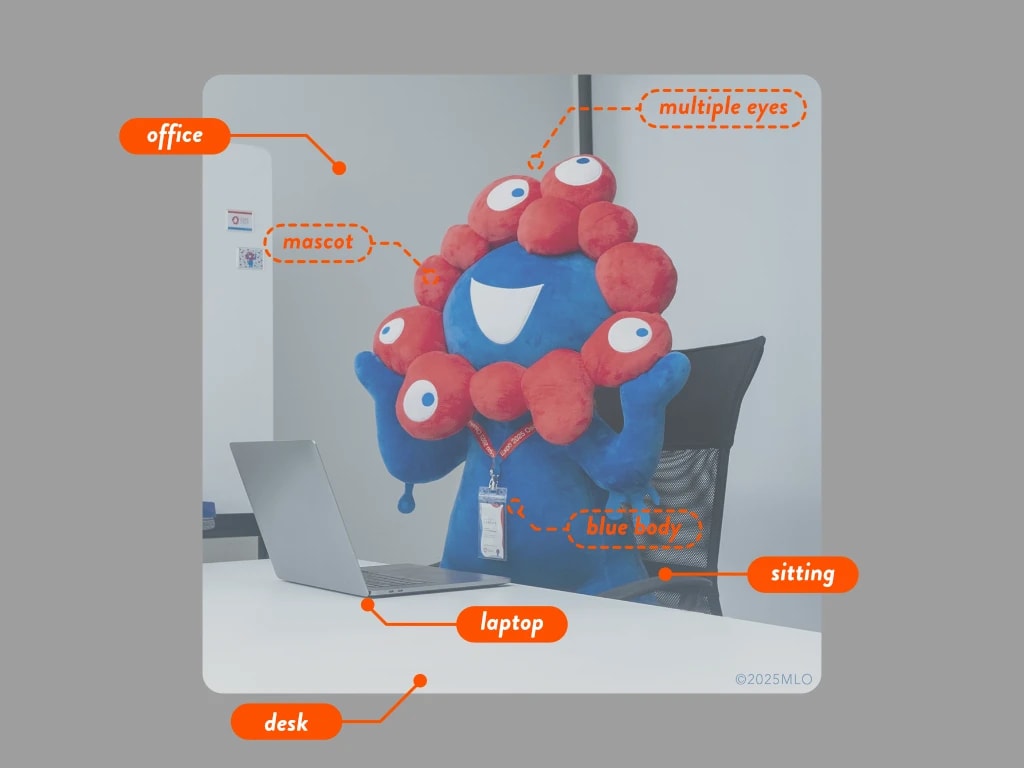
There are several visible elements in the image:
- laptop
- chair
- many eyes
- blue body
- image style (photo, in this case)
- ...
You do not write all of these into the caption.
For a character LoRA, you write the words that are not defining the character itself.
The model tends to push common elements that are not explained by text into the LoRA.
For example, a plain caption for the image above might look like this:
mascot, sitting, indoors, office, desk, laptop, office chair, lanyard, id card, multiple eyes, smile, blue body, red appendages, plush, photo
For a character LoRA, remove the words that define Myaku-Myaku itself:
sitting, indoors, office, desk, laptop, office chair, photo
Finally, add the trigger word for calling this character. In this example, the trigger word is myakumyaku-san.
- There is no strict rule for trigger words.
- However, if the word is too generic, it may mix with another concept. A unique proper noun is safer.
myakumyaku-san, sitting, indoors, office, desk, laptop, office chair, photo
4.5 Create captions with an MLLM
Recent MLLMs are quite capable, so you can also let one handle most of the captioning work.
- Give it the image and ask for an SDXL / Illustrious-style caption
- Ask it to remove only the words that define the character itself
- Add the trigger word at the beginning
Here is an example created with ChatGPT. The quality is more than enough for this kind of task.
Start AI Toolkit
On Windows, AI-Toolkit-Easy-Install is the easier route.
- Download the installer from the repository
- Extract it
- Run
AI-Toolkit-Easy-Install.bat - After installation, start it with
Start-AI-Toolkit.bat
If you train on Runpod, see this guide.
Load the dataset
After starting AI Toolkit, load the dataset first.
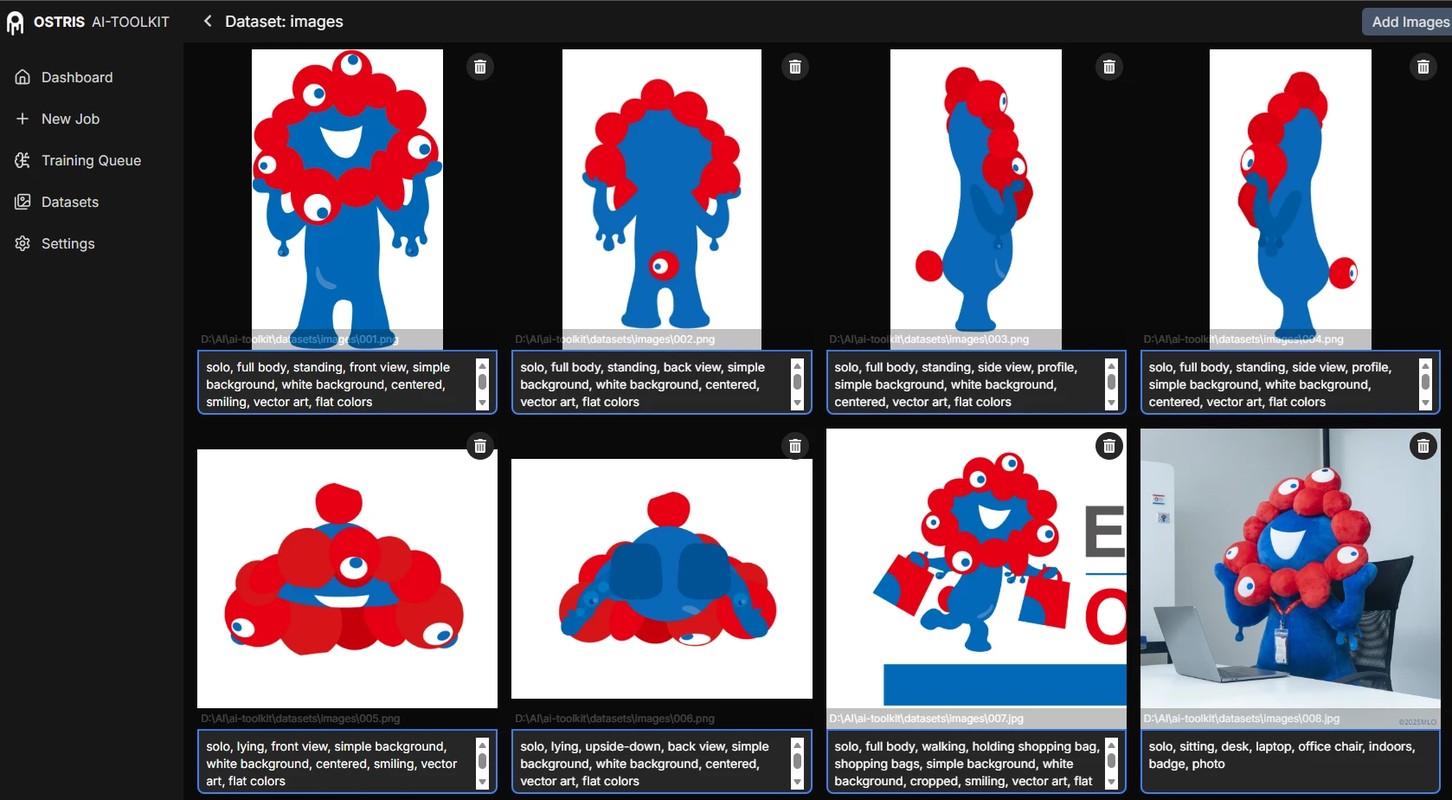
- Open the
Datasettab - Click
New Datasetin the upper right - Create a folder with any name
- Use
Add Imagesto add the folder containing the images and text files
If the images and their matching captions load correctly, you are good to go.
Create a Job
In AI Toolkit, you create a training setup called a Job, then start that Job.
Think of it as something like a workflow in ComfyUI.
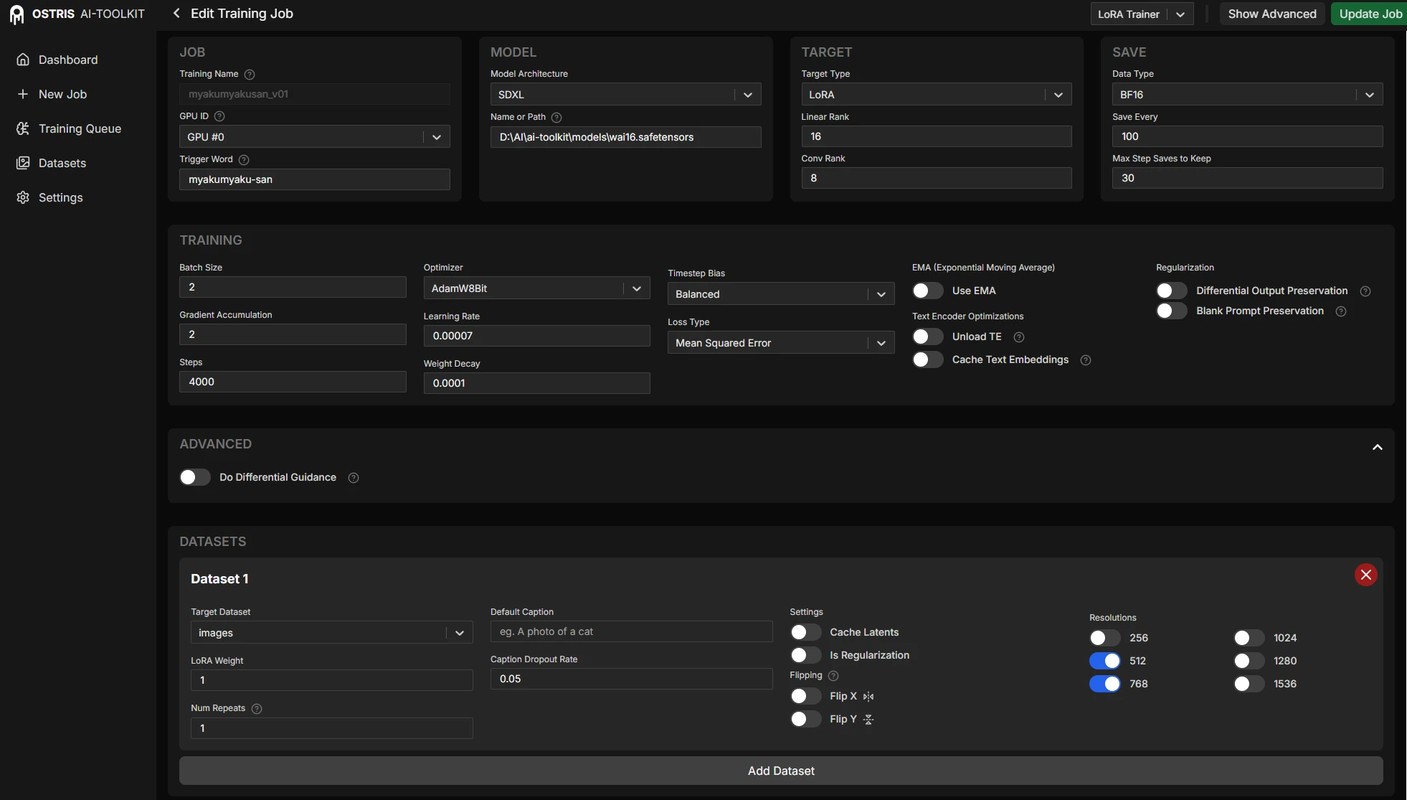
Open + New Job and configure each item.
For a first run, try the following parameters.
| Item | Value |
|---|---|
| Model architecture | SDXL |
| Name or Path | path\to\wai16.safetensors |
| Linear Rank | 16 |
| Conv Rank | 8 |
| Save Every | 100 |
| Max Step Saves to Keep | 30 |
| Batch Size | 2 |
| Gradient Accumulation | 2 |
| Steps | 3000 |
| Learning Rate | 0.00007 |
| Resolutions | 512, 768 |
| Disable Sampling | on |
Here is a quick explanation of the main parameters.
JOB
-
Training Name
- Give it any name you like.
- Since you may look back at it later, including the model name, subject, or date makes it easier to recognize.
-
Trigger Word
- If you did not put the trigger word in each caption file, you can enter it here and AI Toolkit will insert it for you.
- If each
.txtfile already includes the trigger word, leave this blank.
MODEL
-
Model architecture
- Select the architecture of the model you are training.
- In this example, use
SDXL.
-
Name or Path
- Enter the path to the base model.
- This example assumes WAI-illustrious-SDXL, so download it and enter the absolute path to its
.safetensorsfile. - Example:
path\to\wai16.safetensors
TARGET
This section controls the size of the LoRA model.
A larger Rank can hold more information in the LoRA.
But larger is not always better; it can also make the LoRA memorize unnecessary details.
For a character LoRA, a smaller Rank like 16/8 is usually enough.
SAVE
The only real way to know whether the LoRA is learning well is to generate images with it.
So you periodically save LoRA checkpoints during training and test them.
-
Save Every
- Controls how often a LoRA checkpoint is saved.
- A shorter interval makes it easier to choose a good step later.
-
Max Step Saves to Keep
- Controls how many LoRA checkpoints to keep.
For example, if you save every 100 step and train to 3000 step, checkpoints are saved at 100 step, 200 step, 300 step, and so on.
If Max Step Saves to Keep is too small, older checkpoints will be deleted. If you have enough storage, use a larger value.
TRAINING
This section controls the amount of training and how it progresses.
-
Batch Size / Gradient Accumulation
- Batch Size is how many images are seen at the same time during training.
- Seeing multiple images at once makes it easier to find common features than seeing only one image at a time.
- The same idea applies to LoRA training. For character LoRAs, I often use an effective batch size of
2to4.
- Increasing Batch Size also increases VRAM usage.
- Gradient Accumulation is useful here. It lets you increase the effective Batch Size without increasing VRAM usage as much.
Batch Size × Gradient Accumulationis the effective batch size.
- Batch Size is how many images are seen at the same time during training.
-
Steps
- The necessary step count is hard to know before training.
- You can extend training later, so starting around 3000 is reasonable.
-
Learning Rate
- I usually start around
0.00005to0.0001. - Larger values converge faster; smaller values move more slowly.
- But slower is not always better, so judge by the actual outputs.
- I usually start around
As a side note, 0.0001 is sometimes written as 1e-4.
It means 1 × 10^-4.
DATASETS
-
Target Dataset
- Select the Dataset you created earlier.
-
Resolutions
- Controls which resolutions the images are shown at. AI Toolkit resizes them internally.
- Higher resolutions can help when many images are high-resolution, but training takes longer.
- For a character LoRA,
512and768are often enough.
SAMPLE
- Disable Sampling
- AI Toolkit can generate samples during training, but I do not use it here.
- Images generated there can differ from ComfyUI outputs even with the same seed.
- If you usually generate with ComfyUI, it is better to test by loading the LoRA in ComfyUI directly.
After finishing the settings, click
Create Jobin the upper right.
Start training
Creating a Job does not start training yet.
Click the ▶ button in the upper right of the Job screen to start training.
Check the training result
My view is that the only way to know whether a LoRA is working is to generate images with it.
Download the LoRA checkpoints that are saved during training and test them in ComfyUI.
Download the LoRA
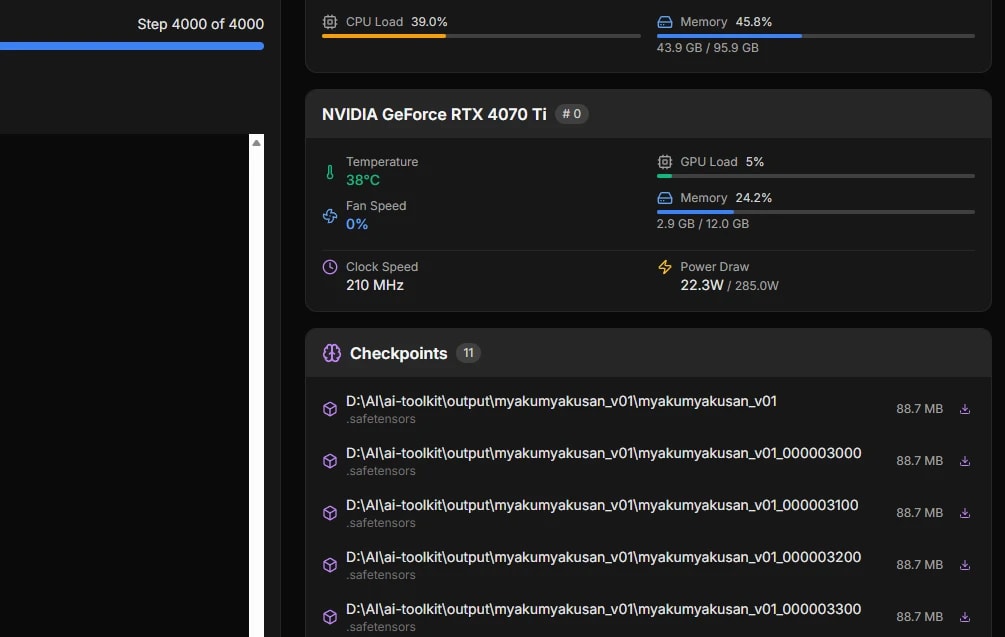
Saved LoRA checkpoints appear in Checkpoints on the right side of the Job screen.
Use the download button to get them.
What prompt should you test with?
First, use a simple prompt with the trigger word and check whether the character appears.
myakumyaku-san, standing, simple background
If the character appears, that is a good first sign. But that alone does not mean the LoRA is good.
A good LoRA should learn only the concept you intended to train.
If it also learned the background, or if it can only generate poses from the training images, it is not flexible enough as a LoRA.
So you need to test it with prompts that are not in the training images.
- different poses
- different outfits
- different backgrounds
- different compositions
- slightly different styles
If it looks good only under conditions close to the training images, but breaks when you change the prompt a little, it may need more training or the dataset may need to be revised.
Review the dataset or adjust the learning rate.
Check multiple prompts in ComfyUI
If you want to test several prompts at once, the Create List node is useful.
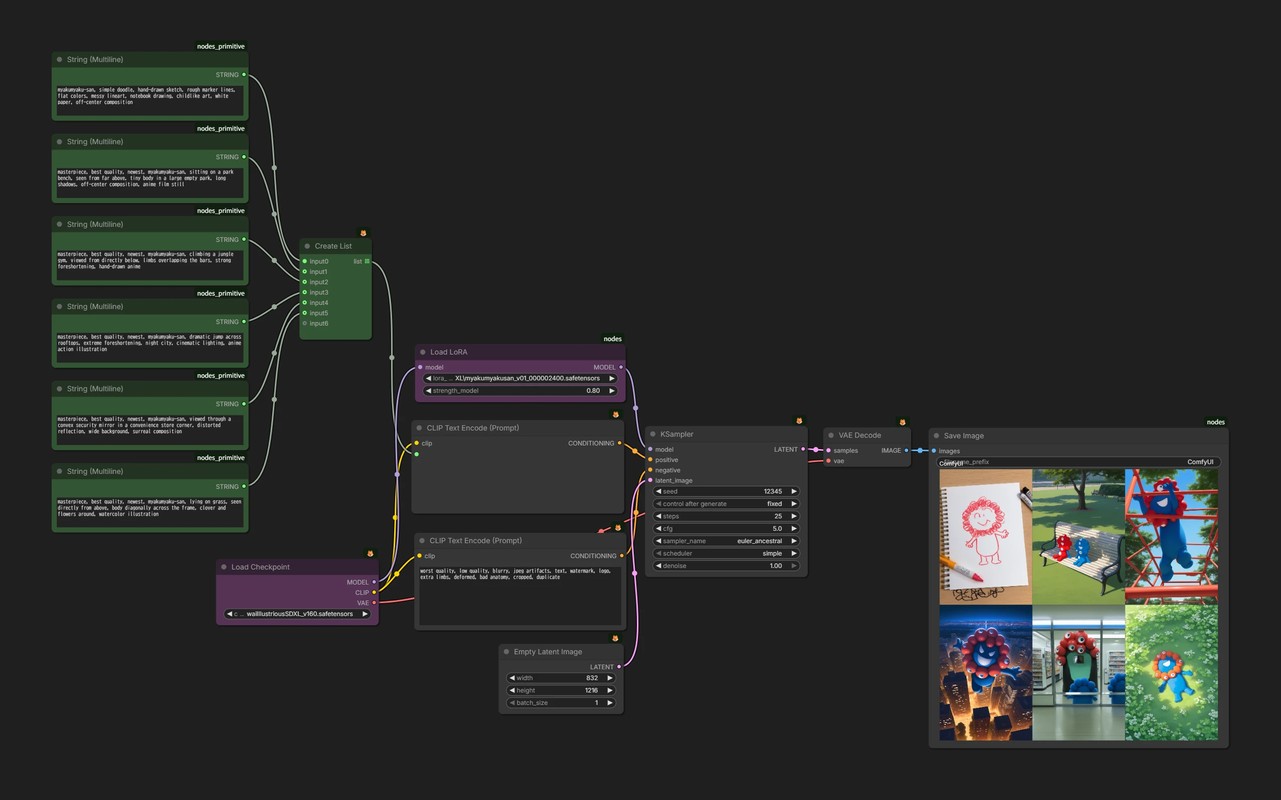
- Prepare multiple prompts
- Connect them to
Create List, then connect that toCLIP Text Encode - Keep generation parameters other than the LoRA fixed, such as CFG and seed
- Swap LoRAs from different steps and compare them
For SDXL LoRAs, it is common to make the LoRA work well around a LoRA Strength of 0.8.
Where should you stop?
Longer training does not always make the LoRA better.
If you go too far, it becomes overtrained and loses flexibility.
Generate with several prompts and look for the step that feels right.
Since you can weaken it with LoRA Strength, aiming for a slightly strong result is usually fine.
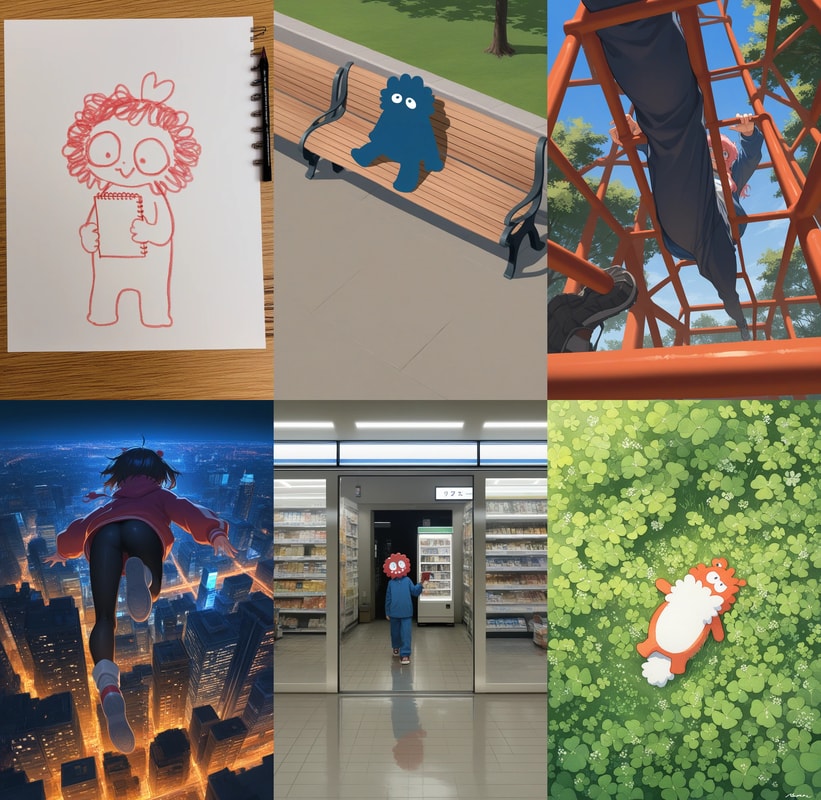
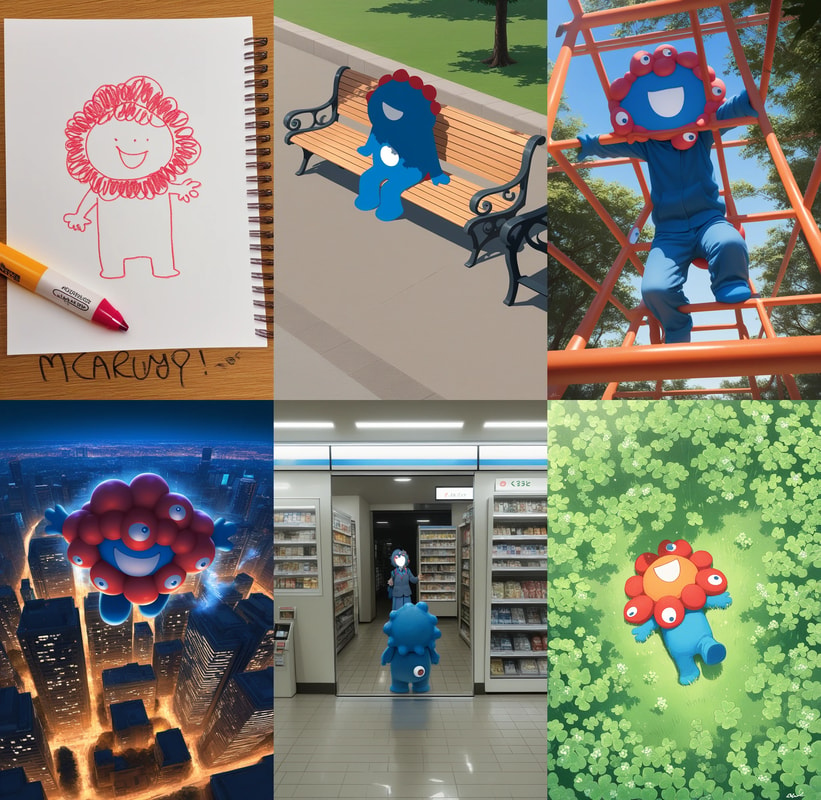
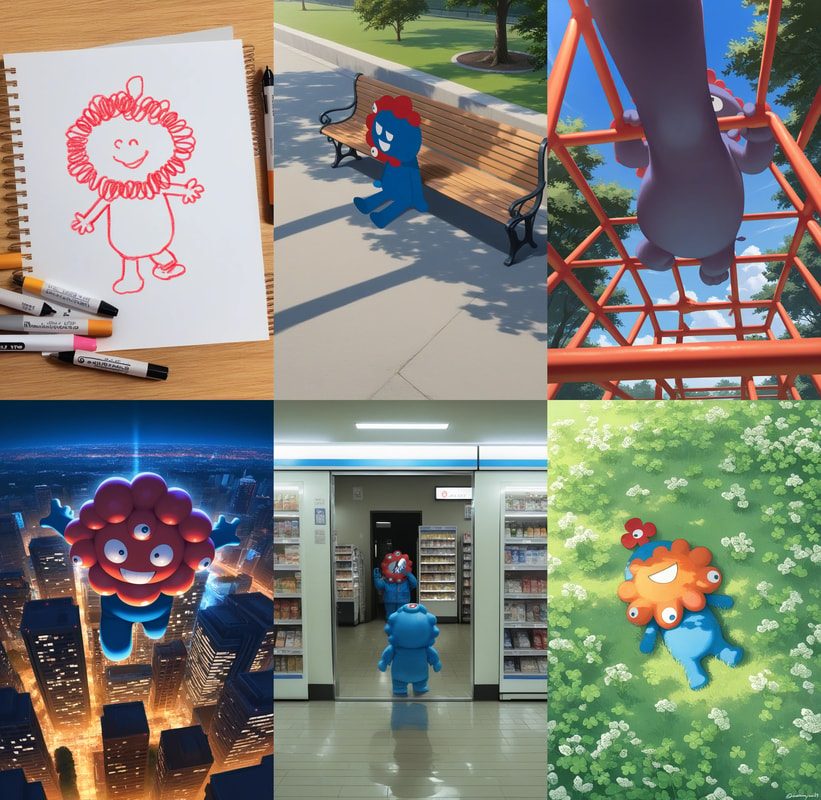
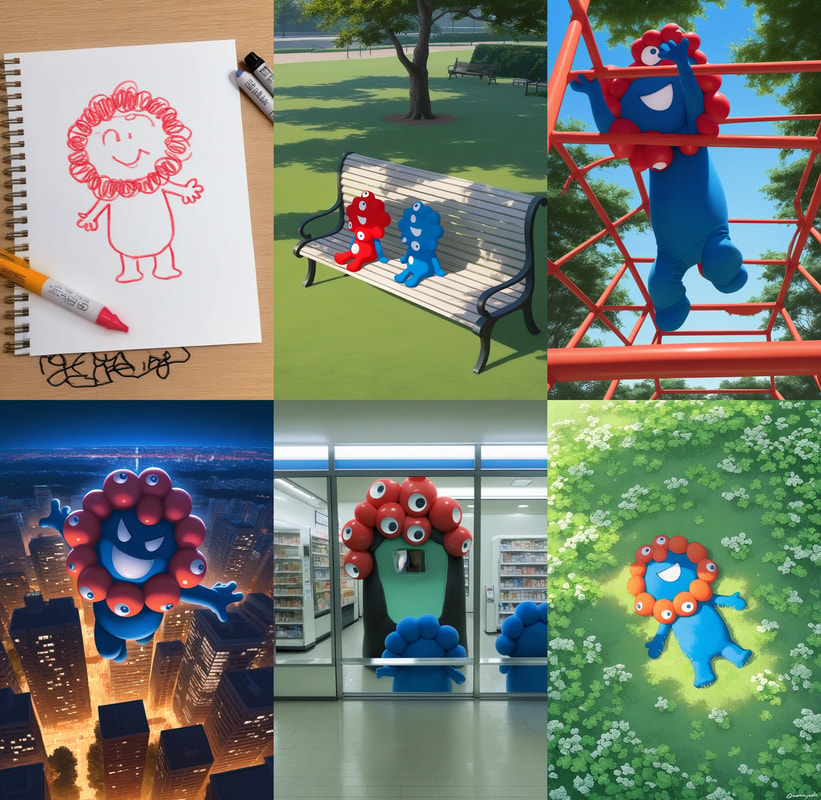
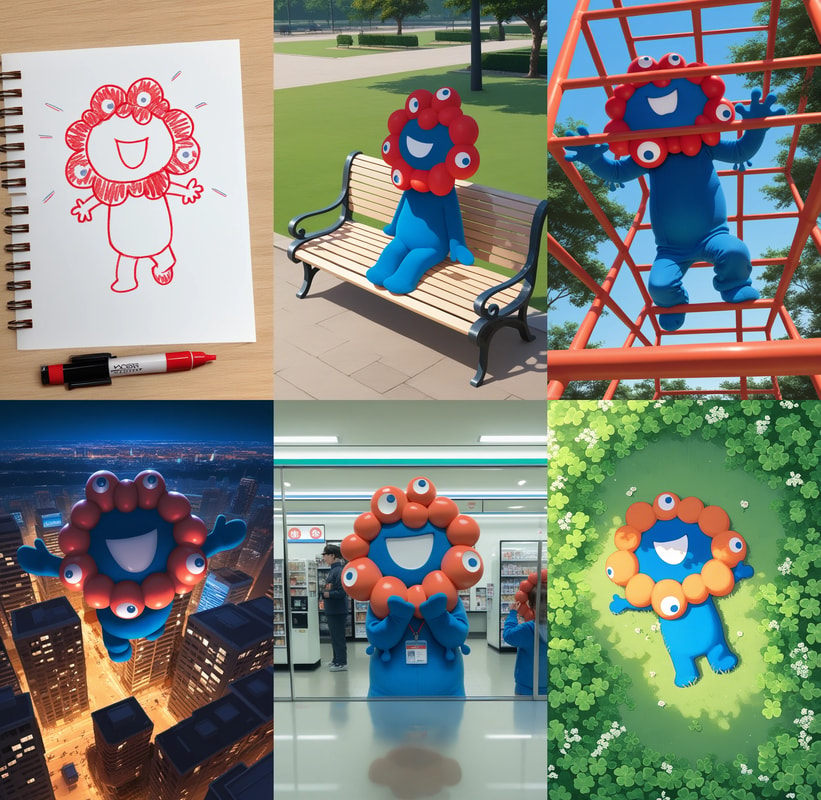
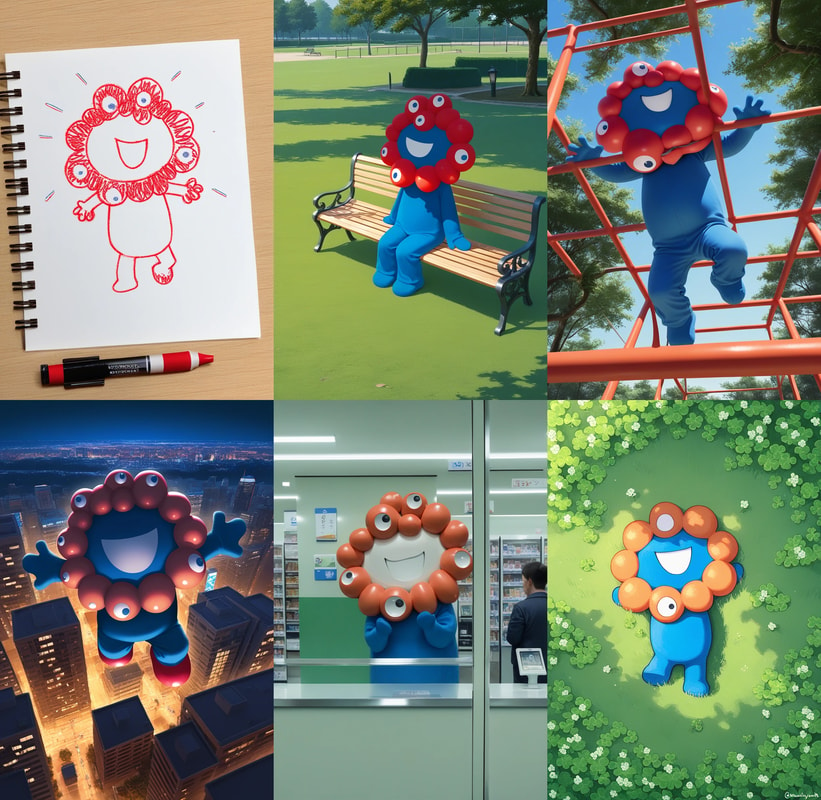
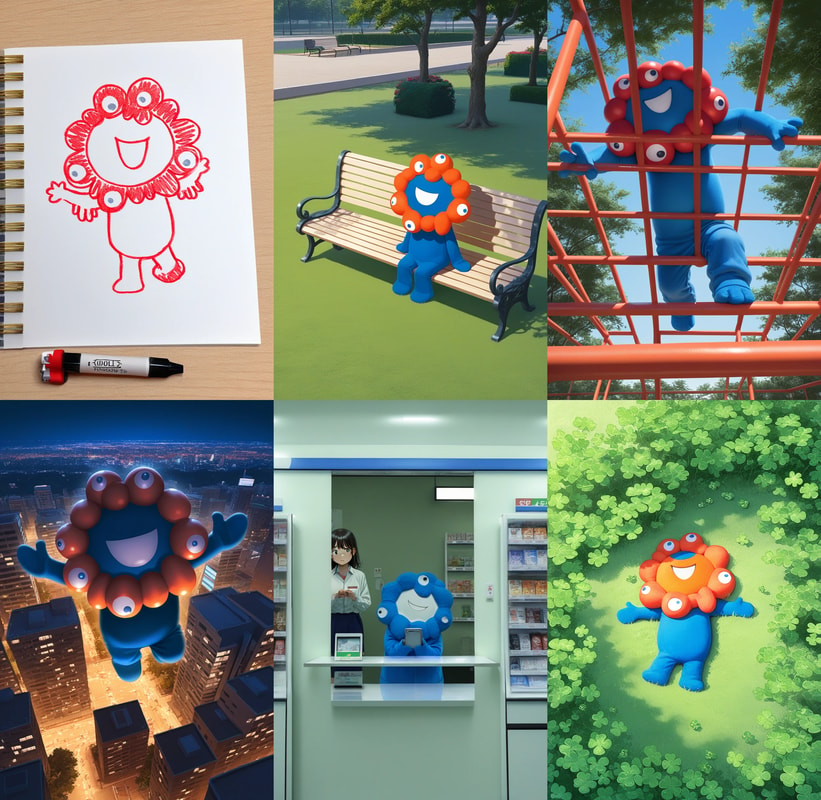
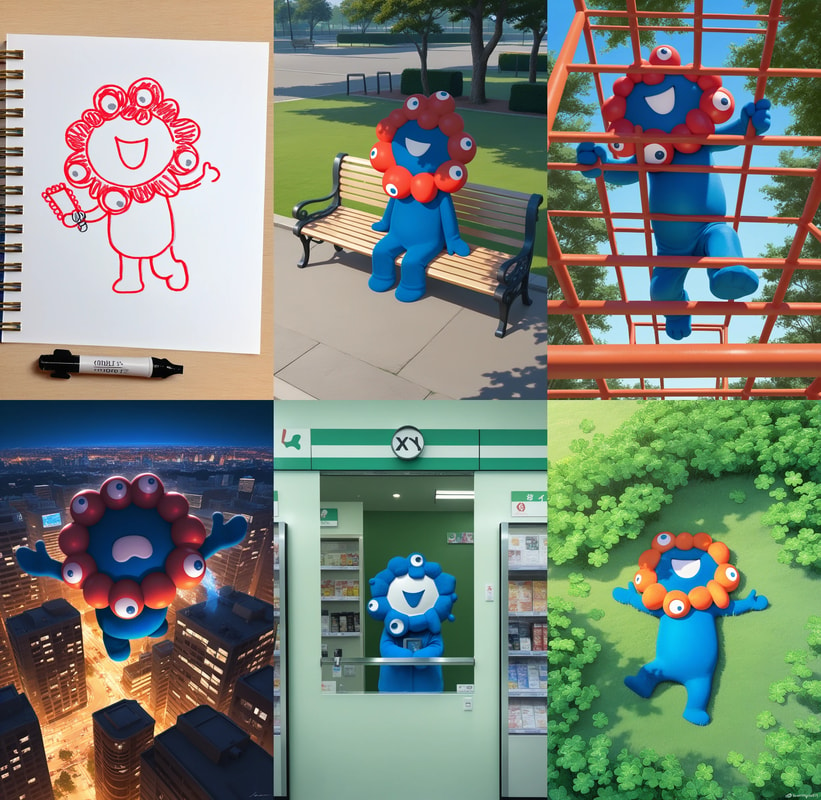
Generation examples by step
Here are examples from this Myaku-Myaku LoRA.
In this run, around 2700 step looks good.