Image Resizing and Cropping
It may seem like a simple task of enlarging an image or cropping it to a square, but it is a very important process in image generation.
- Model's Optimal Resolution: Models have a "resolution where they perform best".
- Saving VRAM: If you inadvertently load and process a 4K image, you will instantly run "Out of memory".
- Unifying Materials: In image compositing, etc., it is necessary to align the sizes of multiple materials.
Since this is a frequently used task, let's firmly understand the differences between each node.
Getting Image Information
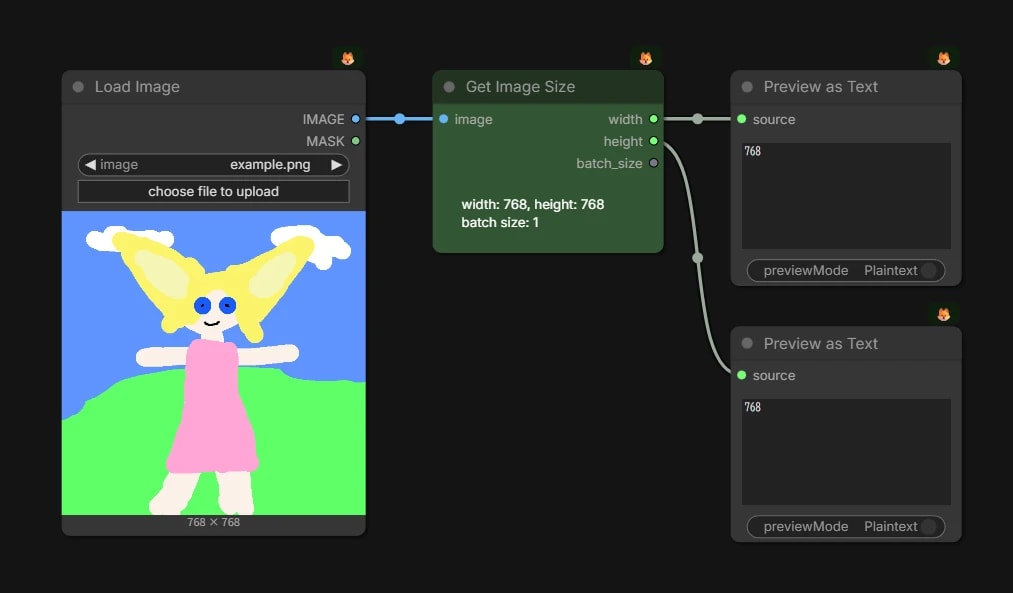
Get Image Size Node
Outputs the width, height, and batch size (count) of the image as numerical values.
{
  "id": "c4311028-f464-4d21-a079-ea6457b21328",
  "revision": 0,
  "last_node_id": 13,
  "last_link_id": 15,
  "nodes": [
    {
      "id": 2,
      "type": "LoadImage",
      "pos": [
        1429.7952880859375,
        120.70687473761723
      ],
      "size": [
        276.28009033203125,
        393.20001220703125
      ],
      "flags": {},
      "order": 0,
      "mode": 0,
      "inputs": [],
      "outputs": [
        {
          "name": "IMAGE",
          "type": "IMAGE",
          "links": [
            9
          ]
        },
        {
          "name": "MASK",
          "type": "MASK",
          "links": null
        }
      ],
      "properties": {
        "Node name for S&R": "LoadImage",
        "cnr_id": "comfy-core",
        "ver": "0.3.36"
      },
      "widgets_values": [
        "example.png",
        "image"
      ]
    },
    {
      "id": 13,
      "type": "PreviewAny",
      "pos": [
        2037.9461794184988,
        353.61446301710606
      ],
      "size": [
        210,
        166
      ],
      "flags": {},
      "order": 3,
      "mode": 0,
      "inputs": [
        {
          "name": "source",
          "type": "*",
          "link": 15
        }
      ],
      "outputs": [],
      "properties": {
        "Node name for S&R": "PreviewAny"
      },
      "widgets_values": [
        null,
        null,
        null
      ]
    },
    {
      "id": 12,
      "type": "PreviewAny",
      "pos": [
        2037.946179418499,
        120.70687473761723
      ],
      "size": [
        210,
        166
      ],
      "flags": {},
      "order": 2,
      "mode": 0,
      "inputs": [
        {
          "name": "source",
          "type": "*",
          "link": 14
        }
      ],
      "outputs": [],
      "properties": {
        "Node name for S&R": "PreviewAny"
      },
      "widgets_values": [
        null,
        null,
        false
      ]
    },
    {
      "id": 10,
      "type": "GetImageSize",
      "pos": [
        1767.0107789182339,
        120.70687473761723
      ],
      "size": [
        210,
        136
      ],
      "flags": {},
      "order": 1,
      "mode": 0,
      "inputs": [
        {
          "name": "image",
          "type": "IMAGE",
          "link": 9
        }
      ],
      "outputs": [
        {
          "name": "width",
          "type": "INT",
          "links": [
            14
          ]
        },
        {
          "name": "height",
          "type": "INT",
          "links": [
            15
          ]
        },
        {
          "name": "batch_size",
          "type": "INT",
          "links": null
        }
      ],
      "properties": {
        "Node name for S&R": "GetImageSize",
        "cnr_id": "comfy-core",
        "ver": "0.3.39"
      },
      "widgets_values": [
        "width: 768, height: 768\n batch size: 1"
      ],
      "color": "#232",
      "bgcolor": "#353"
    }
  ],
  "links": [
    [
      9,
      2,
      0,
      10,
      0,
      "IMAGE"
    ],
    [
      14,
      10,
      0,
      12,
      0,
      "INT"
    ],
    [
      15,
      10,
      1,
      13,
      0,
      "INT"
    ]
  ],
  "groups": [],
  "config": {},
  "extra": {
    "ds": {
      "scale": 1.1,
      "offset": [
        -929.1612871706993,
        295.0754618992246
      ]
    },
    "frontendVersion": "1.38.4",
    "VHS_latentpreview": false,
    "VHS_latentpreviewrate": 0,
    "VHS_MetadataImage": true,
    "VHS_KeepIntermediate": true
  },
  "version": 0.4
}
Resize
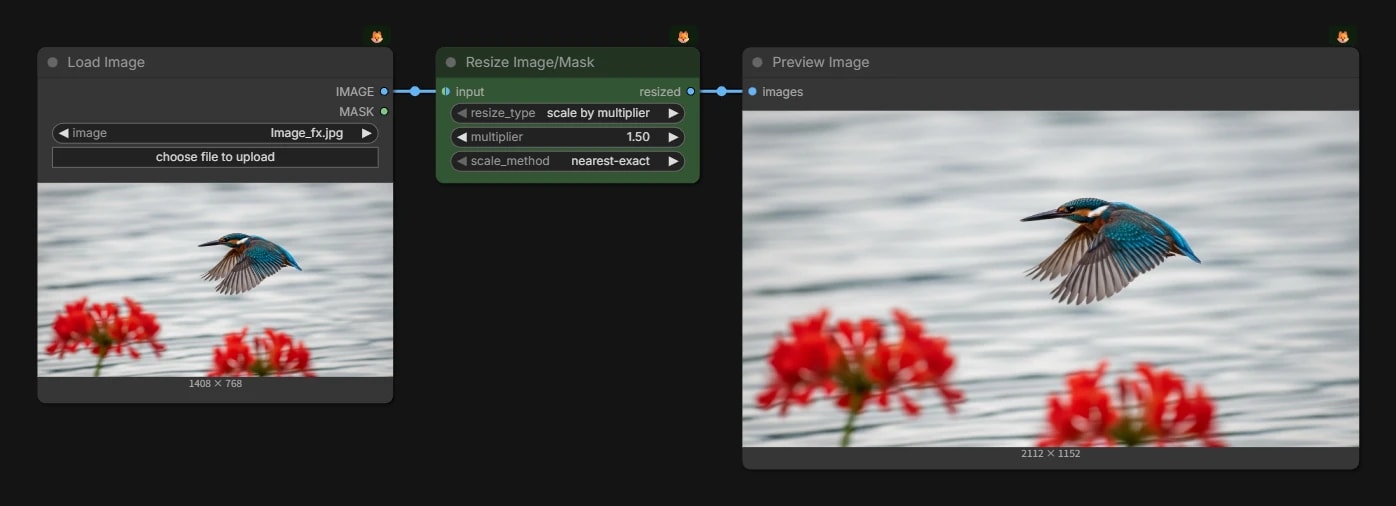
Resize Image/Mask Node
A node that allows you to switch between several resizing methods.
Basically, this one node covers most of the necessary processing. (By the way, masks can also be resized.)
{
  "id": "0836caf4-d27b-44b2-8cab-34ce133141f9",
  "revision": 0,
  "last_node_id": 3,
  "last_link_id": 2,
  "nodes": [
    {
      "id": 2,
      "type": "LoadImage",
      "pos": [
        510.0624955533383,
        195.92614382699202
      ],
      "size": [
        355.63636363636374,
        326
      ],
      "flags": {},
      "order": 0,
      "mode": 0,
      "inputs": [],
      "outputs": [
        {
          "name": "IMAGE",
          "type": "IMAGE",
          "links": [
            1
          ]
        },
        {
          "name": "MASK",
          "type": "MASK",
          "links": null
        }
      ],
      "properties": {
        "Node name for S&R": "LoadImage"
      },
      "widgets_values": [
        "Image_fx.jpg",
        "image"
      ]
    },
    {
      "id": 3,
      "type": "PreviewImage",
      "pos": [
        1214.9702576907946,
        195.92614382699202
      ],
      "size": [
        616.7768595041321,
        392.198347107438
      ],
      "flags": {},
      "order": 2,
      "mode": 0,
      "inputs": [
        {
          "name": "images",
          "type": "IMAGE",
          "link": 2
        }
      ],
      "outputs": [],
      "properties": {
        "Node name for S&R": "PreviewImage"
      },
      "widgets_values": []
    },
    {
      "id": 1,
      "type": "ResizeImageMaskNode",
      "pos": [
        908.3345584402483,
        195.92614382699202
      ],
      "size": [
        264,
        106
      ],
      "flags": {},
      "order": 1,
      "mode": 0,
      "inputs": [
        {
          "name": "input",
          "type": "IMAGE,MASK",
          "link": 1
        }
      ],
      "outputs": [
        {
          "name": "resized",
          "type": "IMAGE",
          "links": [
            2
          ]
        }
      ],
      "properties": {
        "Node name for S&R": "ResizeImageMaskNode"
      },
      "widgets_values": [
        "scale by multiplier",
        1.5,
        "nearest-exact"
      ],
      "color": "#232",
      "bgcolor": "#353"
    }
  ],
  "links": [
    [
      1,
      2,
      0,
      1,
      0,
      "IMAGE"
    ],
    [
      2,
      1,
      0,
      3,
      0,
      "IMAGE"
    ]
  ],
  "groups": [],
  "config": {},
  "extra": {
    "ds": {
      "scale": 1,
      "offset": [
        -121.54552426367871,
        302.38818173595405
      ]
    },
    "frontendVersion": "1.38.4",
    "VHS_latentpreview": false,
    "VHS_latentpreviewrate": 0,
    "VHS_MetadataImage": true,
    "VHS_KeepIntermediate": true
  },
  "version": 0.4
}
scale by multiplier
Scales vertically and horizontally by a "multiplier".
For example, 0.5 makes the vertical and horizontal dimensions half, and 2.0 makes them double.
{
  "id": "0836caf4-d27b-44b2-8cab-34ce133141f9",
  "revision": 0,
  "last_node_id": 5,
  "last_link_id": 4,
  "nodes": [
    {
      "id": 2,
      "type": "LoadImage",
      "pos": [
        510.0624955533383,
        195.92614382699202
      ],
      "size": [
        355.63636363636374,
        326
      ],
      "flags": {},
      "order": 0,
      "mode": 0,
      "inputs": [],
      "outputs": [
        {
          "name": "IMAGE",
          "type": "IMAGE",
          "links": [
            1,
            4
          ]
        },
        {
          "name": "MASK",
          "type": "MASK",
          "links": null
        }
      ],
      "properties": {
        "Node name for S&R": "LoadImage"
      },
      "widgets_values": [
        "Image_fx.jpg",
        "image"
      ]
    },
    {
      "id": 1,
      "type": "ResizeImageMaskNode",
      "pos": [
        908.3345584402483,
        195.92614382699202
      ],
      "size": [
        264,
        154
      ],
      "flags": {},
      "order": 1,
      "mode": 0,
      "inputs": [
        {
          "name": "input",
          "type": "IMAGE,MASK",
          "link": 1
        }
      ],
      "outputs": [
        {
          "name": "resized",
          "type": "IMAGE",
          "links": [
            2
          ]
        }
      ],
      "properties": {
        "Node name for S&R": "ResizeImageMaskNode"
      },
      "widgets_values": [
        "scale dimensions",
        768,
        1024,
        "disabled",
        "nearest-exact"
      ],
      "color": "#232",
      "bgcolor": "#353"
    },
    {
      "id": 3,
      "type": "PreviewImage",
      "pos": [
        1214.9702576907946,
        195.92614382699202
      ],
      "size": [
        332.9768595041321,
        398.798347107438
      ],
      "flags": {},
      "order": 3,
      "mode": 0,
      "inputs": [
        {
          "name": "images",
          "type": "IMAGE",
          "link": 2
        }
      ],
      "outputs": [],
      "properties": {
        "Node name for S&R": "PreviewImage"
      },
      "widgets_values": []
    },
    {
      "id": 4,
      "type": "PreviewImage",
      "pos": [
        1214.9702576907946,
        645.9338317877124
      ],
      "size": [
        332.9768595041321,
        413.0983471074381
      ],
      "flags": {},
      "order": 4,
      "mode": 0,
      "inputs": [
        {
          "name": "images",
          "type": "IMAGE",
          "link": 3
        }
      ],
      "outputs": [],
      "properties": {
        "Node name for S&R": "PreviewImage"
      },
      "widgets_values": []
    },
    {
      "id": 5,
      "type": "ResizeImageMaskNode",
      "pos": [
        912.6802425206289,
        645.9338317877124
      ],
      "size": [
        264,
        154
      ],
      "flags": {
        "collapsed": false
      },
      "order": 2,
      "mode": 0,
      "inputs": [
        {
          "name": "input",
          "type": "IMAGE,MASK",
          "link": 4
        }
      ],
      "outputs": [
        {
          "name": "resized",
          "type": "IMAGE",
          "links": [
            3
          ]
        }
      ],
      "properties": {
        "Node name for S&R": "ResizeImageMaskNode"
      },
      "widgets_values": [
        "scale dimensions",
        767,
        1024,
        "center",
        "nearest-exact"
      ],
      "color": "#323",
      "bgcolor": "#535"
    }
  ],
  "links": [
    [
      1,
      2,
      0,
      1,
      0,
      "IMAGE"
    ],
    [
      2,
      1,
      0,
      3,
      0,
      "IMAGE"
    ],
    [
      3,
      5,
      0,
      4,
      0,
      "IMAGE"
    ],
    [
      4,
      2,
      0,
      5,
      0,
      "IMAGE"
    ]
  ],
  "groups": [],
  "config": {},
  "extra": {
    "ds": {
      "scale": 0.8264462809917354,
      "offset": [
        113.64883367771927,
        235.47609515443676
      ]
    },
    "frontendVersion": "1.38.4",
    "VHS_latentpreview": false,
    "VHS_latentpreviewrate": 0,
    "VHS_MetadataImage": true,
    "VHS_KeepIntermediate": true
  },
  "version": 0.4
}
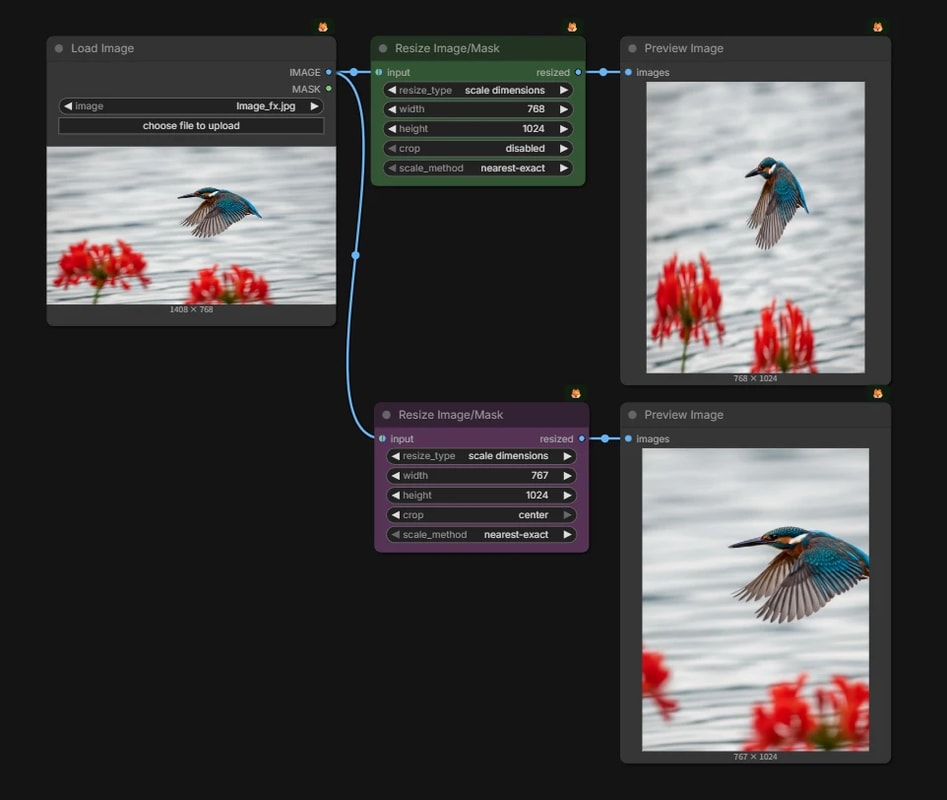
scale dimensions
Forcibly changes the resolution to the specified width and height.
cropdisabled: Distorts the image if the aspect ratio is different.center: Maintains the center and crops (discards) the protruding parts instead of distorting.
{
  "id": "0836caf4-d27b-44b2-8cab-34ce133141f9",
  "revision": 0,
  "last_node_id": 3,
  "last_link_id": 2,
  "nodes": [
    {
      "id": 2,
      "type": "LoadImage",
      "pos": [
        510.0624955533383,
        195.92614382699202
      ],
      "size": [
        355.63636363636374,
        326
      ],
      "flags": {},
      "order": 0,
      "mode": 0,
      "inputs": [],
      "outputs": [
        {
          "name": "IMAGE",
          "type": "IMAGE",
          "links": [
            1
          ]
        },
        {
          "name": "MASK",
          "type": "MASK",
          "links": null
        }
      ],
      "properties": {
        "Node name for S&R": "LoadImage"
      },
      "widgets_values": [
        "Image_fx.jpg",
        "image"
      ]
    },
    {
      "id": 1,
      "type": "ResizeImageMaskNode",
      "pos": [
        908.3345584402483,
        195.92614382699202
      ],
      "size": [
        264,
        106
      ],
      "flags": {},
      "order": 1,
      "mode": 0,
      "inputs": [
        {
          "name": "input",
          "type": "IMAGE,MASK",
          "link": 1
        }
      ],
      "outputs": [
        {
          "name": "resized",
          "type": "IMAGE",
          "links": [
            2
          ]
        }
      ],
      "properties": {
        "Node name for S&R": "ResizeImageMaskNode"
      },
      "widgets_values": [
        "scale longer dimension",
        1024,
        "nearest-exact"
      ],
      "color": "#232",
      "bgcolor": "#353"
    },
    {
      "id": 3,
      "type": "PreviewImage",
      "pos": [
        1214.9702576907946,
        195.92614382699202
      ],
      "size": [
        500.63636363636374,
        324
      ],
      "flags": {},
      "order": 2,
      "mode": 0,
      "inputs": [
        {
          "name": "images",
          "type": "IMAGE",
          "link": 2
        }
      ],
      "outputs": [],
      "properties": {
        "Node name for S&R": "PreviewImage"
      },
      "widgets_values": []
    }
  ],
  "links": [
    [
      1,
      2,
      0,
      1,
      0,
      "IMAGE"
    ],
    [
      2,
      1,
      0,
      3,
      0,
      "IMAGE"
    ]
  ],
  "groups": [],
  "config": {},
  "extra": {
    "ds": {
      "scale": 1,
      "offset": [
        -89.54552426367871,
        278.38818173595405
      ]
    },
    "frontendVersion": "1.38.4",
    "VHS_latentpreview": false,
    "VHS_latentpreviewrate": 0,
    "VHS_MetadataImage": true,
    "VHS_KeepIntermediate": true
  },
  "version": 0.4
}
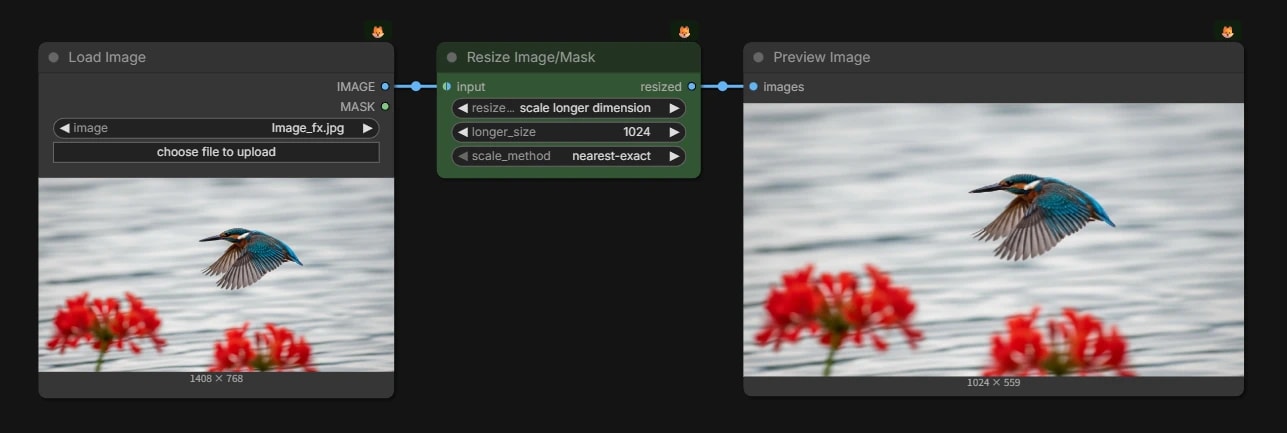
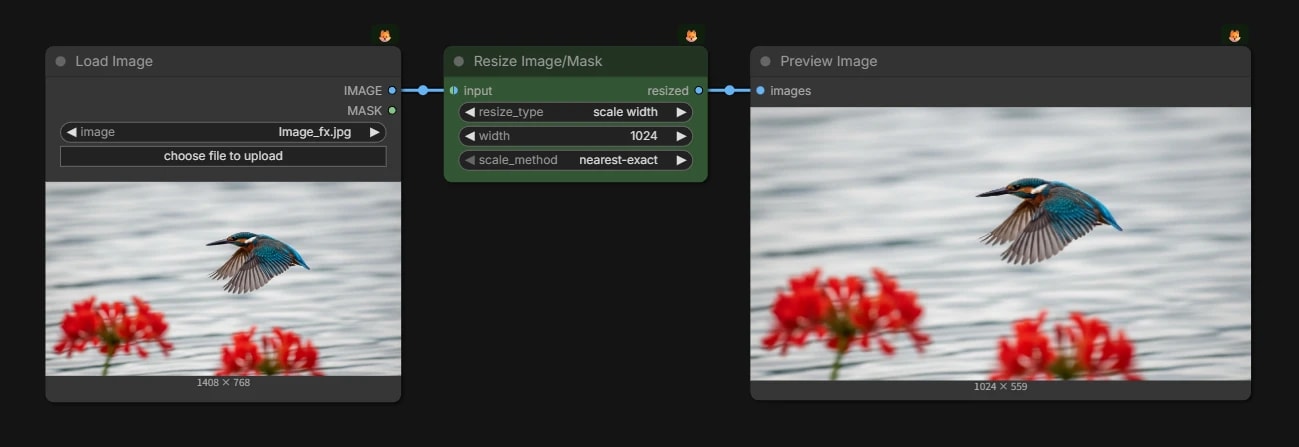
scale longer/shorter dimension
Resizes the image specifying only the long side (longer) or short side (shorter), maintaining the aspect ratio.
{
  "id": "0836caf4-d27b-44b2-8cab-34ce133141f9",
  "revision": 0,
  "last_node_id": 3,
  "last_link_id": 2,
  "nodes": [
    {
      "id": 3,
      "type": "PreviewImage",
      "pos": [
        1214.9702576907946,
        195.92614382699202
      ],
      "size": [
        500.63636363636374,
        324
      ],
      "flags": {},
      "order": 2,
      "mode": 0,
      "inputs": [
        {
          "name": "images",
          "type": "IMAGE",
          "link": 2
        }
      ],
      "outputs": [],
      "properties": {
        "Node name for S&R": "PreviewImage"
      },
      "widgets_values": []
    },
    {
      "id": 2,
      "type": "LoadImage",
      "pos": [
        510.0624955533383,
        195.92614382699202
      ],
      "size": [
        355.63636363636374,
        326
      ],
      "flags": {},
      "order": 0,
      "mode": 0,
      "inputs": [],
      "outputs": [
        {
          "name": "IMAGE",
          "type": "IMAGE",
          "links": [
            1
          ]
        },
        {
          "name": "MASK",
          "type": "MASK",
          "links": null
        }
      ],
      "properties": {
        "Node name for S&R": "LoadImage"
      },
      "widgets_values": [
        "Image_fx.jpg",
        "image"
      ]
    },
    {
      "id": 1,
      "type": "ResizeImageMaskNode",
      "pos": [
        908.3345584402483,
        195.92614382699202
      ],
      "size": [
        264,
        106
      ],
      "flags": {},
      "order": 1,
      "mode": 0,
      "inputs": [
        {
          "name": "input",
          "type": "IMAGE,MASK",
          "link": 1
        }
      ],
      "outputs": [
        {
          "name": "resized",
          "type": "IMAGE",
          "links": [
            2
          ]
        }
      ],
      "properties": {
        "Node name for S&R": "ResizeImageMaskNode"
      },
      "widgets_values": [
        "scale width",
        1024,
        "nearest-exact"
      ],
      "color": "#232",
      "bgcolor": "#353"
    }
  ],
  "links": [
    [
      1,
      2,
      0,
      1,
      0,
      "IMAGE"
    ],
    [
      2,
      1,
      0,
      3,
      0,
      "IMAGE"
    ]
  ],
  "groups": [],
  "config": {},
  "extra": {
    "ds": {
      "scale": 1,
      "offset": [
        -89.54552426367871,
        278.38818173595405
      ]
    },
    "frontendVersion": "1.38.4",
    "VHS_latentpreview": false,
    "VHS_latentpreviewrate": 0,
    "VHS_MetadataImage": true,
    "VHS_KeepIntermediate": true
  },
  "version": 0.4
}
scale width/height
Resizes the image specifying only either the width or height, maintaining the aspect ratio.
{
  "id": "0836caf4-d27b-44b2-8cab-34ce133141f9",
  "revision": 0,
  "last_node_id": 3,
  "last_link_id": 2,
  "nodes": [
    {
      "id": 3,
      "type": "PreviewImage",
      "pos": [
        1214.9702576907946,
        195.92614382699202
      ],
      "size": [
        500.63636363636374,
        324
      ],
      "flags": {},
      "order": 2,
      "mode": 0,
      "inputs": [
        {
          "name": "images",
          "type": "IMAGE",
          "link": 2
        }
      ],
      "outputs": [
        {
          "name": "images",
          "type": "IMAGE",
          "links": null
        }
      ],
      "properties": {
        "Node name for S&R": "PreviewImage"
      },
      "widgets_values": [],
      "widgets_values_named": {}
    },
    {
      "id": 2,
      "type": "LoadImage",
      "pos": [
        510.0624955533383,
        195.92614382699202
      ],
      "size": [
        355.63636363636374,
        326
      ],
      "flags": {},
      "order": 0,
      "mode": 0,
      "inputs": [],
      "outputs": [
        {
          "name": "IMAGE",
          "type": "IMAGE",
          "links": [
            1
          ]
        },
        {
          "name": "MASK",
          "type": "MASK",
          "links": null
        }
      ],
      "properties": {
        "Node name for S&R": "LoadImage"
      },
      "widgets_values": [
        "Image_fx.jpg",
        "image"
      ],
      "widgets_values_named": {
        "image": "Image_fx.jpg",
        "upload": "image"
      }
    },
    {
      "id": 1,
      "type": "ResizeImageMaskNode",
      "pos": [
        908.3345584402483,
        195.92614382699202
      ],
      "size": [
        264,
        106
      ],
      "flags": {},
      "order": 1,
      "mode": 0,
      "inputs": [
        {
          "name": "input",
          "type": "IMAGE,MASK",
          "link": 1
        }
      ],
      "outputs": [
        {
          "name": "resized",
          "type": "IMAGE",
          "links": [
            2
          ]
        }
      ],
      "properties": {
        "Node name for S&R": "ResizeImageMaskNode"
      },
      "widgets_values": [
        "scale total pixels",
        1,
        "nearest-exact"
      ],
      "widgets_values_named": {
        "resize_type": "scale total pixels",
        "resize_type.megapixels": 1,
        "scale_method": "nearest-exact"
      },
      "color": "#232",
      "bgcolor": "#353"
    }
  ],
  "links": [
    [
      1,
      2,
      0,
      1,
      0,
      "IMAGE"
    ],
    [
      2,
      1,
      0,
      3,
      0,
      "IMAGE"
    ]
  ],
  "groups": [],
  "config": {},
  "extra": {
    "ds": {
      "scale": 0.7513148009015777,
      "offset": [
        172.90147573632163,
        369.3241817359541
      ]
    },
    "frontendVersion": "1.51.9",
    "VHS_latentpreview": false,
    "VHS_latentpreviewrate": 0,
    "VHS_MetadataImage": true,
    "VHS_KeepIntermediate": true
  },
  "version": 0.4
}
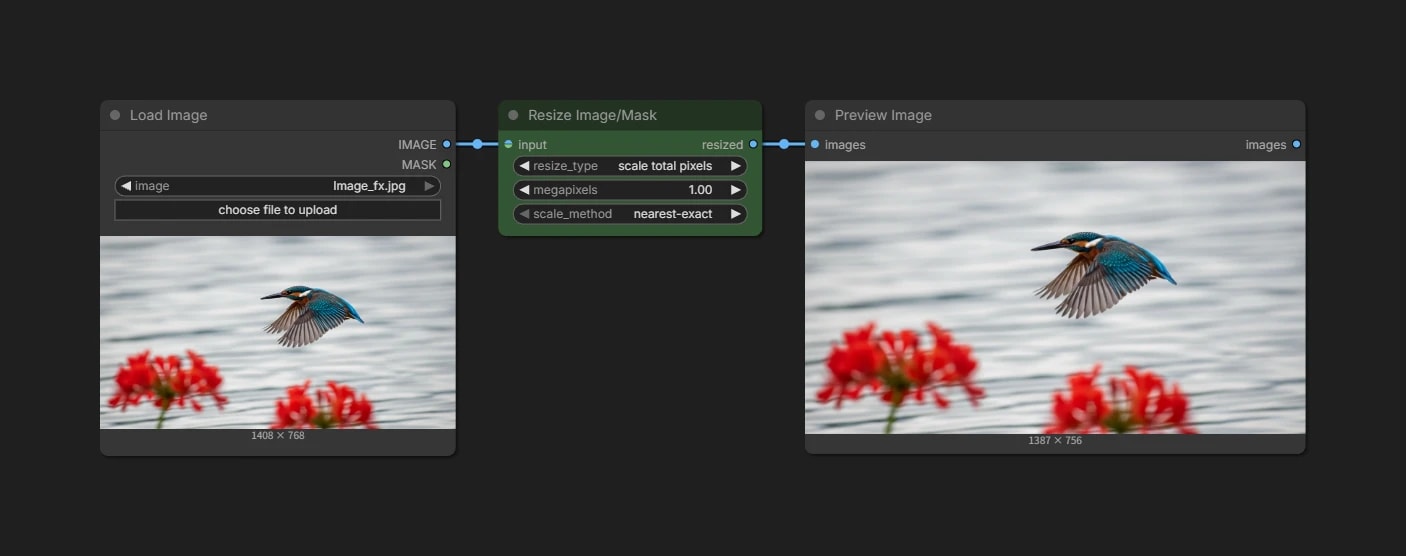
scale total pixels
Resizes the image to match the specified total number of pixels while maintaining the aspect ratio.
Calculated as 1024 * 1024 = 1.00MP.
| Target Size | Total Pixels | Setting Value |
|---|---|---|
| 512 × 512 | 262,144 | 0.25 |
| 768 × 768 | 589,824 | 0.56 |
| 1024 × 1024 | 1,048,576 | 1.00 |
| 1536 × 1536 | 2,359,296 | 2.25 |
{
  "id": "0836caf4-d27b-44b2-8cab-34ce133141f9",
  "revision": 0,
  "last_node_id": 6,
  "last_link_id": 6,
  "nodes": [
    {
      "id": 1,
      "type": "ResizeImageMaskNode",
      "pos": [
        893.7663906331555,
        88.11514382699193
      ],
      "size": [
        264,
        126
      ],
      "flags": {},
      "order": 2,
      "mode": 0,
      "inputs": [
        {
          "name": "input",
          "type": "IMAGE,MASK",
          "link": 1
        },
        {
          "label": "match",
          "name": "resize_type.match",
          "type": "IMAGE,MASK",
          "link": 3
        }
      ],
      "outputs": [
        {
          "name": "resized",
          "type": "IMAGE",
          "links": [
            2
          ]
        }
      ],
      "properties": {
        "Node name for S&R": "ResizeImageMaskNode"
      },
      "widgets_values": [
        "match size",
        "disabled",
        "nearest-exact"
      ],
      "color": "#232",
      "bgcolor": "#353"
    },
    {
      "id": 4,
      "type": "LoadImage",
      "pos": [
        546.2634955533385,
        563.3387801906282
      ],
      "size": [
        280.83636363636367,
        463.5
      ],
      "flags": {},
      "order": 0,
      "mode": 0,
      "inputs": [],
      "outputs": [
        {
          "name": "IMAGE",
          "type": "IMAGE",
          "links": [
            3,
            6
          ]
        },
        {
          "name": "MASK",
          "type": "MASK",
          "links": null
        }
      ],
      "properties": {
        "Node name for S&R": "LoadImage"
      },
      "widgets_values": [
        "ComfyUI_03750_.png",
        "image"
      ]
    },
    {
      "id": 3,
      "type": "PreviewImage",
      "pos": [
        1224.432922076609,
        88.11514382699193
      ],
      "size": [
        306.3103636363637,
        401.19800000000004
      ],
      "flags": {},
      "order": 4,
      "mode": 0,
      "inputs": [
        {
          "name": "images",
          "type": "IMAGE",
          "link": 2
        }
      ],
      "outputs": [],
      "properties": {
        "Node name for S&R": "PreviewImage"
      },
      "widgets_values": []
    },
    {
      "id": 5,
      "type": "PreviewImage",
      "pos": [
        1224.4329220766087,
        563.3387801906282
      ],
      "size": [
        306.3103636363637,
        401.19800000000004
      ],
      "flags": {},
      "order": 5,
      "mode": 0,
      "inputs": [
        {
          "name": "images",
          "type": "IMAGE",
          "link": 4
        }
      ],
      "outputs": [],
      "properties": {
        "Node name for S&R": "PreviewImage"
      },
      "widgets_values": []
    },
    {
      "id": 2,
      "type": "LoadImage",
      "pos": [
        471.4634955533385,
        88.11514382699193
      ],
      "size": [
        355.63636363636374,
        326
      ],
      "flags": {},
      "order": 1,
      "mode": 0,
      "inputs": [],
      "outputs": [
        {
          "name": "IMAGE",
          "type": "IMAGE",
          "links": [
            1,
            5
          ]
        },
        {
          "name": "MASK",
          "type": "MASK",
          "links": null
        }
      ],
      "properties": {
        "Node name for S&R": "LoadImage"
      },
      "widgets_values": [
        "Image_fx.jpg",
        "image"
      ]
    },
    {
      "id": 6,
      "type": "ResizeImageMaskNode",
      "pos": [
        893.7663906331554,
        563.3387801906282
      ],
      "size": [
        264,
        126
      ],
      "flags": {},
      "order": 3,
      "mode": 0,
      "inputs": [
        {
          "name": "input",
          "type": "IMAGE,MASK",
          "link": 5
        },
        {
          "label": "match",
          "name": "resize_type.match",
          "type": "IMAGE,MASK",
          "link": 6
        }
      ],
      "outputs": [
        {
          "name": "resized",
          "type": "IMAGE",
          "links": [
            4
          ]
        }
      ],
      "properties": {
        "Node name for S&R": "ResizeImageMaskNode"
      },
      "widgets_values": [
        "match size",
        "center",
        "nearest-exact"
      ],
      "color": "#323",
      "bgcolor": "#535"
    }
  ],
  "links": [
    [
      1,
      2,
      0,
      1,
      0,
      "IMAGE"
    ],
    [
      2,
      1,
      0,
      3,
      0,
      "IMAGE"
    ],
    [
      3,
      4,
      0,
      1,
      1,
      "IMAGE"
    ],
    [
      4,
      6,
      0,
      5,
      0,
      "IMAGE"
    ],
    [
      5,
      2,
      0,
      6,
      0,
      "IMAGE"
    ],
    [
      6,
      4,
      0,
      6,
      1,
      "IMAGE"
    ]
  ],
  "groups": [],
  "config": {},
  "extra": {
    "ds": {
      "scale": 0.7513148009015777,
      "offset": [
        169.77265899211667,
        324.0208561730081
      ]
    },
    "frontendVersion": "1.38.4",
    "VHS_latentpreview": false,
    "VHS_latentpreviewrate": 0,
    "VHS_MetadataImage": true,
    "VHS_KeepIntermediate": true
  },
  "version": 0.4
}
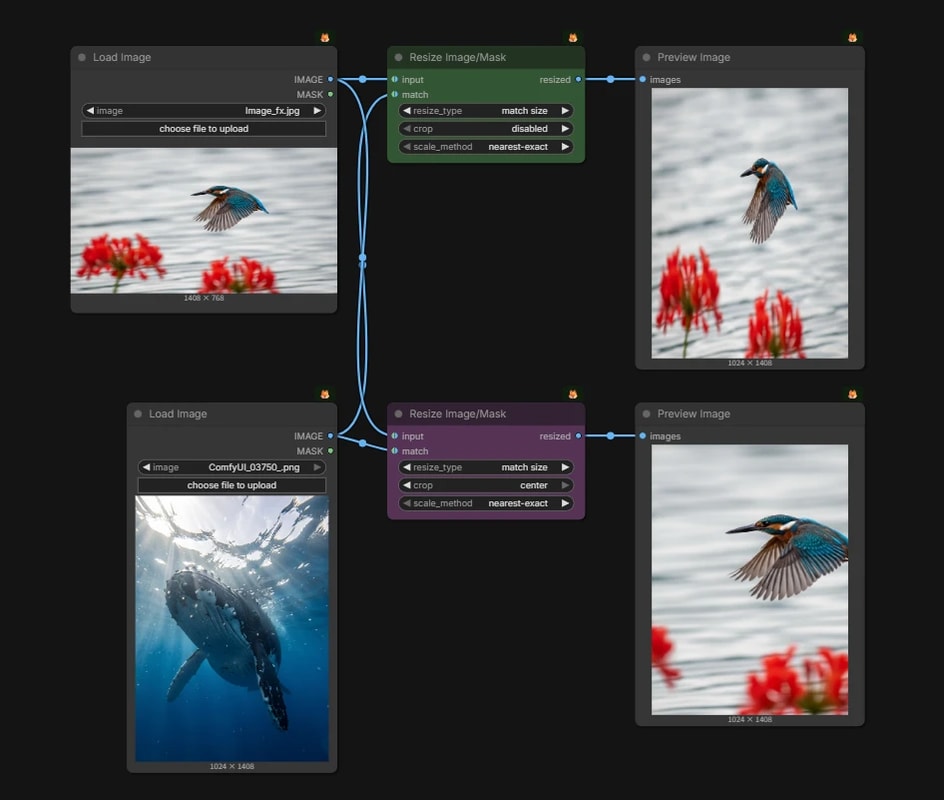
match size
Resizes the image to match the size of a reference image.
Previously, it was necessary to get the size of the reference image and pass it to another node, but now this combines it into one.
match: Connect the image you want to use as a reference.cropdisabled: Distorts the image if the aspect ratio is different.center: Maintains the center and crops (discards) the protruding parts.
{
  "id": "0836caf4-d27b-44b2-8cab-34ce133141f9",
  "revision": 0,
  "last_node_id": 3,
  "last_link_id": 2,
  "nodes": [
    {
      "id": 3,
      "type": "PreviewImage",
      "pos": [
        1214.9702576907946,
        195.92614382699202
      ],
      "size": [
        500.63636363636374,
        324
      ],
      "flags": {},
      "order": 2,
      "mode": 0,
      "inputs": [
        {
          "name": "images",
          "type": "IMAGE",
          "link": 2
        }
      ],
      "outputs": [],
      "properties": {
        "Node name for S&R": "PreviewImage"
      },
      "widgets_values": []
    },
    {
      "id": 2,
      "type": "LoadImage",
      "pos": [
        510.0624955533383,
        195.92614382699202
      ],
      "size": [
        355.63636363636374,
        326
      ],
      "flags": {},
      "order": 0,
      "mode": 0,
      "inputs": [],
      "outputs": [
        {
          "name": "IMAGE",
          "type": "IMAGE",
          "links": [
            1
          ]
        },
        {
          "name": "MASK",
          "type": "MASK",
          "links": null
        }
      ],
      "properties": {
        "Node name for S&R": "LoadImage"
      },
      "widgets_values": [
        "Image_fx.jpg",
        "image"
      ]
    },
    {
      "id": 1,
      "type": "ResizeImageMaskNode",
      "pos": [
        908.3345584402483,
        195.92614382699202
      ],
      "size": [
        264,
        106
      ],
      "flags": {},
      "order": 1,
      "mode": 0,
      "inputs": [
        {
          "name": "input",
          "type": "IMAGE,MASK",
          "link": 1
        }
      ],
      "outputs": [
        {
          "name": "resized",
          "type": "IMAGE",
          "links": [
            2
          ]
        }
      ],
      "properties": {
        "Node name for S&R": "ResizeImageMaskNode"
      },
      "widgets_values": [
        "scale to multiple",
        32,
        "nearest-exact"
      ],
      "color": "#232",
      "bgcolor": "#353"
    }
  ],
  "links": [
    [
      1,
      2,
      0,
      1,
      0,
      "IMAGE"
    ],
    [
      2,
      1,
      0,
      3,
      0,
      "IMAGE"
    ]
  ],
  "groups": [],
  "config": {},
  "extra": {
    "ds": {
      "scale": 0.9090909090909091,
      "offset": [
        -30.34552426367867,
        419.4881817359541
      ]
    },
    "frontendVersion": "1.38.4",
    "VHS_latentpreview": false,
    "VHS_latentpreviewrate": 0,
    "VHS_MetadataImage": true,
    "VHS_KeepIntermediate": true
  },
  "version": 0.4
}
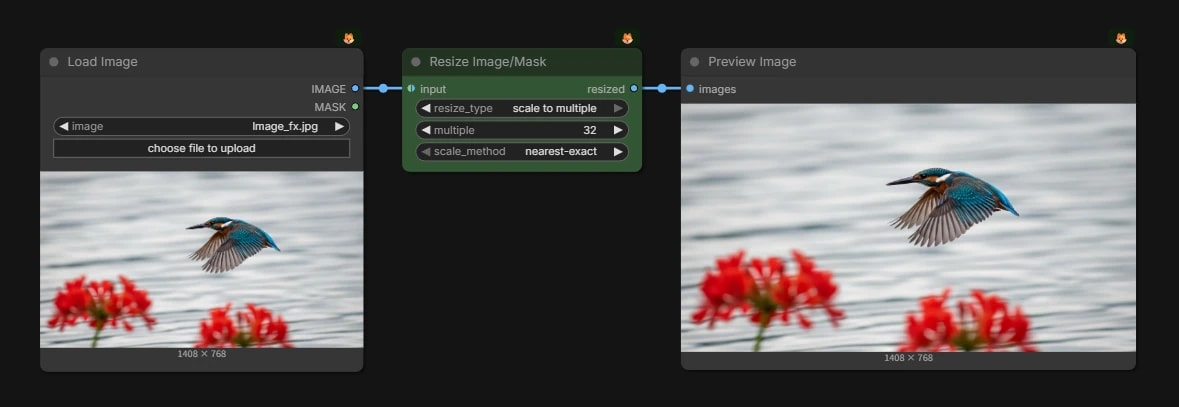
scale to multiple
Resizes the vertical and horizontal dimensions to be multiples of N.
Details are explained in Why can I only generate resolutions that are multiples of 8?, but in short, diffusion models cannot handle resolutions that are not specific multiples due to VAE limitations.
Basically, ComfyUI often adjusts automatically internally, so there isn't much need for this node unless you encounter errors with non-specific resolutions, or when you want to "perfectly match" the pixels of the input and output.
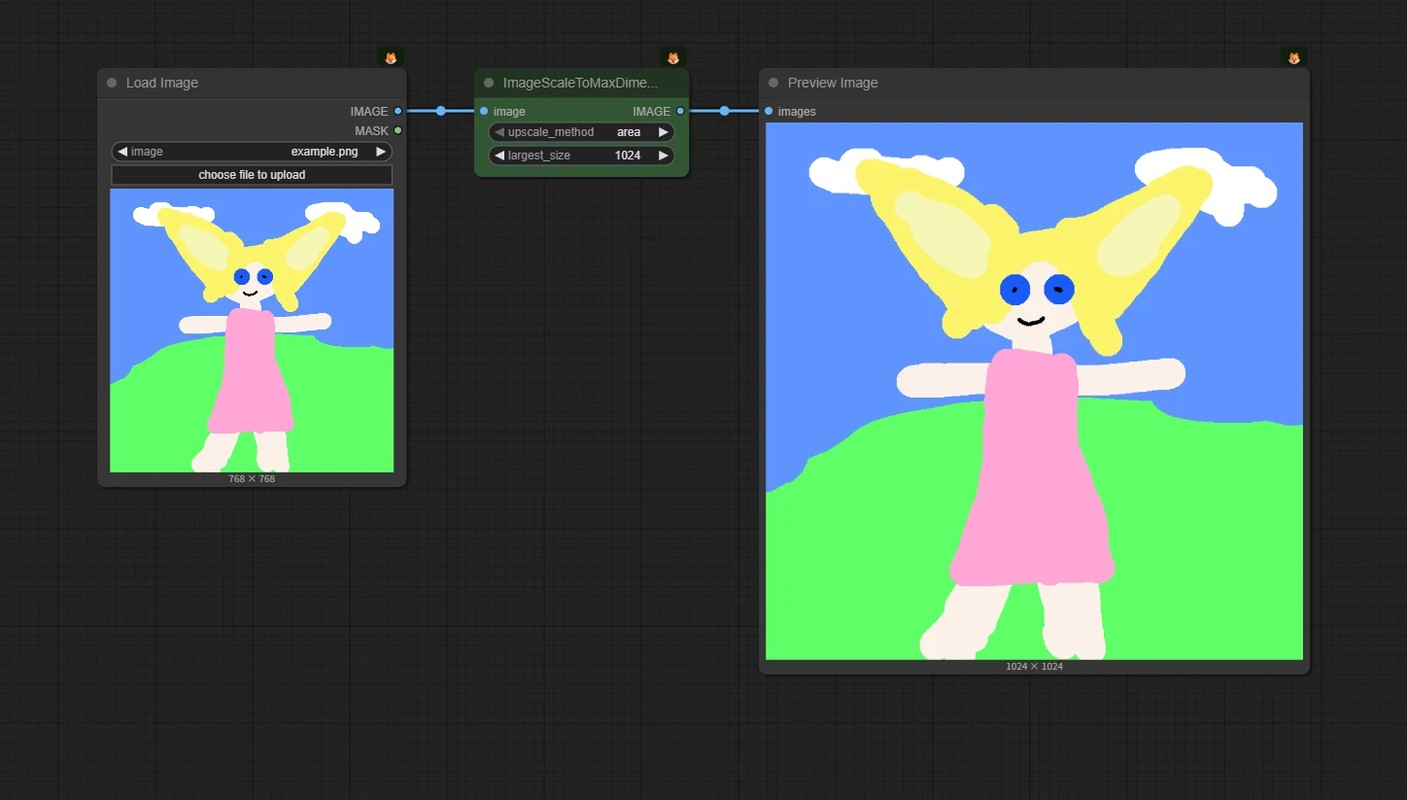
ImageScaleToMaxDimension Node
Resizes the image so that the long side becomes the set size, maintaining the aspect ratio.
(Example: Whether it is a portrait or landscape image, make the longer side 1024px)
{
  "id": "5afabc21-bbd6-4ea3-bd3a-ce4c1dedc9c8",
  "revision": 0,
  "last_node_id": 60,
  "last_link_id": 88,
  "nodes": [
    {
      "id": 53,
      "type": "LoadImage",
      "pos": [
        141,
        157
      ],
      "size": [
        318.50177001953125,
        400.92742919921875
      ],
      "flags": {},
      "order": 0,
      "mode": 0,
      "inputs": [],
      "outputs": [
        {
          "name": "IMAGE",
          "type": "IMAGE",
          "slot_index": 0,
          "links": [
            87
          ]
        },
        {
          "name": "MASK",
          "type": "MASK",
          "links": null
        }
      ],
      "properties": {
        "cnr_id": "comfy-core",
        "ver": "0.3.59",
        "Node name for S&R": "LoadImage"
      },
      "widgets_values": [
        "example.png",
        "image"
      ]
    },
    {
      "id": 54,
      "type": "PreviewImage",
      "pos": [
        822,
        157
      ],
      "size": [
        567.1885375976562,
        593.7391967773438
      ],
      "flags": {},
      "order": 2,
      "mode": 0,
      "inputs": [
        {
          "name": "images",
          "type": "IMAGE",
          "link": 88
        }
      ],
      "outputs": [],
      "properties": {
        "cnr_id": "comfy-core",
        "ver": "0.3.59",
        "Node name for S&R": "PreviewImage"
      },
      "widgets_values": []
    },
    {
      "id": 60,
      "type": "ImageScaleToMaxDimension",
      "pos": [
        529,
        157
      ],
      "size": [
        221.20272827148438,
        82
      ],
      "flags": {},
      "order": 1,
      "mode": 0,
      "inputs": [
        {
          "name": "image",
          "type": "IMAGE",
          "link": 87
        }
      ],
      "outputs": [
        {
          "name": "IMAGE",
          "type": "IMAGE",
          "links": [
            88
          ]
        }
      ],
      "properties": {
        "cnr_id": "comfy-core",
        "ver": "0.3.59",
        "Node name for S&R": "ImageScaleToMaxDimension"
      },
      "widgets_values": [
        "area",
        1024
      ],
      "color": "#232",
      "bgcolor": "#353"
    }
  ],
  "links": [
    [
      87,
      53,
      0,
      60,
      0,
      "IMAGE"
    ],
    [
      88,
      60,
      0,
      54,
      0,
      "IMAGE"
    ]
  ],
  "groups": [],
  "config": {},
  "extra": {
    "ds": {
      "scale": 1.3310000000000004,
      "offset": [
        -41,
        -57
      ]
    },
    "frontendVersion": "1.28.0",
    "VHS_latentpreview": false,
    "VHS_latentpreviewrate": 0,
    "VHS_MetadataImage": true,
    "VHS_KeepIntermediate": true
  },
  "version": 0.4
}
Padding
Padding is the process of adjusting the size by adding margins (black bars, etc.) around the image.
Depending on the node, this margin part can be output as a mask, so it is used as preparation for Outpainting.
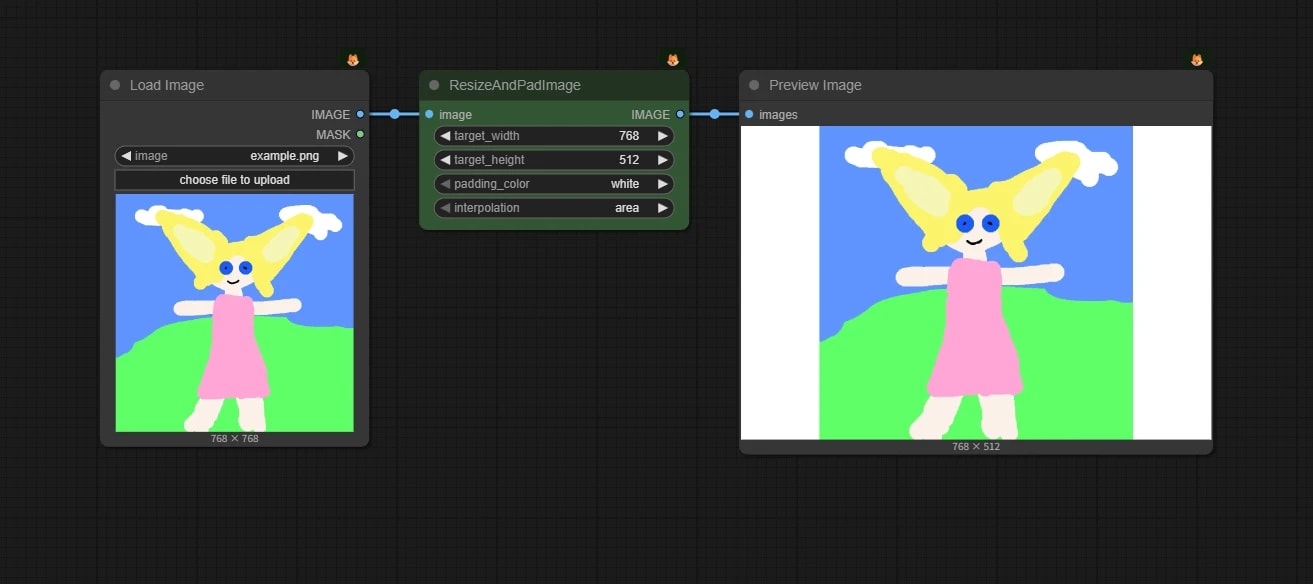
ResizeAndPadImage Node
Resizes to the specified resolution and fills the missing parts with padding.
{
  "id": "3c344b31-2cca-43a0-acc2-33295e766391",
  "revision": 0,
  "last_node_id": 16,
  "last_link_id": 15,
  "nodes": [
    {
      "id": 3,
      "type": "PreviewImage",
      "pos": [
        2443.600341796875,
        382.6131591796875
      ],
      "size": [
        474.1802079876393,
        354.5867351287129
      ],
      "flags": {},
      "order": 2,
      "mode": 0,
      "inputs": [
        {
          "name": "images",
          "type": "IMAGE",
          "link": 15
        }
      ],
      "outputs": [],
      "properties": {
        "cnr_id": "comfy-core",
        "ver": "0.3.44",
        "Node name for S&R": "PreviewImage"
      },
      "widgets_values": []
    },
    {
      "id": 1,
      "type": "LoadImage",
      "pos": [
        1804.466796875,
        382.6131591796875
      ],
      "size": [
        269.2518615722656,
        346.83184814453125
      ],
      "flags": {},
      "order": 0,
      "mode": 0,
      "inputs": [],
      "outputs": [
        {
          "name": "IMAGE",
          "type": "IMAGE",
          "links": [
            14
          ]
        },
        {
          "name": "MASK",
          "type": "MASK",
          "links": null
        }
      ],
      "properties": {
        "cnr_id": "comfy-core",
        "ver": "0.3.44",
        "Node name for S&R": "LoadImage"
      },
      "widgets_values": [
        "example.png",
        "image"
      ]
    },
    {
      "id": 16,
      "type": "ResizeAndPadImage",
      "pos": [
        2123.6595001220703,
        382.6131591796875
      ],
      "size": [
        270,
        130
      ],
      "flags": {},
      "order": 1,
      "mode": 0,
      "inputs": [
        {
          "name": "image",
          "type": "IMAGE",
          "link": 14
        }
      ],
      "outputs": [
        {
          "name": "IMAGE",
          "type": "IMAGE",
          "links": [
            15
          ]
        }
      ],
      "properties": {
        "cnr_id": "comfy-core",
        "ver": "0.3.71",
        "Node name for S&R": "ResizeAndPadImage"
      },
      "widgets_values": [
        768,
        512,
        "white",
        "area"
      ],
      "color": "#232",
      "bgcolor": "#353"
    }
  ],
  "links": [
    [
      14,
      1,
      0,
      16,
      0,
      "IMAGE"
    ],
    [
      15,
      16,
      0,
      3,
      0,
      "IMAGE"
    ]
  ],
  "groups": [],
  "config": {},
  "extra": {
    "ds": {
      "scale": 0.8390545288824027,
      "offset": [
        -1704.466796875,
        -282.6131591796875
      ]
    },
    "frontendVersion": "1.30.6",
    "VHS_latentpreview": false,
    "VHS_latentpreviewrate": 0,
    "VHS_MetadataImage": true,
    "VHS_KeepIntermediate": true
  },
  "version": 0.4
}
Since this node cannot output the padding part as a mask, there are practically no occasions to use it.
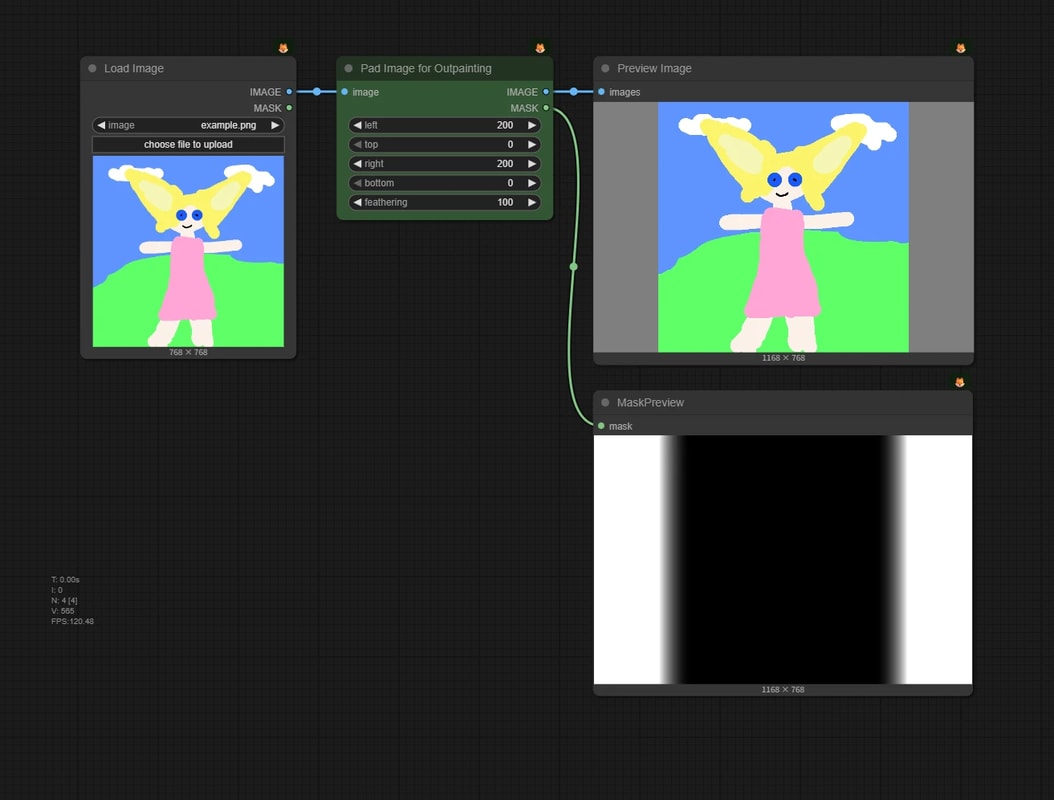
Pad Image for Outpainting Node
Adds margins of the specified number of pixels to the top, bottom, left, and right of the image.
{
  "id": "3c344b31-2cca-43a0-acc2-33295e766391",
  "revision": 0,
  "last_node_id": 15,
  "last_link_id": 13,
  "nodes": [
    {
      "id": 1,
      "type": "LoadImage",
      "pos": [
        1804.466796875,
        382.6131591796875
      ],
      "size": [
        269.2518615722656,
        346.83184814453125
      ],
      "flags": {},
      "order": 0,
      "mode": 0,
      "inputs": [],
      "outputs": [
        {
          "name": "IMAGE",
          "type": "IMAGE",
          "links": [
            5
          ]
        },
        {
          "name": "MASK",
          "type": "MASK",
          "links": null
        }
      ],
      "properties": {
        "cnr_id": "comfy-core",
        "ver": "0.3.44",
        "Node name for S&R": "LoadImage"
      },
      "widgets_values": [
        "example.png",
        "image"
      ]
    },
    {
      "id": 3,
      "type": "PreviewImage",
      "pos": [
        2443.600341796875,
        382.6131591796875
      ],
      "size": [
        474.1802079876393,
        354.5867351287129
      ],
      "flags": {},
      "order": 2,
      "mode": 0,
      "inputs": [
        {
          "name": "images",
          "type": "IMAGE",
          "link": 11
        }
      ],
      "outputs": [],
      "properties": {
        "cnr_id": "comfy-core",
        "ver": "0.3.44",
        "Node name for S&R": "PreviewImage"
      },
      "widgets_values": []
    },
    {
      "id": 11,
      "type": "ImagePadForOutpaint",
      "pos": [
        2123.6595001220703,
        382.6131591796875
      ],
      "size": [
        270,
        174
      ],
      "flags": {},
      "order": 1,
      "mode": 0,
      "inputs": [
        {
          "name": "image",
          "type": "IMAGE",
          "link": 5
        }
      ],
      "outputs": [
        {
          "name": "IMAGE",
          "type": "IMAGE",
          "links": [
            11
          ]
        },
        {
          "name": "MASK",
          "type": "MASK",
          "links": [
            13
          ]
        }
      ],
      "properties": {
        "cnr_id": "comfy-core",
        "ver": "0.3.71",
        "Node name for S&R": "ImagePadForOutpaint"
      },
      "widgets_values": [
        200,
        0,
        200,
        0,
        100
      ],
      "color": "#232",
      "bgcolor": "#353"
    },
    {
      "id": 15,
      "type": "MaskPreview",
      "pos": [
        2443.3892916386476,
        798.584304191316
      ],
      "size": [
        473.1249524060131,
        350.69641361331855
      ],
      "flags": {},
      "order": 3,
      "mode": 0,
      "inputs": [
        {
          "name": "mask",
          "type": "MASK",
          "link": 13
        }
      ],
      "outputs": [],
      "properties": {
        "cnr_id": "comfy-core",
        "ver": "0.3.71",
        "Node name for S&R": "MaskPreview"
      },
      "widgets_values": []
    }
  ],
  "links": [
    [
      5,
      1,
      0,
      11,
      0,
      "IMAGE"
    ],
    [
      11,
      11,
      0,
      3,
      0,
      "IMAGE"
    ],
    [
      13,
      11,
      1,
      15,
      0,
      "MASK"
    ]
  ],
  "groups": [],
  "config": {},
  "extra": {
    "ds": {
      "scale": 0.6934334949441344,
      "offset": [
        -1704.466796875,
        -282.6131591796875
      ]
    },
    "frontendVersion": "1.30.6",
    "VHS_latentpreview": false,
    "VHS_latentpreviewrate": 0,
    "VHS_MetadataImage": true,
    "VHS_KeepIntermediate": true
  },
  "version": 0.4
}
The margin part is output as a mask.
- feathering: Blurs the boundary between the margin and the image. Affects only the mask.
Crop and Other Edit Operations
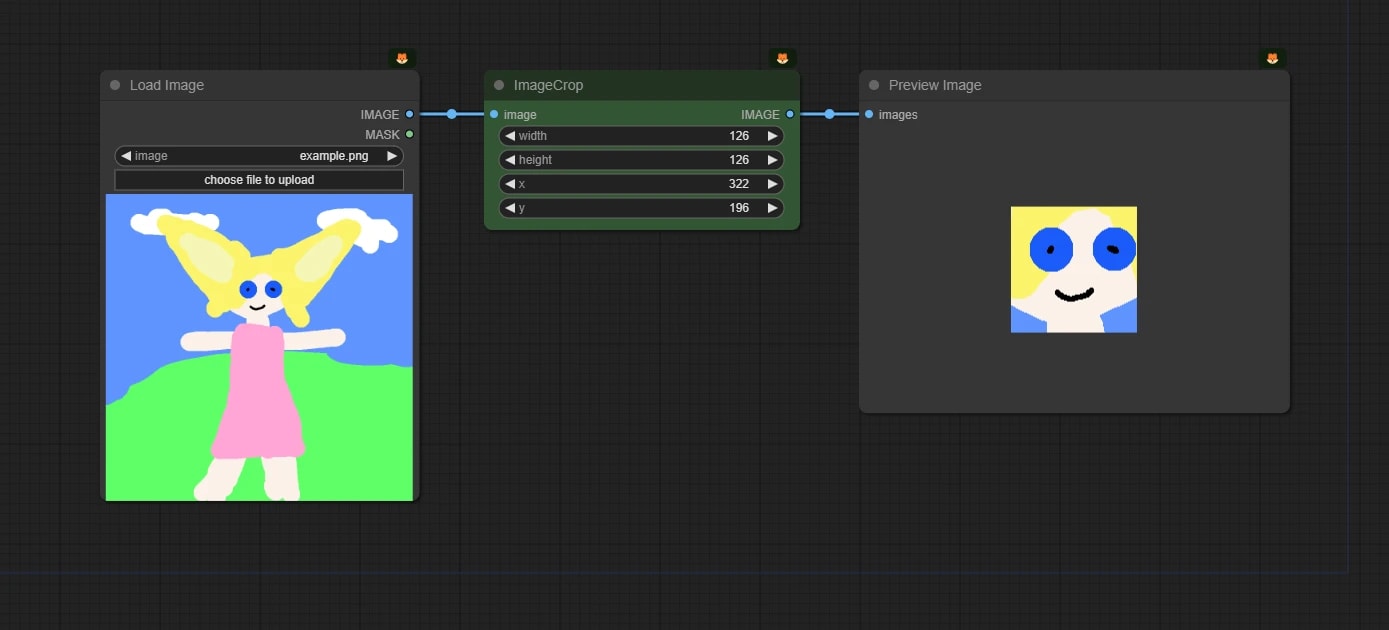
ImageCrop Node
Crops a part of the image in a rectangle by specifying x, y coordinates and width/height.
{
  "last_node_id": 58,
  "last_link_id": 83,
  "nodes": [
    {
      "id": 54,
      "type": "PreviewImage",
      "pos": {
        "0": 900,
        "1": 157
      },
      "size": {
        "0": 429.9277648925781,
        "1": 313.20477294921875
      },
      "flags": {},
      "order": 2,
      "mode": 0,
      "inputs": [
        {
          "name": "images",
          "type": "IMAGE",
          "link": 82
        }
      ],
      "outputs": [],
      "properties": {
        "Node name for S&R": "PreviewImage"
      },
      "widgets_values": []
    },
    {
      "id": 53,
      "type": "LoadImage",
      "pos": {
        "0": 141,
        "1": 157
      },
      "size": {
        "0": 318.50177001953125,
        "1": 400.92742919921875
      },
      "flags": {},
      "order": 0,
      "mode": 0,
      "inputs": [],
      "outputs": [
        {
          "name": "IMAGE",
          "type": "IMAGE",
          "links": [
            81
          ],
          "slot_index": 0,
          "shape": 3
        },
        {
          "name": "MASK",
          "type": "MASK",
          "links": null,
          "shape": 3
        }
      ],
      "properties": {
        "Node name for S&R": "LoadImage"
      },
      "widgets_values": [
        "example.png",
        "image"
      ]
    },
    {
      "id": 58,
      "type": "ImageCrop",
      "pos": {
        "0": 525,
        "1": 157
      },
      "size": {
        "0": 315,
        "1": 130
      },
      "flags": {},
      "order": 1,
      "mode": 0,
      "inputs": [
        {
          "name": "image",
          "type": "IMAGE",
          "link": 81
        }
      ],
      "outputs": [
        {
          "name": "IMAGE",
          "type": "IMAGE",
          "links": [
            82
          ],
          "slot_index": 0,
          "shape": 3
        }
      ],
      "properties": {
        "Node name for S&R": "ImageCrop"
      },
      "widgets_values": [
        126,
        126,
        322,
        196
      ],
      "color": "#232",
      "bgcolor": "#353"
    }
  ],
  "links": [
    [
      81,
      53,
      0,
      58,
      0,
      "IMAGE"
    ],
    [
      82,
      58,
      0,
      54,
      0,
      "IMAGE"
    ]
  ],
  "groups": [],
  "config": {},
  "extra": {
    "ds": {
      "scale": 0.9090909090909091,
      "offset": [
        222.40137209879546,
        8.659338924062864
      ]
    }
  },
  "version": 0.4
}
ImageRotate Node
Rotates the image by 90 / 180 / 270 degrees.
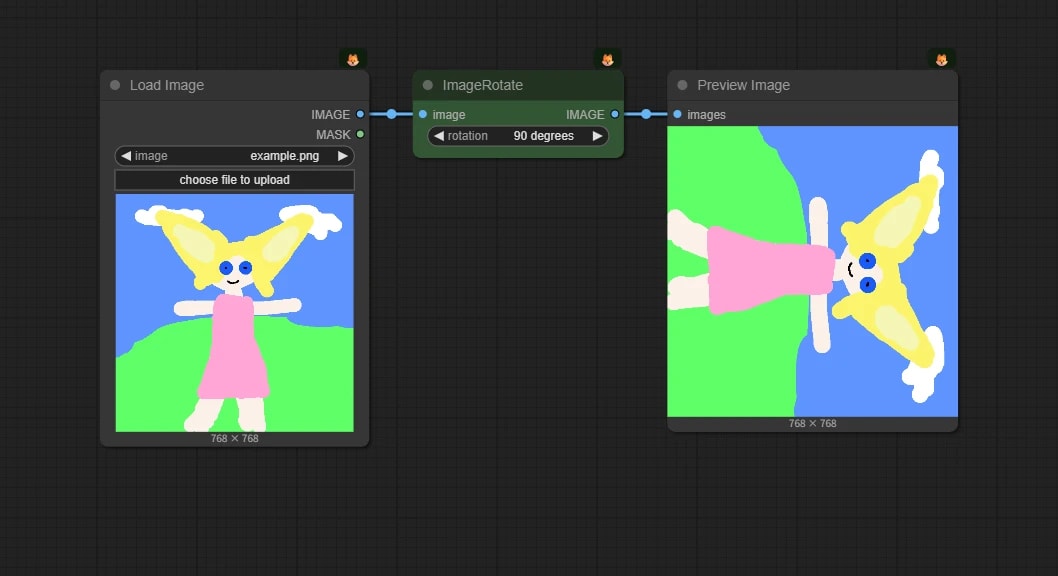
{
  "id": "3c344b31-2cca-43a0-acc2-33295e766391",
  "revision": 0,
  "last_node_id": 8,
  "last_link_id": 2,
  "nodes": [
    {
      "id": 1,
      "type": "LoadImage",
      "pos": [
        1804.466796875,
        382.6131591796875
      ],
      "size": [
        269.2518615722656,
        346.83184814453125
      ],
      "flags": {},
      "order": 0,
      "mode": 0,
      "inputs": [],
      "outputs": [
        {
          "name": "IMAGE",
          "type": "IMAGE",
          "links": [
            1
          ]
        },
        {
          "name": "MASK",
          "type": "MASK",
          "links": null
        }
      ],
      "properties": {
        "cnr_id": "comfy-core",
        "ver": "0.3.44",
        "Node name for S&R": "LoadImage"
      },
      "widgets_values": [
        "example.png",
        "image"
      ]
    },
    {
      "id": 3,
      "type": "PreviewImage",
      "pos": [
        2371.87158203125,
        382.6131591796875
      ],
      "size": [
        290.6402893066406,
        331.94219970703125
      ],
      "flags": {},
      "order": 2,
      "mode": 0,
      "inputs": [
        {
          "name": "images",
          "type": "IMAGE",
          "link": 2
        }
      ],
      "outputs": [],
      "properties": {
        "cnr_id": "comfy-core",
        "ver": "0.3.44",
        "Node name for S&R": "PreviewImage"
      },
      "widgets_values": []
    },
    {
      "id": 2,
      "type": "ImageRotate",
      "pos": [
        2117.247314453125,
        382.6131591796875
      ],
      "size": [
        211.09579467773438,
        58
      ],
      "flags": {},
      "order": 1,
      "mode": 0,
      "inputs": [
        {
          "name": "image",
          "type": "IMAGE",
          "link": 1
        }
      ],
      "outputs": [
        {
          "name": "IMAGE",
          "type": "IMAGE",
          "links": [
            2
          ]
        }
      ],
      "properties": {
        "cnr_id": "comfy-core",
        "ver": "0.3.44",
        "Node name for S&R": "ImageRotate"
      },
      "widgets_values": [
        "90 degrees"
      ],
      "color": "#232",
      "bgcolor": "#353"
    }
  ],
  "links": [
    [
      1,
      1,
      0,
      2,
      0,
      "IMAGE"
    ],
    [
      2,
      2,
      0,
      3,
      0,
      "IMAGE"
    ]
  ],
  "groups": [],
  "config": {},
  "extra": {
    "ds": {
      "scale": 1.035579600000038,
      "offset": [
        -1704.466796875,
        -282.6131591796875
      ]
    },
    "frontendVersion": "1.24.0",
    "VHS_latentpreview": false,
    "VHS_latentpreviewrate": 0,
    "VHS_MetadataImage": true,
    "VHS_KeepIntermediate": true
  },
  "version": 0.4
}
ImageFlip Node
Flips the image horizontally / vertically.
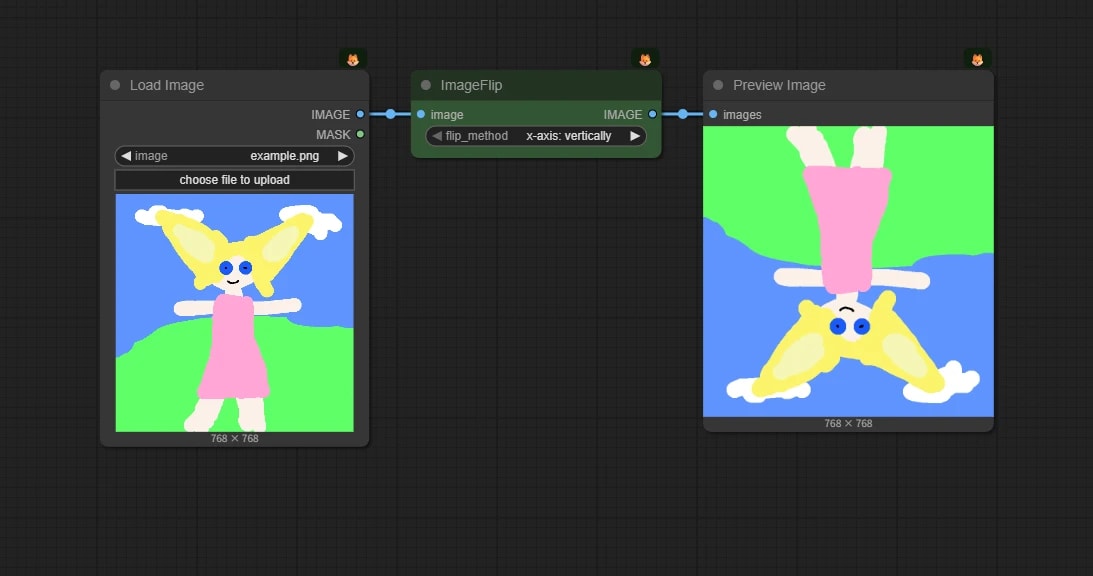
{
  "id": "3c344b31-2cca-43a0-acc2-33295e766391",
  "revision": 0,
  "last_node_id": 10,
  "last_link_id": 4,
  "nodes": [
    {
      "id": 1,
      "type": "LoadImage",
      "pos": [
        1804.466796875,
        382.6131591796875
      ],
      "size": [
        269.2518615722656,
        346.83184814453125
      ],
      "flags": {},
      "order": 0,
      "mode": 0,
      "inputs": [],
      "outputs": [
        {
          "name": "IMAGE",
          "type": "IMAGE",
          "links": [
            3
          ]
        },
        {
          "name": "MASK",
          "type": "MASK",
          "links": null
        }
      ],
      "properties": {
        "cnr_id": "comfy-core",
        "ver": "0.3.44",
        "Node name for S&R": "LoadImage"
      },
      "widgets_values": [
        "example.png",
        "image"
      ]
    },
    {
      "id": 10,
      "type": "ImageFlip",
      "pos": [
        2115.31591796875,
        382.6131591796875
      ],
      "size": [
        250.68714904785156,
        58
      ],
      "flags": {},
      "order": 1,
      "mode": 0,
      "inputs": [
        {
          "name": "image",
          "type": "IMAGE",
          "link": 3
        }
      ],
      "outputs": [
        {
          "name": "IMAGE",
          "type": "IMAGE",
          "links": [
            4
          ]
        }
      ],
      "properties": {
        "cnr_id": "comfy-core",
        "ver": "0.3.44",
        "Node name for S&R": "ImageFlip"
      },
      "widgets_values": [
        "x-axis: vertically"
      ],
      "color": "#232",
      "bgcolor": "#353"
    },
    {
      "id": 3,
      "type": "PreviewImage",
      "pos": [
        2407.600341796875,
        382.6131591796875
      ],
      "size": [
        290.6402893066406,
        331.94219970703125
      ],
      "flags": {},
      "order": 2,
      "mode": 0,
      "inputs": [
        {
          "name": "images",
          "type": "IMAGE",
          "link": 4
        }
      ],
      "outputs": [],
      "properties": {
        "cnr_id": "comfy-core",
        "ver": "0.3.44",
        "Node name for S&R": "PreviewImage"
      },
      "widgets_values": []
    }
  ],
  "links": [
    [
      3,
      1,
      0,
      10,
      0,
      "IMAGE"
    ],
    [
      4,
      10,
      0,
      3,
      0,
      "IMAGE"
    ]
  ],
  "groups": [],
  "config": {},
  "extra": {
    "ds": {
      "scale": 1.035579600000038,
      "offset": [
        -1704.466796875,
        -282.6131591796875
      ]
    },
    "frontendVersion": "1.24.0",
    "VHS_latentpreview": false,
    "VHS_latentpreviewrate": 0,
    "VHS_MetadataImage": true,
    "VHS_KeepIntermediate": true
  },
  "version": 0.4
}
Resize Image v2 Node
This is a node included in kijai/ComfyUI-KJNodes.
It is like a node that combines the above resize, crop, and padding into one.
| Parameter Name | Description |
|---|---|
| width / height | Target width and height (no change if 0) |
| upscale_method | Interpolation method during resizing (nearest, bilinear, etc.) |
| keep_proportion | stretch, pad, crop, etc. |
| pad_color | Color for padding (RGB) |
| crop_position | center, top, bottom, left, right |
| divisible_by | Resizes to a resolution that is a multiple of this value (e.g., 32, 64) |
Previously, this was used frequently to resize to multiples of N, but now that core nodes handle this, it is not used much.
A Little Application
Let's try some slightly complex image processing by combining the nodes so far.
Crop Image to Half
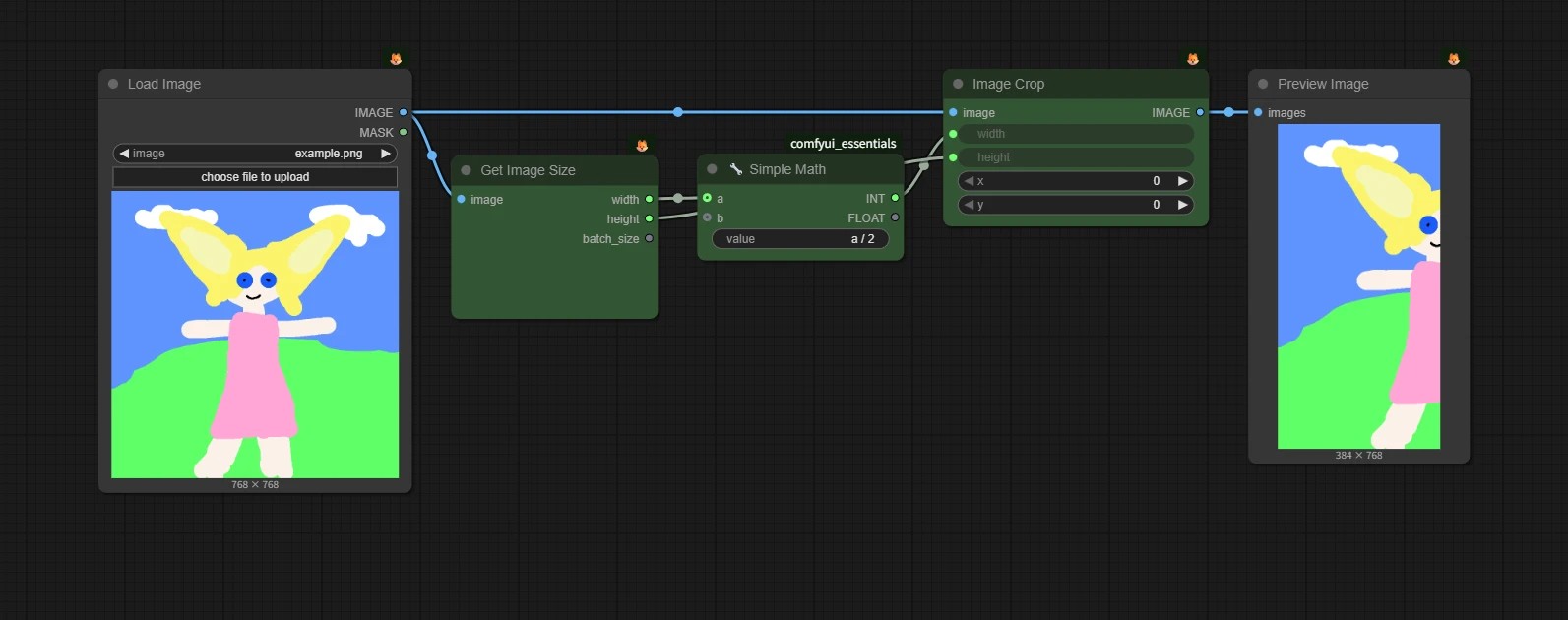
{
  "id": "4868028c-000b-496e-b4e0-958cdd175f4a",
  "revision": 0,
  "last_node_id": 63,
  "last_link_id": 89,
  "nodes": [
    {
      "id": 53,
      "type": "LoadImage",
      "pos": [
        73.72727272727276,
        158.8181818181818
      ],
      "size": [
        318.5017680965466,
        400.92742544483326
      ],
      "flags": {},
      "order": 0,
      "mode": 0,
      "inputs": [],
      "outputs": [
        {
          "name": "IMAGE",
          "type": "IMAGE",
          "slot_index": 0,
          "links": [
            84,
            88
          ]
        },
        {
          "name": "MASK",
          "type": "MASK",
          "links": null
        }
      ],
      "properties": {
        "cnr_id": "comfy-core",
        "ver": "0.3.71",
        "Node name for S&R": "LoadImage"
      },
      "widgets_values": [
        "example.png",
        "image"
      ]
    },
    {
      "id": 62,
      "type": "ImageCrop",
      "pos": [
        931.9558227064256,
        158.8181818181818
      ],
      "size": [
        270,
        130
      ],
      "flags": {},
      "order": 3,
      "mode": 0,
      "inputs": [
        {
          "name": "image",
          "type": "IMAGE",
          "link": 88
        },
        {
          "name": "width",
          "type": "INT",
          "widget": {
            "name": "width"
          },
          "link": 86
        },
        {
          "name": "height",
          "type": "INT",
          "widget": {
            "name": "height"
          },
          "link": 87
        }
      ],
      "outputs": [
        {
          "name": "IMAGE",
          "type": "IMAGE",
          "links": [
            89
          ]
        }
      ],
      "properties": {
        "cnr_id": "comfy-core",
        "ver": "0.3.71",
        "Node name for S&R": "ImageCrop"
      },
      "widgets_values": [
        512,
        512,
        0,
        0
      ],
      "color": "#232",
      "bgcolor": "#353"
    },
    {
      "id": 61,
      "type": "SimpleMath+",
      "pos": [
        682.0468954122235,
        245.45250567287064
      ],
      "size": [
        210,
        78
      ],
      "flags": {},
      "order": 2,
      "mode": 0,
      "inputs": [
        {
          "name": "a",
          "shape": 7,
          "type": "INT,FLOAT",
          "link": 85
        },
        {
          "name": "b",
          "shape": 7,
          "type": "INT,FLOAT",
          "link": null
        }
      ],
      "outputs": [
        {
          "name": "INT",
          "type": "INT",
          "links": [
            86
          ]
        },
        {
          "name": "FLOAT",
          "type": "FLOAT",
          "links": null
        }
      ],
      "properties": {
        "cnr_id": "comfyui_essentials",
        "ver": "1.1.0",
        "Node name for S&R": "SimpleMath+"
      },
      "widgets_values": [
        "a / 2"
      ],
      "color": "#232",
      "bgcolor": "#353"
    },
    {
      "id": 60,
      "type": "GetImageSize",
      "pos": [
        432.13796811802143,
        246.82201179564242
      ],
      "size": [
        210,
        136
      ],
      "flags": {},
      "order": 1,
      "mode": 0,
      "inputs": [
        {
          "name": "image",
          "type": "IMAGE",
          "link": 84
        }
      ],
      "outputs": [
        {
          "name": "width",
          "type": "INT",
          "links": [
            85
          ]
        },
        {
          "name": "height",
          "type": "INT",
          "links": [
            87
          ]
        },
        {
          "name": "batch_size",
          "type": "INT",
          "links": null
        }
      ],
      "properties": {
        "cnr_id": "comfy-core",
        "ver": "0.3.71",
        "Node name for S&R": "GetImageSize"
      },
      "widgets_values": [
        "width: 768, height: 768\n batch size: 1"
      ],
      "color": "#232",
      "bgcolor": "#353"
    },
    {
      "id": 63,
      "type": "PreviewImage",
      "pos": [
        1241.8647500006277,
        158.8181818181818
      ],
      "size": [
        225.18399999999997,
        371.114
      ],
      "flags": {},
      "order": 4,
      "mode": 0,
      "inputs": [
        {
          "name": "images",
          "type": "IMAGE",
          "link": 89
        }
      ],
      "outputs": [],
      "properties": {
        "cnr_id": "comfy-core",
        "ver": "0.3.71",
        "Node name for S&R": "PreviewImage"
      },
      "widgets_values": []
    }
  ],
  "links": [
    [
      84,
      53,
      0,
      60,
      0,
      "IMAGE"
    ],
    [
      85,
      60,
      0,
      61,
      0,
      "INT,FLOAT"
    ],
    [
      86,
      61,
      0,
      62,
      1,
      "INT"
    ],
    [
      87,
      60,
      1,
      62,
      2,
      "INT"
    ],
    [
      88,
      53,
      0,
      62,
      0,
      "IMAGE"
    ],
    [
      89,
      62,
      0,
      63,
      0,
      "IMAGE"
    ]
  ],
  "groups": [],
  "config": {},
  "extra": {
    "ds": {
      "scale": 0.7513148009015778,
      "offset": [
        94.15372727272724,
        67.6268181818182
      ]
    },
    "frontendVersion": "1.30.6",
    "VHS_latentpreview": false,
    "VHS_latentpreviewrate": 0,
    "VHS_MetadataImage": true,
    "VHS_KeepIntermediate": true
  },
  "version": 0.4
}
- Get the size of the image
- Calculate half the width with
Simple mathnode - Input the calculated width to
ImageCropnode and crop to half