ComfyUI is sometimes described as node-based programming, but at its simplest it is a straight path: put a model and prompts into KSampler, and an image comes out.
Still, sometimes you want to build a slightly more complex pipeline.
- If the input image is small, insert an upscale step.
- Analyze the image, and if the hands look broken, add a post-processing step.
- If the prompt contains certain text, switch to a different model or setting.
- ...
In programming, this kind of "change the process depending on a condition" is called conditional branching. ComfyUI also has basic nodes that let you do something close to this.
Conditional Branching Basics
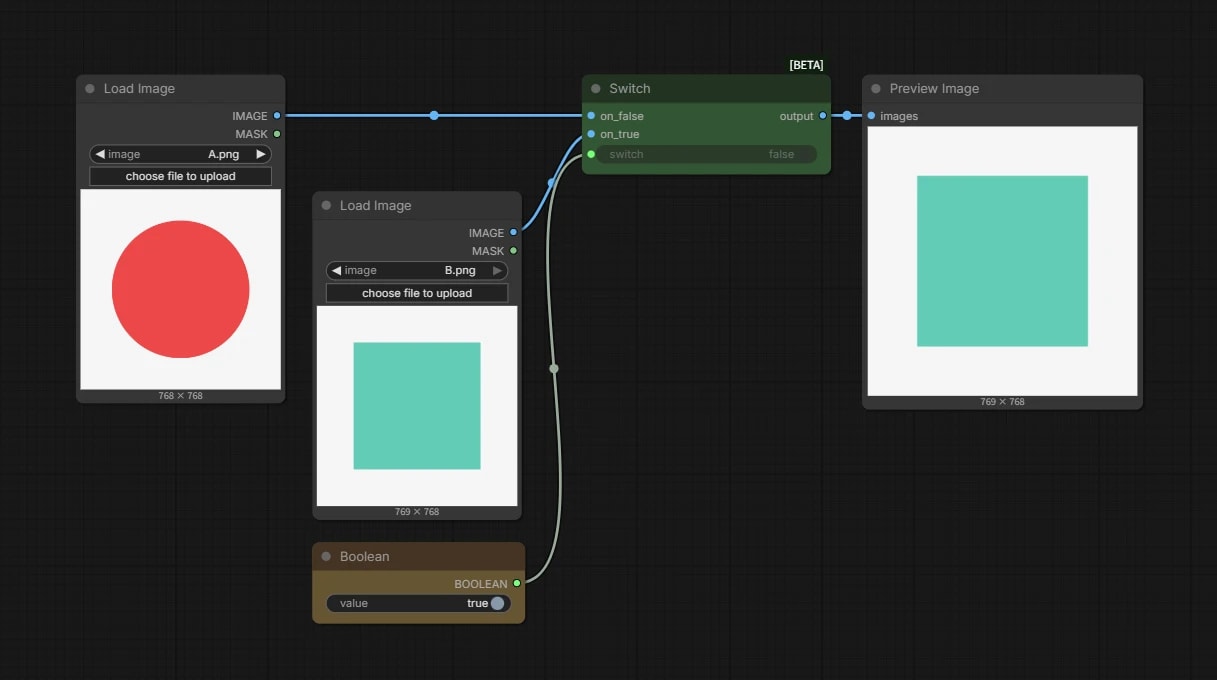
Switching with Switch
The basic node for conditional branching is the Switch node.
It switches which of two inputs should be output.
With this, you can do things like output a when the condition matches, and output b when it does not.
Pass a Boolean to Switch
In Switch, the value that decides which of the two inputs to output is a Boolean.
A Boolean is a simple type that can only be true or false (0 or 1). It is like a toggle switch.
Of course, you can flip it by hand, but where's the fun in that?
Switching the process programmatically is basically about how to create this Boolean.
Ways to Create a Boolean
In programming, there are many ways to create a Boolean. Here, let's look at a few general-purpose methods available with ComfyUI core nodes.
Math Expression
As shown in Simple Math, this node can compare numbers and create a Boolean.
For example, write the following.
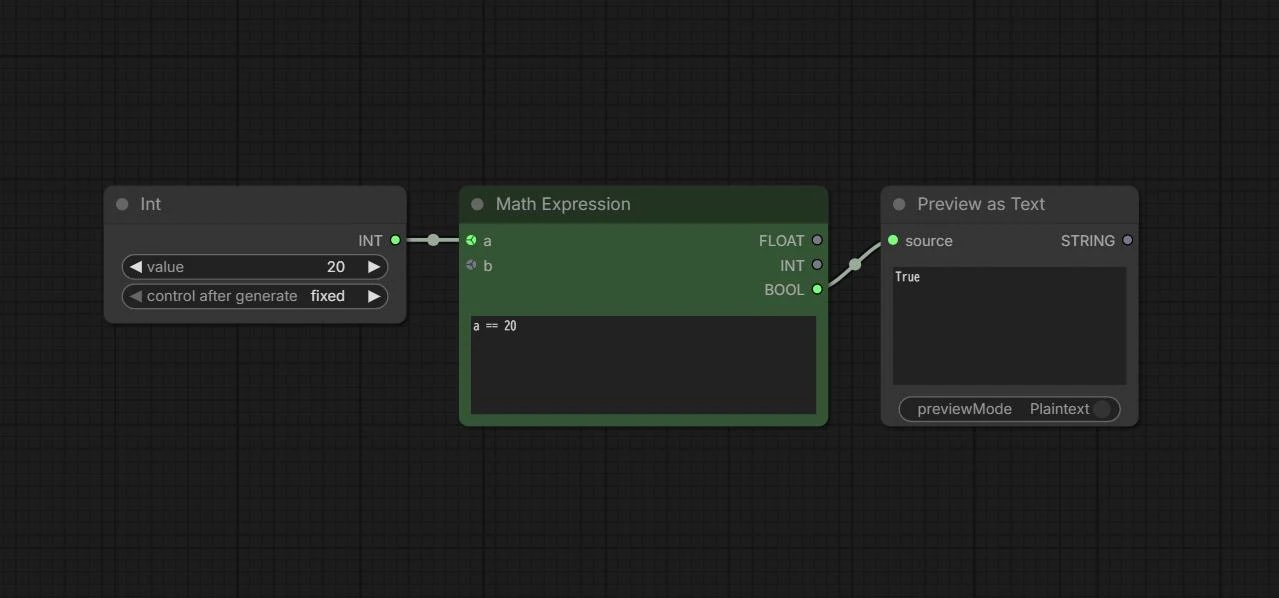
a == 20
Connect an int node set to a number such as 18 or 20 to a.
As you can see, it shows true only when the value is 20, the value you set.
You can also use more numbers and variables.
0 < a <= b * 100
With this expression, the result is true when a is greater than 0 and less than or equal to b * 100.
You can use comparison operators like these.
a == b  # equal
a != b  # not equal
a > b   # a is greater than b
a >= b  # a is greater than or equal to b
a < b   # a is less than b
a <= b  # a is less than or equal to b
Compare Text
To create a Boolean from text, use the Compare Text node.
It is very simple: it compares two strings and outputs the result as a Boolean.
For example, you can check whether the input text matches Hello, starts with Hello, or ends with Hello.
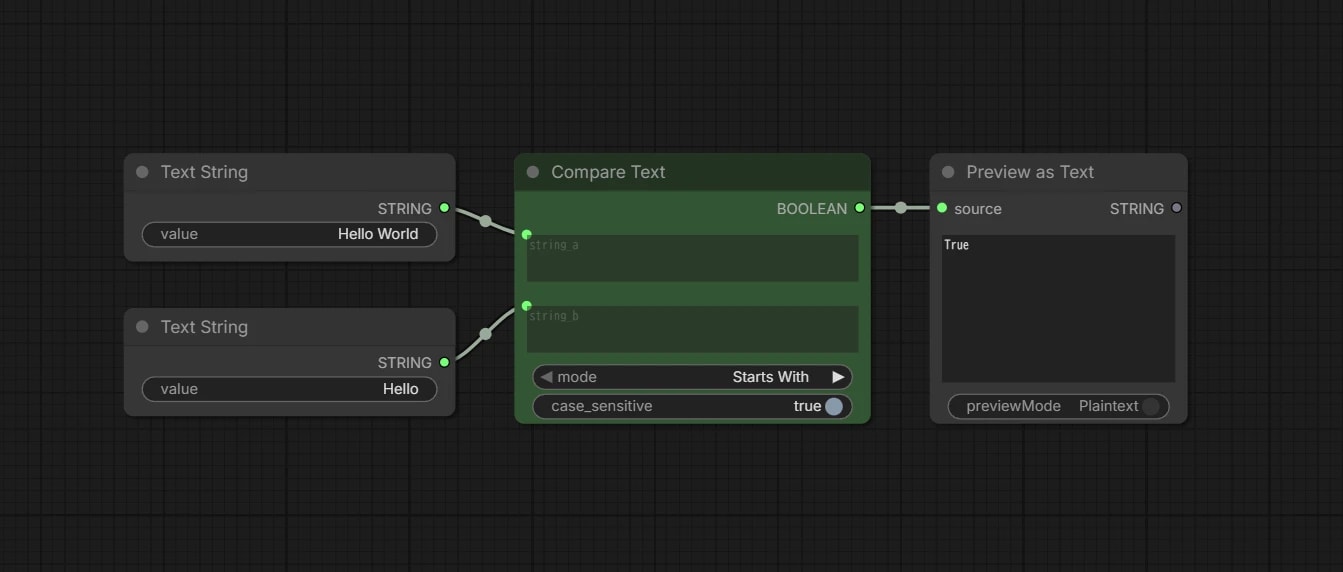
It compares string_a and string_b, and outputs true if the condition matches, or false if it does not.
modeStarts With: whetherstring_astarts withstring_bEnds With: whetherstring_aends withstring_bEqual: whetherstring_aandstring_bare the same
- Set
case_sensitivetotrueto distinguish uppercase and lowercase.
MLLM
For a slightly more elaborate approach, you can use an MLLM to create a Boolean.
We said that a Boolean is represented as true / false, but it can also be represented as 1 / 0.
In other words, if you tell the MLLM, If it is XX, output 1; otherwise output 0, you can turn its answer into a Boolean.
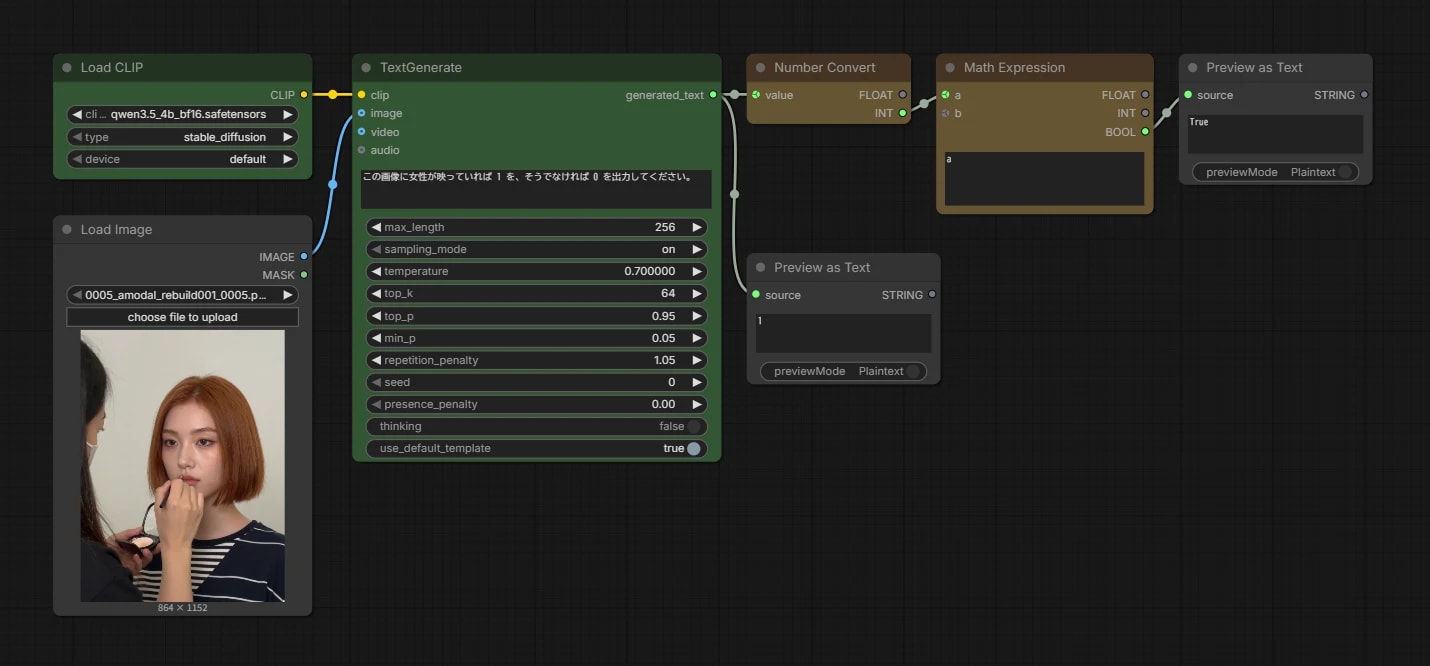
- Here, we use the
TextGeneratenode with Qwen 3.5 4B. - This is a little roundabout, but the MLLM output is text, meaning a
string, so we convert it to anint, and then convert that to aBoolean.
Compared with simple number or text comparisons, MLLMs can handle much more flexible and complex judgments.
- How many people are in this image?
- Which model fits this prompt better: anime or realistic?
- Is the output image quality good or bad?
Combining Multiple Conditions
Sometimes you want to combine multiple conditions, such as "the image height is 1000px or more and the width is less than 500px."
This is where logical operators are used.
AND / OR / NOT
There are three logical operators: AND / OR / NOT.
When there are multiple Boolean inputs, they output true or false based on the combination.
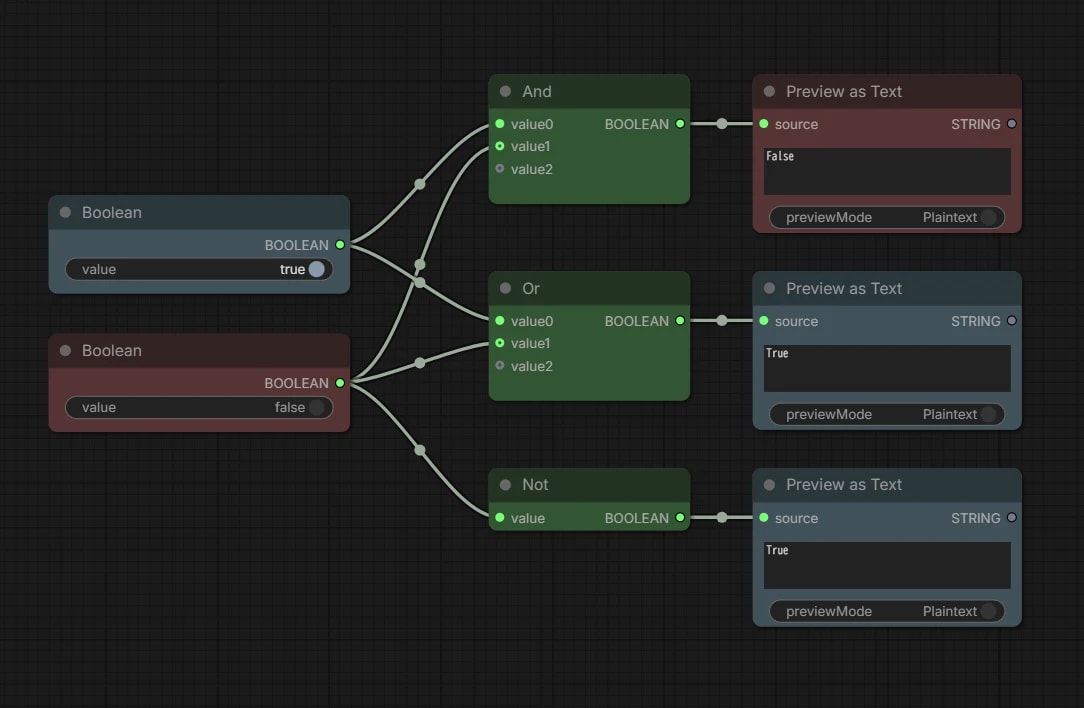
- AND:
trueonly when all inputs aretrue - OR:
truewhen any input istrue - NOT: flips
trueandfalse
Of course, you can combine these.
For example, if you combine AND with NOT, you can output false when two inputs are both true.
No need to overthink it. Try using them and watch how they behave.
Practical Examples
Rotate 90 Degrees If the Image Is Portrait
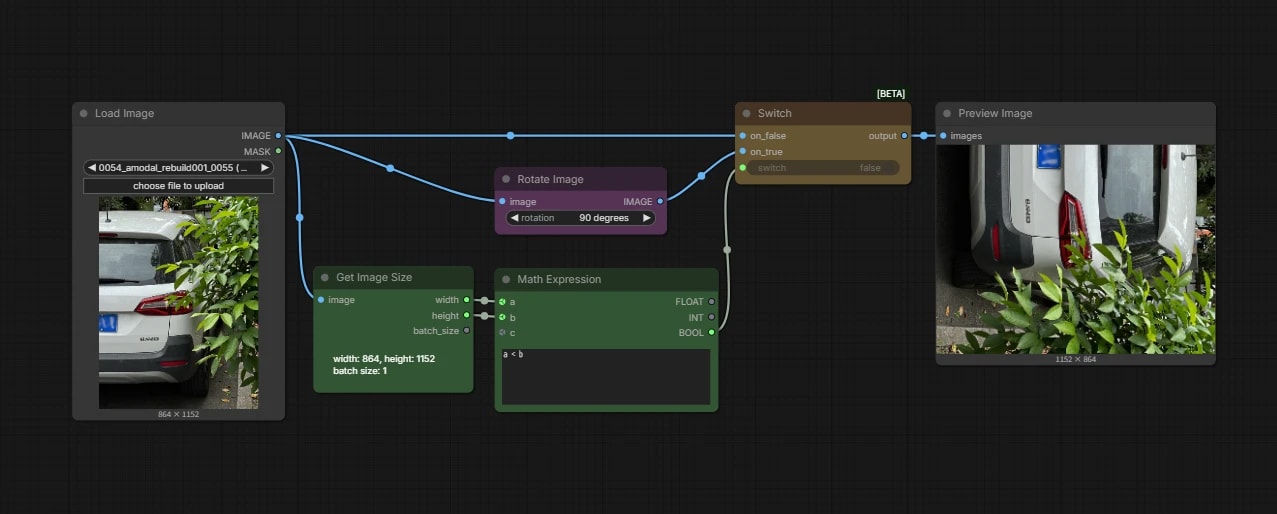
- Get the image size with
Get Image Size - When the image is portrait,
width < heightbecomestrue - When it is
true, output the input image after rotating it withRotate Image
If There's a Woman in the Image, Change Her into a Man
If there's a woman in the image, change her into a man. Otherwise, remove all the people.
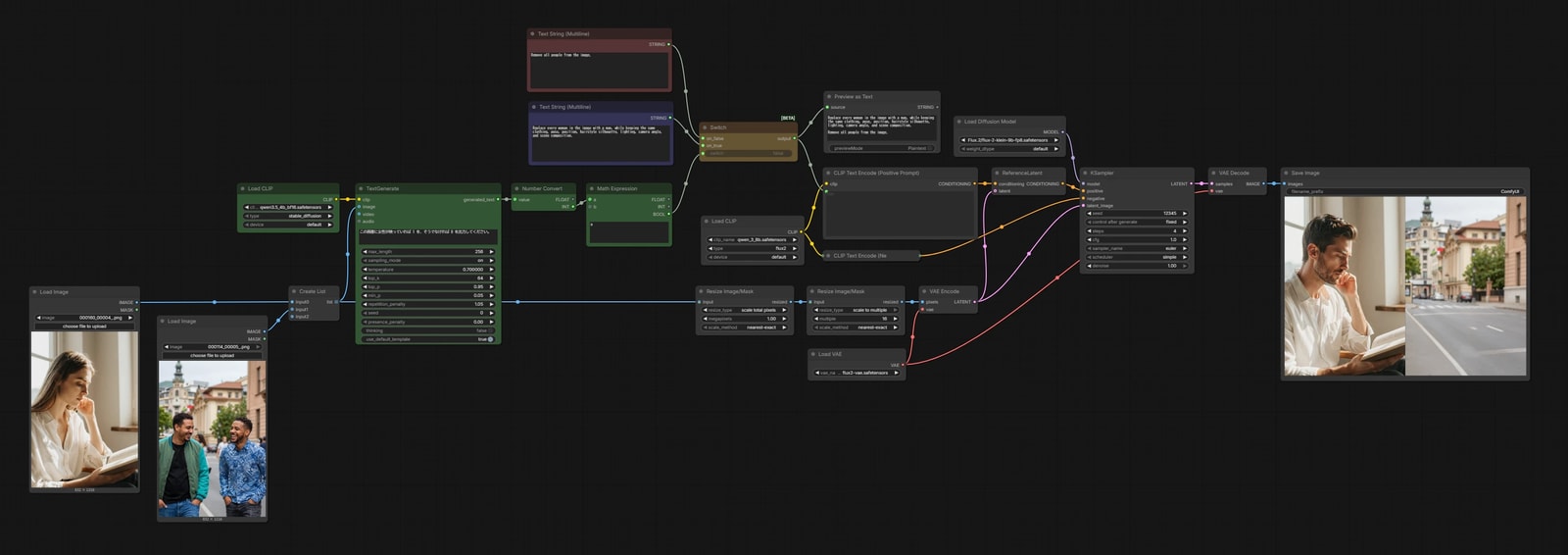
- Show the image to the MLLM and have it output
1if there's a woman in it, or0otherwise - When
true, switch to a prompt that changes the woman into a man; whenfalse, switch to a prompt that removes people - Pass the image and prompt to Flux.2 Klein 9B for image editing