Checking Masks
MaskPreview Node
{
  "id": "250bf000-a380-4769-b376-338d1b56d5a9",
  "revision": 0,
  "last_node_id": 3,
  "last_link_id": 2,
  "nodes": [
    {
      "id": 3,
      "type": "LoadImage",
      "pos": [
        1164.155517578125,
        537.3272705078125
      ],
      "size": [
        284.62811279296875,
        322.8594970703125
      ],
      "flags": {},
      "order": 0,
      "mode": 0,
      "inputs": [],
      "outputs": [
        {
          "name": "IMAGE",
          "type": "IMAGE",
          "links": null
        },
        {
          "name": "MASK",
          "type": "MASK",
          "links": [
            2
          ]
        }
      ],
      "properties": {
        "cnr_id": "comfy-core",
        "ver": "0.3.39",
        "Node name for S&R": "LoadImage"
      },
      "widgets_values": [
        "clipspace/clipspace-painted-masked-50926363.png [input]",
        "image"
      ]
    },
    {
      "id": 2,
      "type": "MaskPreview",
      "pos": [
        1503.8275146484375,
        537.3272705078125
      ],
      "size": [
        284.62811279296875,
        322.8594970703125
      ],
      "flags": {},
      "order": 1,
      "mode": 0,
      "inputs": [
        {
          "name": "mask",
          "type": "MASK",
          "link": 2
        }
      ],
      "outputs": [],
      "properties": {
        "cnr_id": "comfy-core",
        "ver": "0.3.39",
        "Node name for S&R": "MaskPreview"
      },
      "widgets_values": [],
      "color": "#232",
      "bgcolor": "#353"
    }
  ],
  "links": [
    [
      2,
      3,
      1,
      2,
      0,
      "MASK"
    ]
  ],
  "groups": [],
  "config": {},
  "extra": {
    "ds": {
      "scale": 1.1000000000000003,
      "offset": [
        -1064.155517578125,
        -437.3272705078125
      ]
    },
    "frontendVersion": "1.30.6",
    "VHS_latentpreview": false,
    "VHS_latentpreviewrate": 0,
    "VHS_MetadataImage": true,
    "VHS_KeepIntermediate": true
  },
  "version": 0.4
}
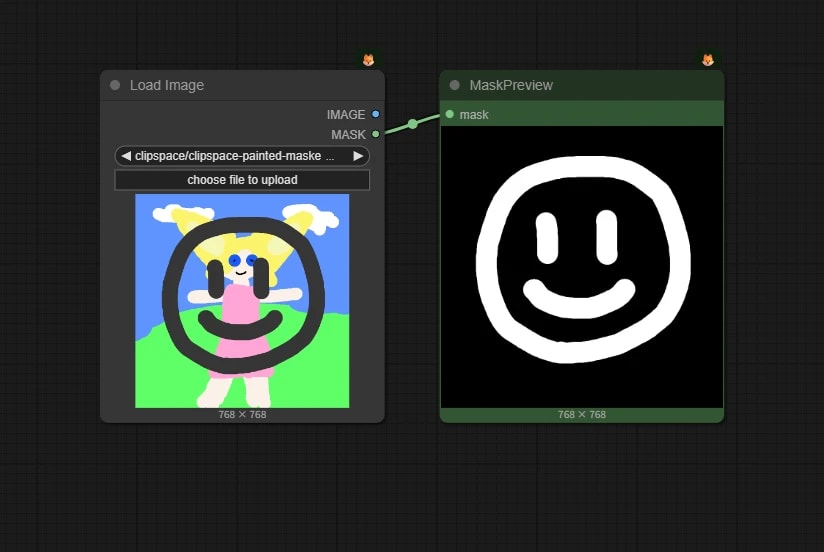
This is the mask version of the Preview Image node.
Convert Mask to Image Node
{
  "id": "15017966-8aa2-4ef7-a2c5-0371448cd53b",
  "revision": 0,
  "last_node_id": 68,
  "last_link_id": 83,
  "nodes": [
    {
      "id": 62,
      "type": "LoadImageMask",
      "pos": [
        1650.07763671875,
        438.42559814453125
      ],
      "size": [
        297.22057399276855,
        344.44628099173553
      ],
      "flags": {},
      "order": 0,
      "mode": 0,
      "inputs": [],
      "outputs": [
        {
          "name": "MASK",
          "type": "MASK",
          "links": [
            81
          ]
        }
      ],
      "properties": {
        "cnr_id": "comfy-core",
        "ver": "0.3.39",
        "Node name for S&R": "LoadImageMask"
      },
      "widgets_values": [
        "Example01.png",
        "red",
        "image"
      ]
    },
    {
      "id": 68,
      "type": "PreviewImage",
      "pos": [
        2218.2594549005707,
        438.42559814453125
      ],
      "size": [
        318.181818181818,
        355.09090909090935
      ],
      "flags": {},
      "order": 2,
      "mode": 0,
      "inputs": [
        {
          "name": "images",
          "type": "IMAGE",
          "link": 83
        }
      ],
      "outputs": [],
      "properties": {
        "cnr_id": "comfy-core",
        "ver": "0.3.71",
        "Node name for S&R": "PreviewImage"
      },
      "widgets_values": []
    },
    {
      "id": 66,
      "type": "MaskToImage",
      "pos": [
        1990.4670163997946,
        438.42559814453125
      ],
      "size": [
        184.6236328125,
        26
      ],
      "flags": {},
      "order": 1,
      "mode": 0,
      "inputs": [
        {
          "name": "mask",
          "type": "MASK",
          "link": 81
        }
      ],
      "outputs": [
        {
          "name": "IMAGE",
          "type": "IMAGE",
          "links": [
            83
          ]
        }
      ],
      "properties": {
        "cnr_id": "comfy-core",
        "ver": "0.3.71",
        "Node name for S&R": "MaskToImage"
      },
      "widgets_values": [],
      "color": "#232",
      "bgcolor": "#353"
    }
  ],
  "links": [
    [
      81,
      62,
      0,
      66,
      0,
      "MASK"
    ],
    [
      83,
      66,
      0,
      68,
      0,
      "IMAGE"
    ]
  ],
  "groups": [],
  "config": {},
  "extra": {
    "ds": {
      "scale": 1,
      "offset": [
        -1550.07763671875,
        -338.42559814453125
      ]
    },
    "frontendVersion": "1.30.6",
    "VHS_latentpreview": false,
    "VHS_latentpreviewrate": 0,
    "VHS_MetadataImage": true,
    "VHS_KeepIntermediate": true
  },
  "version": 0.4
}
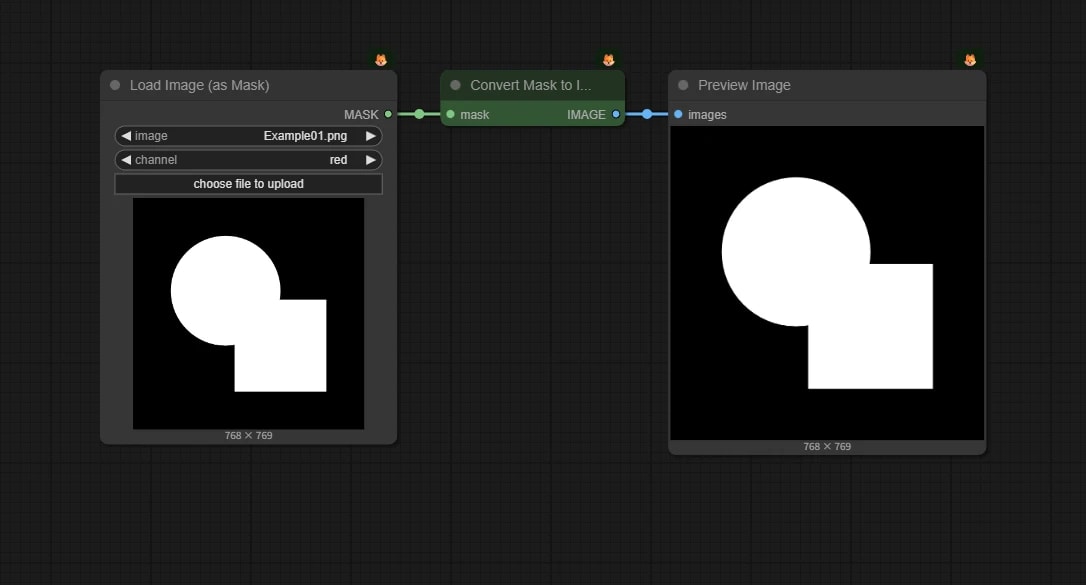
Converts a mask to a black and white Image.
Creating Masks
Load Image (as Mask) Node
{
  "id": "250bf000-a380-4769-b376-338d1b56d5a9",
  "revision": 0,
  "last_node_id": 24,
  "last_link_id": 22,
  "nodes": [
    {
      "id": 13,
      "type": "MaskPreview",
      "pos": [
        1748.5189208984375,
        712.6464233398438
      ],
      "size": [
        389.0909118652344,
        416
      ],
      "flags": {},
      "order": 3,
      "mode": 0,
      "inputs": [
        {
          "name": "mask",
          "type": "MASK",
          "link": 21
        }
      ],
      "outputs": [],
      "properties": {
        "cnr_id": "comfy-core",
        "ver": "0.3.39",
        "Node name for S&R": "MaskPreview"
      },
      "widgets_values": []
    },
    {
      "id": 23,
      "type": "MaskPreview",
      "pos": [
        1748.5189208984375,
        1200.1513671875
      ],
      "size": [
        389.0909118652344,
        416
      ],
      "flags": {},
      "order": 2,
      "mode": 0,
      "inputs": [
        {
          "name": "mask",
          "type": "MASK",
          "link": 22
        }
      ],
      "outputs": [],
      "properties": {
        "cnr_id": "comfy-core",
        "ver": "0.3.39",
        "Node name for S&R": "MaskPreview"
      },
      "widgets_values": []
    },
    {
      "id": 22,
      "type": "LoadImageMask",
      "pos": [
        1368.9774169921875,
        1200.1513671875
      ],
      "size": [
        304.080078125,
        411
      ],
      "flags": {},
      "order": 0,
      "mode": 0,
      "inputs": [],
      "outputs": [
        {
          "name": "MASK",
          "type": "MASK",
          "links": [
            22
          ]
        }
      ],
      "properties": {
        "cnr_id": "comfy-core",
        "ver": "0.3.39",
        "Node name for S&R": "LoadImageMask"
      },
      "widgets_values": [
        "Example02.png",
        "alpha",
        "image"
      ],
      "color": "#232",
      "bgcolor": "#353"
    },
    {
      "id": 21,
      "type": "LoadImageMask",
      "pos": [
        1366.8004150390625,
        712.6464233398438
      ],
      "size": [
        304.080078125,
        411
      ],
      "flags": {},
      "order": 1,
      "mode": 0,
      "inputs": [],
      "outputs": [
        {
          "name": "MASK",
          "type": "MASK",
          "links": [
            21
          ]
        }
      ],
      "properties": {
        "cnr_id": "comfy-core",
        "ver": "0.3.39",
        "Node name for S&R": "LoadImageMask"
      },
      "widgets_values": [
        "Example01.png",
        "red",
        "image"
      ],
      "color": "#232",
      "bgcolor": "#353"
    }
  ],
  "links": [
    [
      21,
      21,
      0,
      13,
      0,
      "MASK"
    ],
    [
      22,
      22,
      0,
      23,
      0,
      "MASK"
    ]
  ],
  "groups": [],
  "config": {},
  "extra": {
    "ds": {
      "scale": 0.6830134553650705,
      "offset": [
        -1262.4081150390627,
        -612.6464233398438
      ]
    },
    "frontendVersion": "1.30.6",
    "VHS_latentpreview": false,
    "VHS_latentpreviewrate": 0,
    "VHS_MetadataImage": true,
    "VHS_KeepIntermediate": true
  },
  "version": 0.4
}
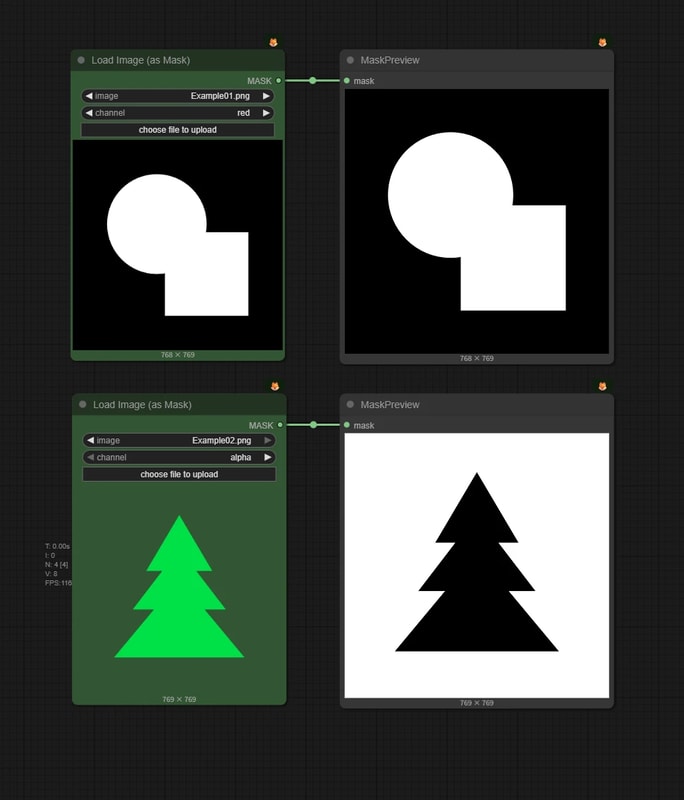
Loads an image file directly as mask data.
- channel:
red/green/blue: If using a black and white image, any choice is OK.alpha: Select this if you want to use the "transparent part" of a transparent PNG as a mask.
Convert Image to Mask Node
{
  "id": "250bf000-a380-4769-b376-338d1b56d5a9",
  "revision": 0,
  "last_node_id": 31,
  "last_link_id": 29,
  "nodes": [
    {
      "id": 27,
      "type": "LoadImage",
      "pos": [
        1303.885009765625,
        684.6876831054688
      ],
      "size": [
        329.080078125,
        432.70001220703125
      ],
      "flags": {},
      "order": 0,
      "mode": 0,
      "inputs": [],
      "outputs": [
        {
          "name": "IMAGE",
          "type": "IMAGE",
          "links": [
            23
          ]
        },
        {
          "name": "MASK",
          "type": "MASK",
          "links": null
        }
      ],
      "properties": {
        "cnr_id": "comfy-core",
        "ver": "0.3.39",
        "Node name for S&R": "LoadImage"
      },
      "widgets_values": [
        "Example01.png",
        "image"
      ]
    },
    {
      "id": 13,
      "type": "MaskPreview",
      "pos": [
        1904.4820556640625,
        684.6876831054688
      ],
      "size": [
        416.5909118652344,
        450.1000061035156
      ],
      "flags": {},
      "order": 2,
      "mode": 0,
      "inputs": [
        {
          "name": "mask",
          "type": "MASK",
          "link": 24
        }
      ],
      "outputs": [],
      "properties": {
        "cnr_id": "comfy-core",
        "ver": "0.3.39",
        "Node name for S&R": "MaskPreview"
      },
      "widgets_values": []
    },
    {
      "id": 26,
      "type": "ImageToMask",
      "pos": [
        1663.7236328125,
        684.6876831054688
      ],
      "size": [
        210,
        58
      ],
      "flags": {},
      "order": 1,
      "mode": 0,
      "inputs": [
        {
          "name": "image",
          "type": "IMAGE",
          "link": 23
        }
      ],
      "outputs": [
        {
          "name": "MASK",
          "type": "MASK",
          "links": [
            24
          ]
        }
      ],
      "properties": {
        "cnr_id": "comfy-core",
        "ver": "0.3.39",
        "Node name for S&R": "ImageToMask"
      },
      "widgets_values": [
        "red"
      ],
      "color": "#232",
      "bgcolor": "#353"
    }
  ],
  "links": [
    [
      23,
      27,
      0,
      26,
      0,
      "IMAGE"
    ],
    [
      24,
      26,
      0,
      13,
      0,
      "MASK"
    ]
  ],
  "groups": [],
  "config": {},
  "extra": {
    "ds": {
      "scale": 0.8264462809917354,
      "offset": [
        -1203.885009765625,
        -584.6876831054688
      ]
    },
    "frontendVersion": "1.30.6",
    "VHS_latentpreview": false,
    "VHS_latentpreviewrate": 0,
    "VHS_MetadataImage": true,
    "VHS_KeepIntermediate": true
  },
  "version": 0.4
}
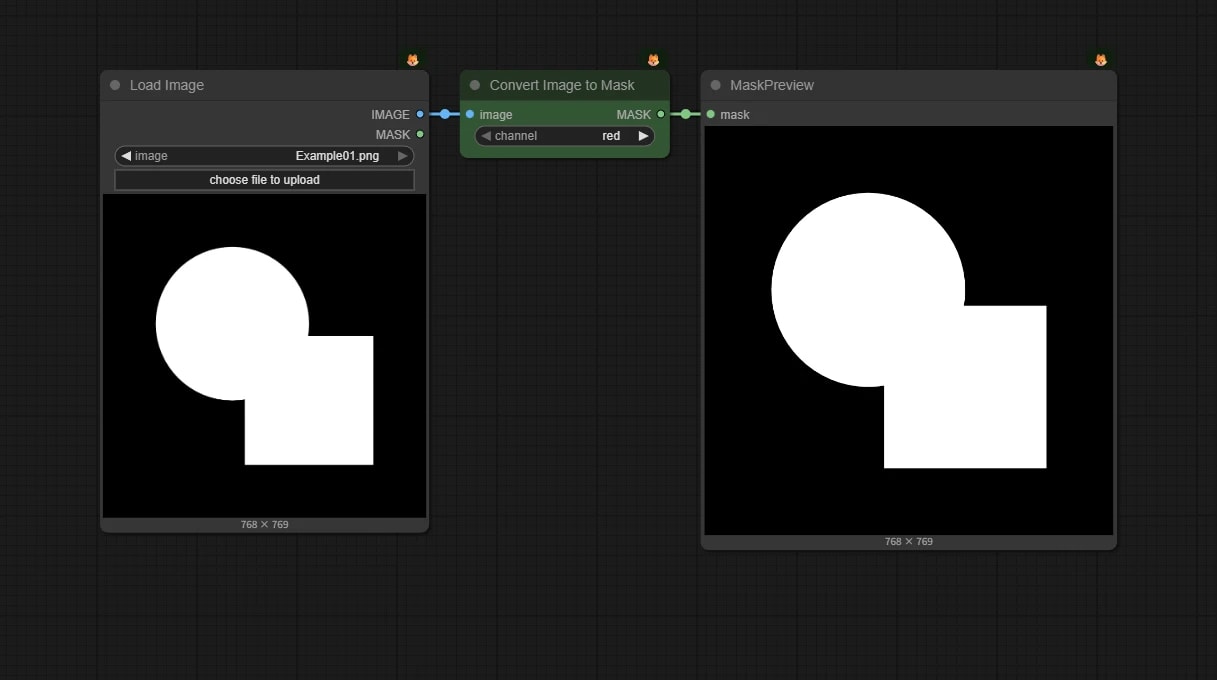
Converts an IMAGE (RGB image) in the workflow to a MASK.
It's like breaking down the Load Image (as Mask) node.
🪢 Color To Mask Node
{
  "id": "250bf000-a380-4769-b376-338d1b56d5a9",
  "revision": 0,
  "last_node_id": 33,
  "last_link_id": 33,
  "nodes": [
    {
      "id": 27,
      "type": "LoadImage",
      "pos": [
        1114.7939453125,
        694.687255859375
      ],
      "size": [
        382.07098999023447,
        464.27274780273433
      ],
      "flags": {},
      "order": 0,
      "mode": 0,
      "inputs": [],
      "outputs": [
        {
          "name": "IMAGE",
          "type": "IMAGE",
          "links": [
            32
          ]
        },
        {
          "name": "MASK",
          "type": "MASK",
          "links": null
        }
      ],
      "properties": {
        "cnr_id": "comfy-core",
        "ver": "0.3.39",
        "Node name for S&R": "LoadImage"
      },
      "widgets_values": [
        "example.png",
        "image"
      ]
    },
    {
      "id": 13,
      "type": "MaskPreview",
      "pos": [
        1837.7182861328142,
        694.687255859375
      ],
      "size": [
        426.60660400390634,
        451.73554077148447
      ],
      "flags": {},
      "order": 2,
      "mode": 0,
      "inputs": [
        {
          "name": "mask",
          "type": "MASK",
          "link": 33
        }
      ],
      "outputs": [],
      "properties": {
        "cnr_id": "comfy-core",
        "ver": "0.3.39",
        "Node name for S&R": "MaskPreview"
      },
      "widgets_values": []
    },
    {
      "id": 33,
      "type": "ColorToMask",
      "pos": [
        1532.2916107177743,
        694.687255859375
      ],
      "size": [
        270,
        178
      ],
      "flags": {},
      "order": 1,
      "mode": 0,
      "inputs": [
        {
          "name": "images",
          "type": "IMAGE",
          "link": 32
        }
      ],
      "outputs": [
        {
          "name": "MASK",
          "type": "MASK",
          "links": [
            33
          ]
        }
      ],
      "properties": {
        "cnr_id": "comfyui-kjnodes",
        "ver": "c661baadd9683c0033cd2a6ad90157c6d099a6c2",
        "Node name for S&R": "ColorToMask"
      },
      "widgets_values": [
        false,
        94,
        148,
        255,
        10,
        16
      ],
      "color": "#232",
      "bgcolor": "#353"
    }
  ],
  "links": [
    [
      32,
      27,
      0,
      33,
      0,
      "IMAGE"
    ],
    [
      33,
      33,
      0,
      13,
      0,
      "MASK"
    ]
  ],
  "groups": [],
  "config": {},
  "extra": {
    "ds": {
      "scale": 0.9090909090909091,
      "offset": [
        -1014.7939453125,
        -594.687255859375
      ]
    },
    "frontendVersion": "1.30.6",
    "VHS_latentpreview": false,
    "VHS_latentpreviewrate": 0,
    "VHS_MetadataImage": true,
    "VHS_KeepIntermediate": true
  },
  "version": 0.4
}
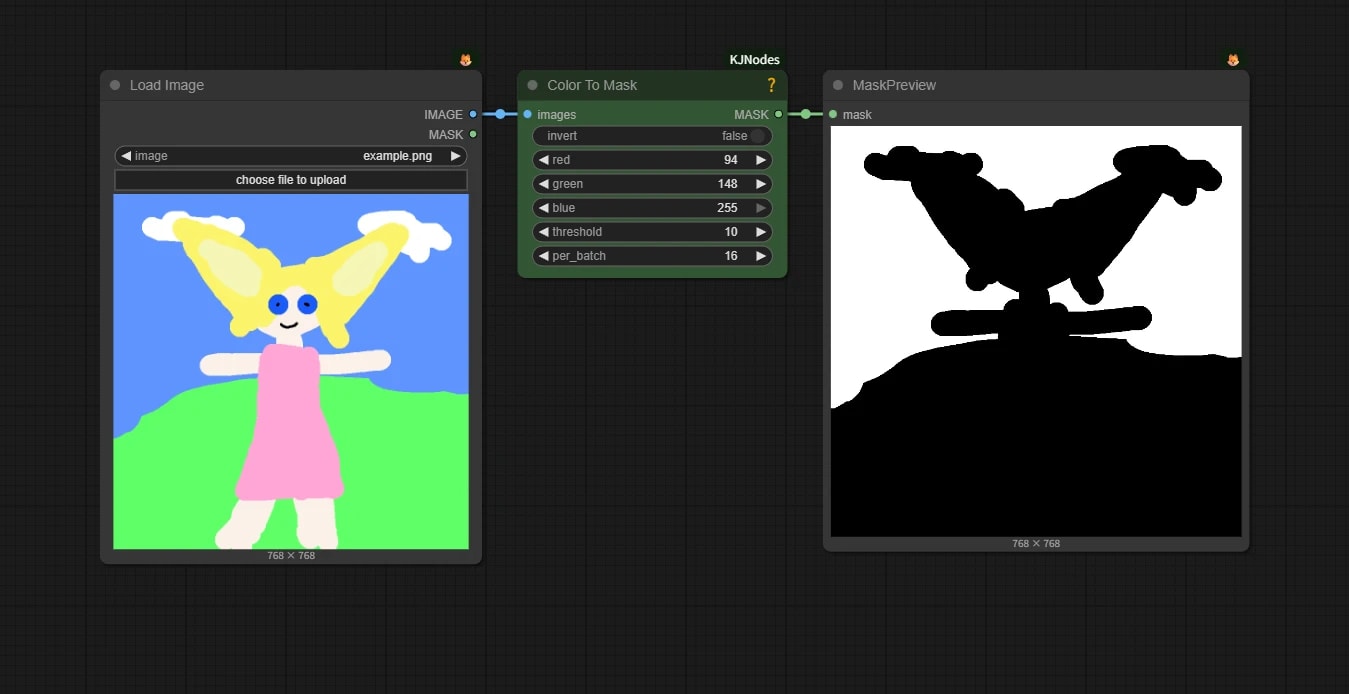
Converts a specific color of an image (such as a green screen) to a mask. This is so-called chroma key processing.
There is a core node called ImageColorToMask with similar functionality, but it is difficult to use because the threshold cannot be adjusted, so we use the following custom node.
- Kijai/ComfyUI-KJNodes:
Color To Masknode
Specify the target color in RGB and adjust the color error with threshold.
Create Solid Mask Node
{
  "id": "250bf000-a380-4769-b376-338d1b56d5a9",
  "revision": 0,
  "last_node_id": 34,
  "last_link_id": 34,
  "nodes": [
    {
      "id": 13,
      "type": "MaskPreview",
      "pos": [
        1837.7182861328142,
        694.687255859375
      ],
      "size": [
        309.236604003906,
        443.2655407714842
      ],
      "flags": {},
      "order": 1,
      "mode": 0,
      "inputs": [
        {
          "name": "mask",
          "type": "MASK",
          "link": 34
        }
      ],
      "outputs": [
        {
          "name": "mask",
          "type": "MASK",
          "links": null
        }
      ],
      "properties": {
        "Node name for S&R": "MaskPreview",
        "cnr_id": "comfy-core",
        "ver": "0.3.39"
      },
      "widgets_values": [],
      "widgets_values_named": {}
    },
    {
      "id": 34,
      "type": "SolidMask",
      "pos": [
        1522.6917056430782,
        694.687255859375
      ],
      "size": [
        270,
        106
      ],
      "flags": {},
      "order": 0,
      "mode": 0,
      "inputs": [],
      "outputs": [
        {
          "name": "MASK",
          "type": "MASK",
          "links": [
            34
          ]
        }
      ],
      "properties": {
        "Node name for S&R": "SolidMask",
        "cnr_id": "comfy-core",
        "ver": "0.3.71"
      },
      "widgets_values": [
        1,
        512,
        768
      ],
      "widgets_values_named": {
        "value": 1,
        "width": 512,
        "height": 768
      },
      "color": "#232",
      "bgcolor": "#353"
    }
  ],
  "links": [
    [
      34,
      34,
      0,
      13,
      0,
      "MASK"
    ]
  ],
  "groups": [],
  "config": {},
  "extra": {
    "ds": {
      "scale": 1.1000000000000005,
      "offset": [
        -1008.1903004981235,
        -511.25884870884516
      ]
    },
    "frontendVersion": "1.51.9",
    "VHS_latentpreview": false,
    "VHS_latentpreviewrate": 0,
    "VHS_MetadataImage": true,
    "VHS_KeepIntermediate": true
  },
  "version": 0.4
}
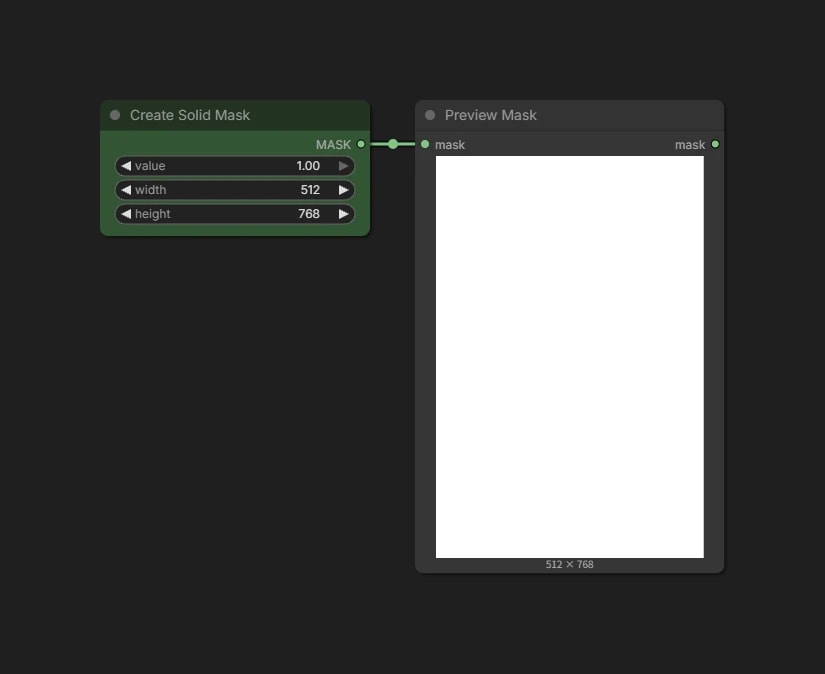
Creates a rectangular mask of the specified size.
Use this when you need a fully filled (or empty) mask.
Mask Editor
A tool that allows you to draw specific parts of an image as a mask (black and white image) on ComfyUI.
- How to launch: Select a
Load Imagenode etc. → Click🌔(Open Mask Editor) in theNode Selection Toolbox.
Switch functions with the tabs on the left edge.
- Draw Mask: Draw a mask with a brush.
- Fill: Fills the area enclosed by the handwritten mask.
- Auto Select: Automatically masks the range of colors similar to the clicked point.
When editing is complete, click Save in the header to apply.
For detailed operation instructions, please see Mask Editor.
Utilizing Depth Maps
🪢 Depth Map
{
  "id": "250bf000-a380-4769-b376-338d1b56d5a9",
  "revision": 0,
  "last_node_id": 19,
  "last_link_id": 18,
  "nodes": [
    {
      "id": 12,
      "type": "ImageToMask",
      "pos": [
        1742.6639404296875,
        695.9465942382812
      ],
      "size": [
        210,
        58
      ],
      "flags": {},
      "order": 3,
      "mode": 0,
      "inputs": [
        {
          "name": "image",
          "type": "IMAGE",
          "link": 8
        }
      ],
      "outputs": [
        {
          "name": "MASK",
          "type": "MASK",
          "links": [
            9,
            18
          ]
        }
      ],
      "properties": {
        "cnr_id": "comfy-core",
        "ver": "0.3.39",
        "Node name for S&R": "ImageToMask"
      },
      "widgets_values": [
        "red"
      ],
      "color": "#232",
      "bgcolor": "#353"
    },
    {
      "id": 11,
      "type": "DepthAnythingV2Preprocessor",
      "pos": [
        1425.861328125,
        695.9465942382812
      ],
      "size": [
        279.6646423339844,
        82
      ],
      "flags": {},
      "order": 2,
      "mode": 0,
      "inputs": [
        {
          "name": "image",
          "type": "IMAGE",
          "link": 7
        }
      ],
      "outputs": [
        {
          "name": "IMAGE",
          "type": "IMAGE",
          "links": [
            8
          ]
        }
      ],
      "properties": {
        "cnr_id": "comfyui_controlnet_aux",
        "ver": "83463c2e4b04e729268e57f638b4212e0da4badc",
        "Node name for S&R": "DepthAnythingV2Preprocessor"
      },
      "widgets_values": [
        "depth_anything_v2_vitl.pth",
        512
      ],
      "color": "#232",
      "bgcolor": "#353"
    },
    {
      "id": 13,
      "type": "MaskPreview",
      "pos": [
        1989.8018798828125,
        695.9465942382812
      ],
      "size": [
        389.0909118652344,
        416
      ],
      "flags": {},
      "order": 4,
      "mode": 0,
      "inputs": [
        {
          "name": "mask",
          "type": "MASK",
          "link": 9
        }
      ],
      "outputs": [],
      "properties": {
        "cnr_id": "comfy-core",
        "ver": "0.3.39",
        "Node name for S&R": "MaskPreview"
      },
      "widgets_values": []
    },
    {
      "id": 17,
      "type": "ImageCompositeMasked",
      "pos": [
        1919.5242919921875,
        1170.3560791015625
      ],
      "size": [
        270,
        146
      ],
      "flags": {},
      "order": 5,
      "mode": 0,
      "inputs": [
        {
          "name": "destination",
          "type": "IMAGE",
          "link": 14
        },
        {
          "name": "source",
          "type": "IMAGE",
          "link": 12
        },
        {
          "name": "mask",
          "shape": 7,
          "type": "MASK",
          "link": 18
        }
      ],
      "outputs": [
        {
          "name": "IMAGE",
          "type": "IMAGE",
          "links": [
            15
          ]
        }
      ],
      "properties": {
        "cnr_id": "comfy-core",
        "ver": "0.3.39",
        "Node name for S&R": "ImageCompositeMasked"
      },
      "widgets_values": [
        0,
        0,
        true
      ],
      "color": "#432",
      "bgcolor": "#653"
    },
    {
      "id": 18,
      "type": "PreviewImage",
      "pos": [
        2225.611083984375,
        1170.3560791015625
      ],
      "size": [
        434.0299987792969,
        451.70001220703125
      ],
      "flags": {},
      "order": 6,
      "mode": 0,
      "inputs": [
        {
          "name": "images",
          "type": "IMAGE",
          "link": 15
        }
      ],
      "outputs": [],
      "properties": {
        "cnr_id": "comfy-core",
        "ver": "0.3.39",
        "Node name for S&R": "PreviewImage"
      },
      "widgets_values": []
    },
    {
      "id": 10,
      "type": "LoadImage",
      "pos": [
        1032.9652099609375,
        695.9465942382812
      ],
      "size": [
        355.75823974609375,
        481.75042724609375
      ],
      "flags": {},
      "order": 0,
      "mode": 0,
      "inputs": [],
      "outputs": [
        {
          "name": "IMAGE",
          "type": "IMAGE",
          "links": [
            7,
            14
          ]
        },
        {
          "name": "MASK",
          "type": "MASK",
          "links": null
        }
      ],
      "properties": {
        "cnr_id": "comfy-core",
        "ver": "0.3.39",
        "Node name for S&R": "LoadImage"
      },
      "widgets_values": [
        "ComfyUI_05189_.png",
        "image"
      ]
    },
    {
      "id": 16,
      "type": "LoadImage",
      "pos": [
        1558.1748046875,
        1218.879150390625
      ],
      "size": [
        318.0030822753906,
        403.177001953125
      ],
      "flags": {},
      "order": 1,
      "mode": 0,
      "inputs": [],
      "outputs": [
        {
          "name": "IMAGE",
          "type": "IMAGE",
          "links": [
            12
          ]
        },
        {
          "name": "MASK",
          "type": "MASK",
          "links": null
        }
      ],
      "properties": {
        "cnr_id": "comfy-core",
        "ver": "0.3.39",
        "Node name for S&R": "LoadImage"
      },
      "widgets_values": [
        "pasted/image (58).png",
        "image"
      ]
    }
  ],
  "links": [
    [
      7,
      10,
      0,
      11,
      0,
      "IMAGE"
    ],
    [
      8,
      11,
      0,
      12,
      0,
      "IMAGE"
    ],
    [
      9,
      12,
      0,
      13,
      0,
      "MASK"
    ],
    [
      12,
      16,
      0,
      17,
      1,
      "IMAGE"
    ],
    [
      14,
      10,
      0,
      17,
      0,
      "IMAGE"
    ],
    [
      15,
      17,
      0,
      18,
      0,
      "IMAGE"
    ],
    [
      18,
      12,
      0,
      17,
      2,
      "MASK"
    ]
  ],
  "groups": [],
  "config": {},
  "extra": {
    "ds": {
      "scale": 0.6209213230591553,
      "offset": [
        -932.9652099609375,
        -595.9465942382812
      ]
    },
    "frontendVersion": "1.21.3",
    "VHS_latentpreview": false,
    "VHS_latentpreviewrate": 0,
    "VHS_MetadataImage": true,
    "VHS_KeepIntermediate": true
  },
  "version": 0.4
}
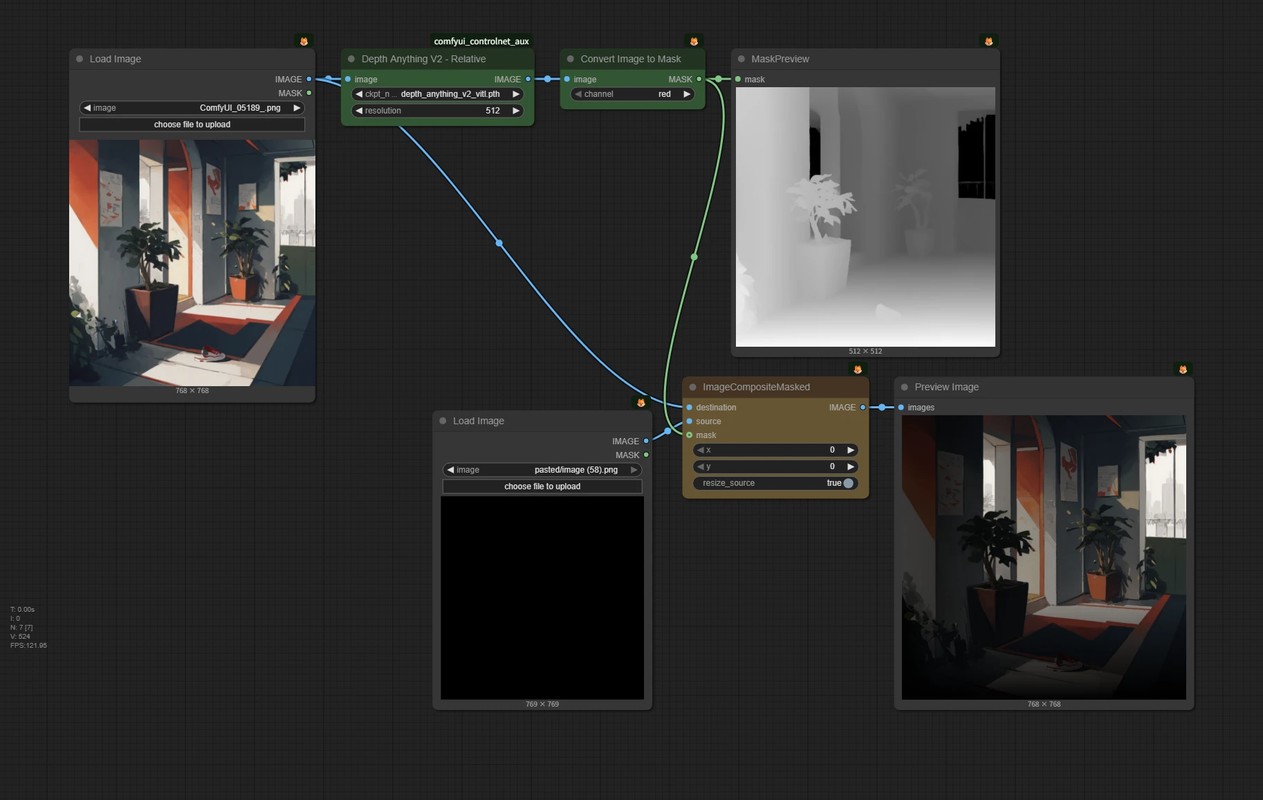
A depth map is a black and white gradient image. This means it can be diverted as a mask as it is.
Smartphone apps have processing to blur the background of photos later, and basically, it is the same mechanism.
For how to create depth maps, please see ControlNet Preprocessor.
Editing Masks
Resize Image/Mask Node
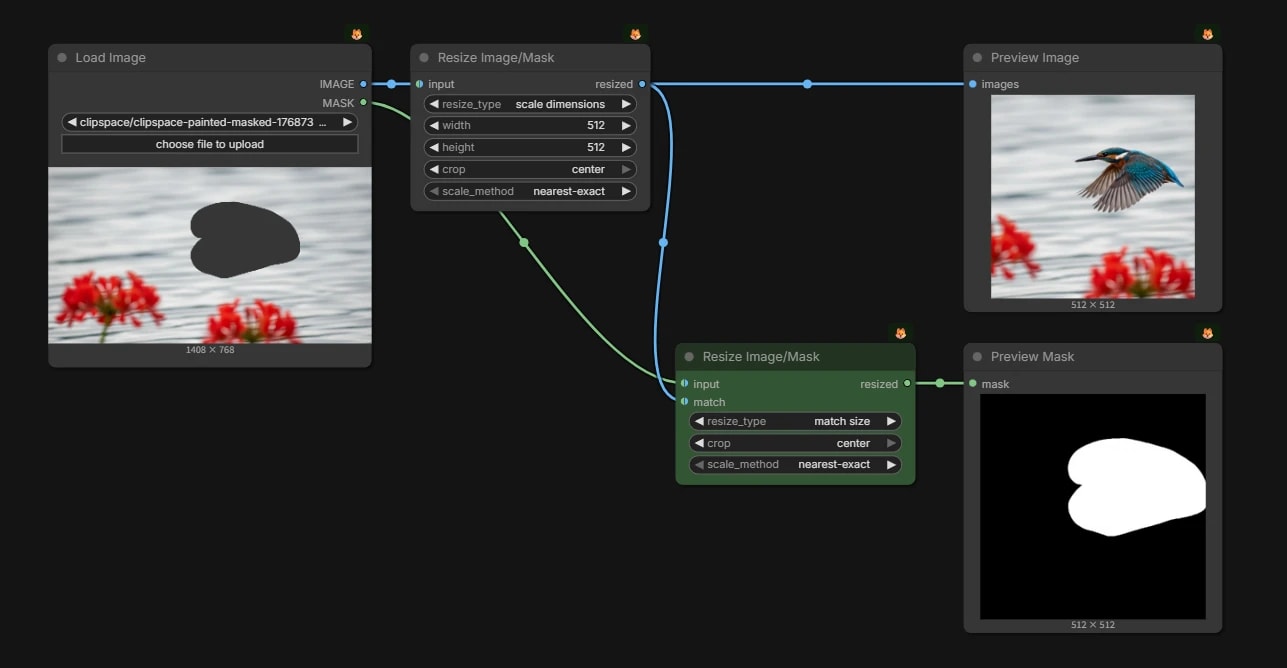
It is covered in detail in Resize Image/Mask Node, so please refer to that.
{
  "id": "0836caf4-d27b-44b2-8cab-34ce133141f9",
  "revision": 0,
  "last_node_id": 5,
  "last_link_id": 10,
  "nodes": [
    {
      "id": 2,
      "type": "LoadImage",
      "pos": [
        510.0624955533383,
        172.82614382699202
      ],
      "size": [
        355.63636363636374,
        326
      ],
      "flags": {},
      "order": 0,
      "mode": 0,
      "inputs": [],
      "outputs": [
        {
          "name": "IMAGE",
          "type": "IMAGE",
          "links": [
            1
          ]
        },
        {
          "name": "MASK",
          "type": "MASK",
          "links": [
            4
          ]
        }
      ],
      "properties": {
        "Node name for S&R": "LoadImage",
        "image": "clipspace/clipspace-painted-masked-1768732628889.png [input]"
      },
      "widgets_values": [
        "clipspace/clipspace-painted-masked-1768732628889.png [input]",
        "image"
      ]
    },
    {
      "id": 1,
      "type": "ResizeImageMaskNode",
      "pos": [
        908.3345584402483,
        172.82614382699202
      ],
      "size": [
        264,
        154
      ],
      "flags": {},
      "order": 1,
      "mode": 0,
      "inputs": [
        {
          "name": "input",
          "type": "IMAGE,MASK",
          "link": 1
        }
      ],
      "outputs": [
        {
          "name": "resized",
          "type": "IMAGE",
          "links": [
            2,
            5
          ]
        }
      ],
      "properties": {
        "Node name for S&R": "ResizeImageMaskNode"
      },
      "widgets_values": [
        "scale dimensions",
        512,
        512,
        "center",
        "nearest-exact"
      ]
    },
    {
      "id": 5,
      "type": "MaskPreview",
      "pos": [
        1516.9455242636818,
        501.85702009452206
      ],
      "size": [
        284.63636363636374,
        289
      ],
      "flags": {},
      "order": 4,
      "mode": 0,
      "inputs": [
        {
          "name": "mask",
          "type": "MASK",
          "link": 10
        }
      ],
      "outputs": [],
      "properties": {
        "Node name for S&R": "MaskPreview"
      },
      "widgets_values": []
    },
    {
      "id": 3,
      "type": "PreviewImage",
      "pos": [
        1516.9455242636818,
        172.82614382699202
      ],
      "size": [
        284.63636363636374,
        265
      ],
      "flags": {},
      "order": 2,
      "mode": 0,
      "inputs": [
        {
          "name": "images",
          "type": "IMAGE",
          "link": 2
        }
      ],
      "outputs": [],
      "properties": {
        "Node name for S&R": "PreviewImage"
      },
      "widgets_values": []
    },
    {
      "id": 4,
      "type": "ResizeImageMaskNode",
      "pos": [
        1199.928537719044,
        501.85702009452206
      ],
      "size": [
        264,
        126
      ],
      "flags": {},
      "order": 3,
      "mode": 0,
      "inputs": [
        {
          "name": "input",
          "type": "IMAGE,MASK",
          "link": 4
        },
        {
          "label": "match",
          "name": "resize_type.match",
          "type": "IMAGE,MASK",
          "link": 5
        }
      ],
      "outputs": [
        {
          "name": "resized",
          "type": "MASK",
          "links": [
            10
          ]
        }
      ],
      "properties": {
        "Node name for S&R": "ResizeImageMaskNode"
      },
      "widgets_values": [
        "match size",
        "center",
        "nearest-exact"
      ],
      "color": "#232",
      "bgcolor": "#353"
    }
  ],
  "links": [
    [
      1,
      2,
      0,
      1,
      0,
      "IMAGE"
    ],
    [
      2,
      1,
      0,
      3,
      0,
      "IMAGE"
    ],
    [
      4,
      2,
      1,
      4,
      0,
      "MASK"
    ],
    [
      5,
      1,
      0,
      4,
      1,
      "IMAGE"
    ],
    [
      10,
      4,
      0,
      5,
      0,
      "MASK"
    ]
  ],
  "groups": [],
  "config": {},
  "extra": {
    "ds": {
      "scale": 0.9090909090909091,
      "offset": [
        -89.54422918777558,
        324.5892717597544
      ]
    },
    "frontendVersion": "1.38.4",
    "VHS_latentpreview": false,
    "VHS_latentpreviewrate": 0,
    "VHS_MetadataImage": true,
    "VHS_KeepIntermediate": true
  },
  "version": 0.4
}
Here, I will only touch on match size.
When you resize an image, the size of the image and the mask may become misaligned, making it impossible to maintain correspondence.
By using match size, you can resize the mask side to match the reference image, keeping the shape (positional relationship) aligned.
CropMask Node
{
  "id": "250bf000-a380-4769-b376-338d1b56d5a9",
  "revision": 0,
  "last_node_id": 25,
  "last_link_id": 24,
  "nodes": [
    {
      "id": 13,
      "type": "MaskPreview",
      "pos": [
        2041.51904296875,
        712.6464233398438
      ],
      "size": [
        389.0909118652344,
        416
      ],
      "flags": {},
      "order": 2,
      "mode": 0,
      "inputs": [
        {
          "name": "mask",
          "type": "MASK",
          "link": 24
        }
      ],
      "outputs": [],
      "properties": {
        "cnr_id": "comfy-core",
        "ver": "0.3.39",
        "Node name for S&R": "MaskPreview"
      },
      "widgets_values": []
    },
    {
      "id": 21,
      "type": "LoadImageMask",
      "pos": [
        1366.8004150390625,
        712.6464233398438
      ],
      "size": [
        304.080078125,
        411
      ],
      "flags": {},
      "order": 0,
      "mode": 0,
      "inputs": [],
      "outputs": [
        {
          "name": "MASK",
          "type": "MASK",
          "links": [
            23
          ]
        }
      ],
      "properties": {
        "cnr_id": "comfy-core",
        "ver": "0.3.39",
        "Node name for S&R": "LoadImageMask"
      },
      "widgets_values": [
        "Example01.png",
        "red",
        "image"
      ]
    },
    {
      "id": 25,
      "type": "CropMask",
      "pos": [
        1721.19970703125,
        712.6464233398438
      ],
      "size": [
        270,
        130
      ],
      "flags": {},
      "order": 1,
      "mode": 0,
      "inputs": [
        {
          "name": "mask",
          "type": "MASK",
          "link": 23
        }
      ],
      "outputs": [
        {
          "name": "MASK",
          "type": "MASK",
          "links": [
            24
          ]
        }
      ],
      "properties": {
        "cnr_id": "comfy-core",
        "ver": "0.3.39",
        "Node name for S&R": "CropMask"
      },
      "widgets_values": [
        384,
        256,
        384,
        384
      ],
      "color": "#232",
      "bgcolor": "#353"
    }
  ],
  "links": [
    [
      23,
      21,
      0,
      25,
      0,
      "MASK"
    ],
    [
      24,
      25,
      0,
      13,
      0,
      "MASK"
    ]
  ],
  "groups": [],
  "config": {},
  "extra": {
    "ds": {
      "scale": 0.8264462809917354,
      "offset": [
        -1266.8004150390625,
        -612.6464233398438
      ]
    },
    "frontendVersion": "1.30.6",
    "VHS_latentpreview": false,
    "VHS_latentpreviewrate": 0,
    "VHS_MetadataImage": true,
    "VHS_KeepIntermediate": true
  },
  "version": 0.4
}
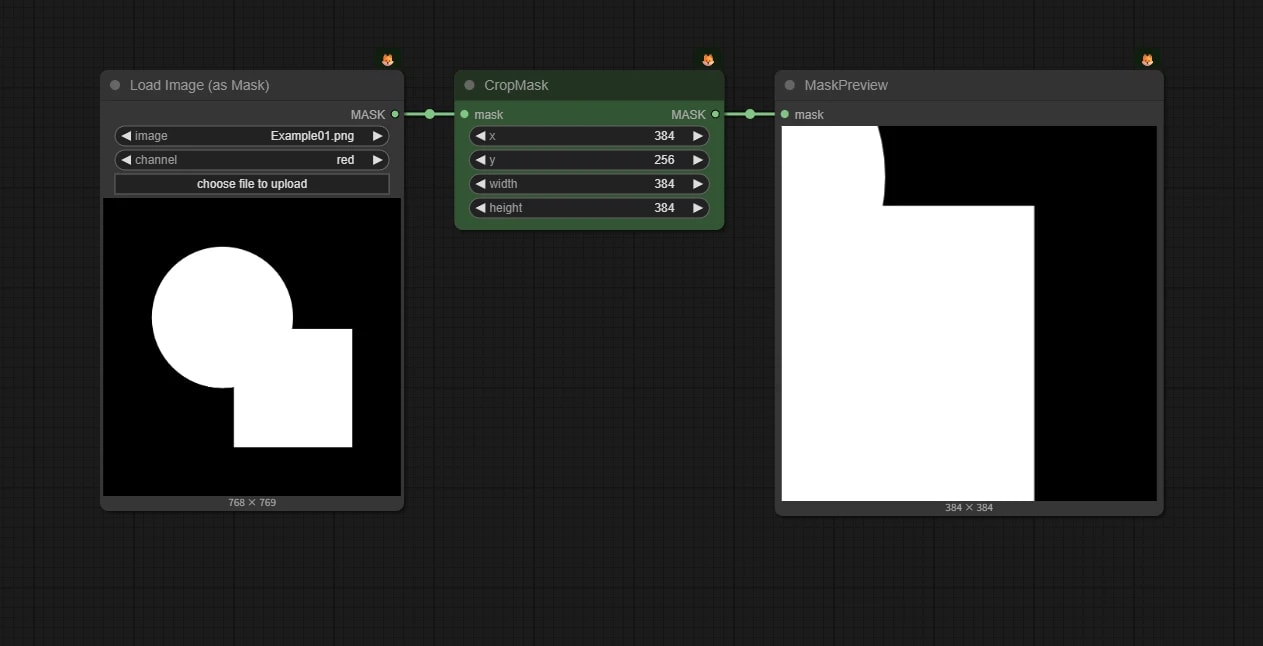
Crops the mask to the specified range.
GrowMask Node
{
  "id": "15017966-8aa2-4ef7-a2c5-0371448cd53b",
  "revision": 0,
  "last_node_id": 65,
  "last_link_id": 80,
  "nodes": [
    {
      "id": 62,
      "type": "LoadImageMask",
      "pos": [
        1650.07763671875,
        438.42559814453125
      ],
      "size": [
        297.22057399276855,
        344.44628099173553
      ],
      "flags": {},
      "order": 0,
      "mode": 0,
      "inputs": [],
      "outputs": [
        {
          "name": "MASK",
          "type": "MASK",
          "links": [
            79
          ]
        }
      ],
      "properties": {
        "cnr_id": "comfy-core",
        "ver": "0.3.39",
        "Node name for S&R": "LoadImageMask"
      },
      "widgets_values": [
        "Example03.png",
        "red",
        "image"
      ]
    },
    {
      "id": 64,
      "type": "MaskPreview",
      "pos": [
        2256.858682931946,
        438.42559814453125
      ],
      "size": [
        308.61767578125,
        334.6313171386719
      ],
      "flags": {},
      "order": 2,
      "mode": 0,
      "inputs": [
        {
          "name": "mask",
          "type": "MASK",
          "link": 80
        }
      ],
      "outputs": [],
      "properties": {
        "cnr_id": "comfy-core",
        "ver": "0.3.39",
        "Node name for S&R": "MaskPreview"
      },
      "widgets_values": []
    },
    {
      "id": 61,
      "type": "GrowMask",
      "pos": [
        1985.6734881440464,
        438.42559814453125
      ],
      "size": [
        232.8099173553719,
        82
      ],
      "flags": {},
      "order": 1,
      "mode": 0,
      "inputs": [
        {
          "name": "mask",
          "type": "MASK",
          "link": 79
        }
      ],
      "outputs": [
        {
          "name": "MASK",
          "type": "MASK",
          "links": [
            80
          ]
        }
      ],
      "properties": {
        "cnr_id": "comfy-core",
        "ver": "0.3.39",
        "Node name for S&R": "GrowMask"
      },
      "widgets_values": [
        20,
        false
      ],
      "color": "#232",
      "bgcolor": "#353"
    }
  ],
  "links": [
    [
      79,
      62,
      0,
      61,
      0,
      "MASK"
    ],
    [
      80,
      61,
      0,
      64,
      0,
      "MASK"
    ]
  ],
  "groups": [],
  "config": {},
  "extra": {
    "ds": {
      "scale": 1.1,
      "offset": [
        -1550.07763671875,
        -338.42559814453125
      ]
    },
    "frontendVersion": "1.30.6",
    "VHS_latentpreview": false,
    "VHS_latentpreviewrate": 0,
    "VHS_MetadataImage": true,
    "VHS_KeepIntermediate": true
  },
  "version": 0.4
}
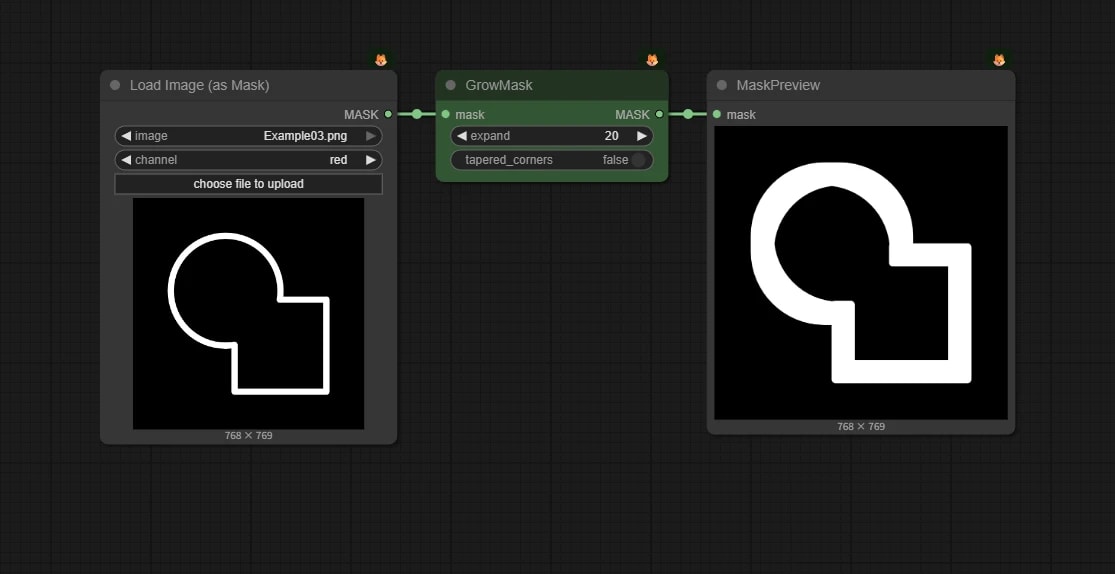
Expands the outline of the mask. If the value is negative, you can also narrow (thin) it.
🪢 Gaussian Blur Mask Node
{
  "id": "15017966-8aa2-4ef7-a2c5-0371448cd53b",
  "revision": 0,
  "last_node_id": 66,
  "last_link_id": 82,
  "nodes": [
    {
      "id": 62,
      "type": "LoadImageMask",
      "pos": [
        1650.07763671875,
        438.42559814453125
      ],
      "size": [
        268.6255326704545,
        371.63636363636374
      ],
      "flags": {},
      "order": 0,
      "mode": 0,
      "inputs": [],
      "outputs": [
        {
          "name": "MASK",
          "type": "MASK",
          "links": [
            81
          ]
        }
      ],
      "properties": {
        "cnr_id": "comfy-core",
        "ver": "0.3.39",
        "Node name for S&R": "LoadImageMask"
      },
      "widgets_values": [
        "Example01.png",
        "red",
        "image"
      ]
    },
    {
      "id": 64,
      "type": "MaskPreview",
      "pos": [
        2274.544633345169,
        438.42559814453125
      ],
      "size": [
        332.25403941761397,
        377.3585898659446
      ],
      "flags": {},
      "order": 2,
      "mode": 0,
      "inputs": [
        {
          "name": "mask",
          "type": "MASK",
          "link": 82
        }
      ],
      "outputs": [],
      "properties": {
        "cnr_id": "comfy-core",
        "ver": "0.3.39",
        "Node name for S&R": "MaskPreview"
      },
      "widgets_values": []
    },
    {
      "id": 66,
      "type": "ImpactGaussianBlurMask",
      "pos": [
        1961.6239013671868,
        438.42559814453125
      ],
      "size": [
        270,
        82
      ],
      "flags": {},
      "order": 1,
      "mode": 0,
      "inputs": [
        {
          "name": "mask",
          "type": "MASK",
          "link": 81
        }
      ],
      "outputs": [
        {
          "name": "MASK",
          "type": "MASK",
          "links": [
            82
          ]
        }
      ],
      "properties": {
        "cnr_id": "comfyui-impact-pack",
        "ver": "2346b677666e14ad53a6e65e16a33289a78106c7",
        "Node name for S&R": "ImpactGaussianBlurMask"
      },
      "widgets_values": [
        30,
        30
      ],
      "color": "#232",
      "bgcolor": "#353"
    }
  ],
  "links": [
    [
      81,
      62,
      0,
      66,
      0,
      "MASK"
    ],
    [
      82,
      66,
      0,
      64,
      0,
      "MASK"
    ]
  ],
  "groups": [],
  "config": {},
  "extra": {
    "ds": {
      "scale": 0.9090909090909091,
      "offset": [
        -1550.07763671875,
        -338.42559814453125
      ]
    },
    "frontendVersion": "1.30.6",
    "VHS_latentpreview": false,
    "VHS_latentpreviewrate": 0,
    "VHS_MetadataImage": true,
    "VHS_KeepIntermediate": true
  },
  "version": 0.4
}
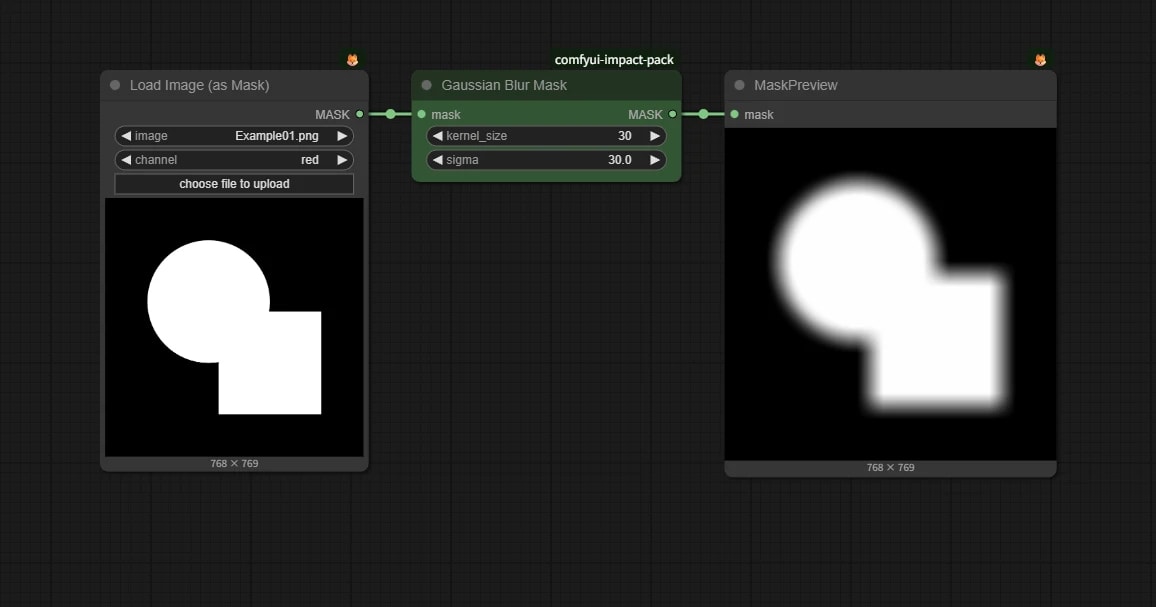
Blurs the mask. Important for blending boundaries during composition.
- Included in ComfyUI-Impact-Pack etc.
InvertMask Node
{
  "id": "15017966-8aa2-4ef7-a2c5-0371448cd53b",
  "revision": 0,
  "last_node_id": 67,
  "last_link_id": 85,
  "nodes": [
    {
      "id": 62,
      "type": "LoadImageMask",
      "pos": [
        1650.07763671875,
        438.42559814453125
      ],
      "size": [
        286.8073508522725,
        378.9090909090909
      ],
      "flags": {},
      "order": 0,
      "mode": 0,
      "inputs": [],
      "outputs": [
        {
          "name": "MASK",
          "type": "MASK",
          "links": [
            84
          ]
        }
      ],
      "properties": {
        "cnr_id": "comfy-core",
        "ver": "0.3.39",
        "Node name for S&R": "LoadImageMask"
      },
      "widgets_values": [
        "Example01.png",
        "red",
        "image"
      ]
    },
    {
      "id": 64,
      "type": "MaskPreview",
      "pos": [
        2165.506103515625,
        438.42559814453125
      ],
      "size": [
        346.799493963068,
        374.6313171386719
      ],
      "flags": {},
      "order": 2,
      "mode": 0,
      "inputs": [
        {
          "name": "mask",
          "type": "MASK",
          "link": 85
        }
      ],
      "outputs": [],
      "properties": {
        "cnr_id": "comfy-core",
        "ver": "0.3.39",
        "Node name for S&R": "MaskPreview"
      },
      "widgets_values": []
    },
    {
      "id": 67,
      "type": "InvertMask",
      "pos": [
        1981.1955455433238,
        438.42559814453125
      ],
      "size": [
        140,
        26
      ],
      "flags": {},
      "order": 1,
      "mode": 0,
      "inputs": [
        {
          "name": "mask",
          "type": "MASK",
          "link": 84
        }
      ],
      "outputs": [
        {
          "name": "MASK",
          "type": "MASK",
          "links": [
            85
          ]
        }
      ],
      "properties": {
        "cnr_id": "comfy-core",
        "ver": "0.3.39",
        "Node name for S&R": "InvertMask"
      },
      "widgets_values": [],
      "color": "#232",
      "bgcolor": "#353"
    }
  ],
  "links": [
    [
      84,
      62,
      0,
      67,
      0,
      "MASK"
    ],
    [
      85,
      67,
      0,
      64,
      0,
      "MASK"
    ]
  ],
  "groups": [],
  "config": {},
  "extra": {
    "ds": {
      "scale": 1.1,
      "offset": [
        -1550.07763671875,
        -338.42559814453125
      ]
    },
    "frontendVersion": "1.30.6",
    "VHS_latentpreview": false,
    "VHS_latentpreviewrate": 0,
    "VHS_MetadataImage": true,
    "VHS_KeepIntermediate": true
  },
  "version": 0.4
}
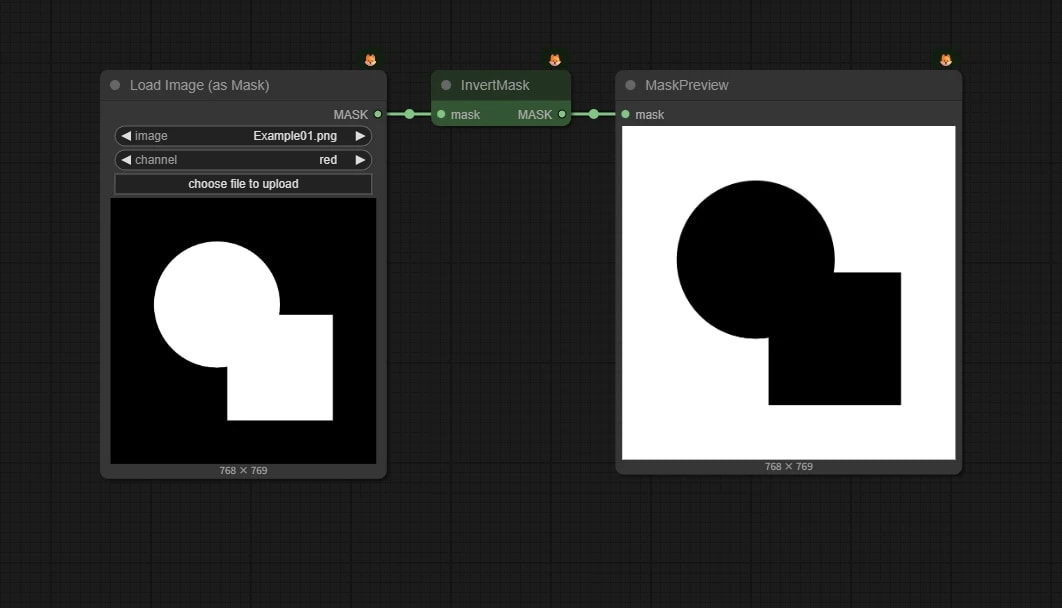
Inverts the black and white of the mask.
ThresholdMask Node
{
  "id": "250bf000-a380-4769-b376-338d1b56d5a9",
  "revision": 0,
  "last_node_id": 11,
  "last_link_id": 8,
  "nodes": [
    {
      "id": 6,
      "type": "LoadImageMask",
      "pos": [
        1182.6688232421875,
        558.424072265625
      ],
      "size": [
        254.5458984375,
        366.83544921875
      ],
      "flags": {},
      "order": 0,
      "mode": 0,
      "inputs": [],
      "outputs": [
        {
          "name": "MASK",
          "type": "MASK",
          "links": [
            3,
            5
          ]
        }
      ],
      "properties": {
        "cnr_id": "comfy-core",
        "ver": "0.3.39",
        "Node name for S&R": "LoadImageMask"
      },
      "widgets_values": [
        "Example04.png",
        "red",
        "image"
      ]
    },
    {
      "id": 10,
      "type": "MaskPreview",
      "pos": [
        1743.6688232421875,
        558.424072265625
      ],
      "size": [
        259,
        286
      ],
      "flags": {},
      "order": 3,
      "mode": 0,
      "inputs": [
        {
          "name": "mask",
          "type": "MASK",
          "link": 7
        }
      ],
      "outputs": [],
      "properties": {
        "cnr_id": "comfy-core",
        "ver": "0.3.71",
        "Node name for S&R": "MaskPreview"
      },
      "widgets_values": []
    },
    {
      "id": 11,
      "type": "MaskPreview",
      "pos": [
        1743.6688232421875,
        916.424072265625
      ],
      "size": [
        263,
        297
      ],
      "flags": {},
      "order": 4,
      "mode": 0,
      "inputs": [
        {
          "name": "mask",
          "type": "MASK",
          "link": 8
        }
      ],
      "outputs": [],
      "properties": {
        "cnr_id": "comfy-core",
        "ver": "0.3.71",
        "Node name for S&R": "MaskPreview"
      },
      "widgets_values": []
    },
    {
      "id": 8,
      "type": "ThresholdMask",
      "pos": [
        1485.4417724609375,
        916.424072265625
      ],
      "size": [
        210,
        58
      ],
      "flags": {},
      "order": 2,
      "mode": 0,
      "inputs": [
        {
          "name": "mask",
          "type": "MASK",
          "link": 5
        }
      ],
      "outputs": [
        {
          "name": "MASK",
          "type": "MASK",
          "links": [
            8
          ]
        }
      ],
      "properties": {
        "cnr_id": "comfy-core",
        "ver": "0.3.39",
        "Node name for S&R": "ThresholdMask"
      },
      "widgets_values": [
        0.30000000000000004
      ],
      "color": "#232",
      "bgcolor": "#353"
    },
    {
      "id": 5,
      "type": "ThresholdMask",
      "pos": [
        1485.4417724609375,
        558.424072265625
      ],
      "size": [
        210,
        58
      ],
      "flags": {},
      "order": 1,
      "mode": 0,
      "inputs": [
        {
          "name": "mask",
          "type": "MASK",
          "link": 3
        }
      ],
      "outputs": [
        {
          "name": "MASK",
          "type": "MASK",
          "links": [
            7
          ]
        }
      ],
      "properties": {
        "cnr_id": "comfy-core",
        "ver": "0.3.39",
        "Node name for S&R": "ThresholdMask"
      },
      "widgets_values": [
        0.7000000000000002
      ],
      "color": "#232",
      "bgcolor": "#353"
    }
  ],
  "links": [
    [
      3,
      6,
      0,
      5,
      0,
      "MASK"
    ],
    [
      5,
      6,
      0,
      8,
      0,
      "MASK"
    ],
    [
      7,
      5,
      0,
      10,
      0,
      "MASK"
    ],
    [
      8,
      8,
      0,
      11,
      0,
      "MASK"
    ]
  ],
  "groups": [],
  "config": {},
  "extra": {
    "ds": {
      "scale": 0.8264462809917354,
      "offset": [
        -915.6888232421871,
        -255.144072265625
      ]
    },
    "frontendVersion": "1.30.6",
    "VHS_latentpreview": false,
    "VHS_latentpreviewrate": 0,
    "VHS_MetadataImage": true,
    "VHS_KeepIntermediate": true
  },
  "version": 0.4
}
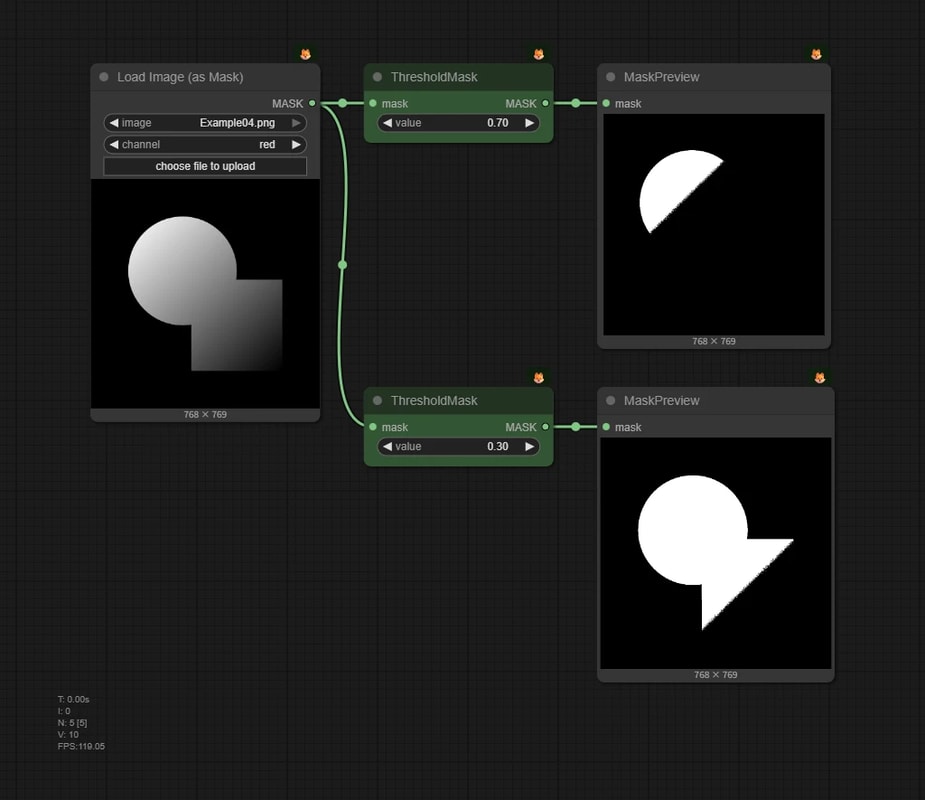
Converts a mask with intermediate values (gradients) into a binary (white or black) mask at the specified threshold.
🪢 Remap Mask Range Node
{
  "id": "250bf000-a380-4769-b376-338d1b56d5a9",
  "revision": 0,
  "last_node_id": 21,
  "last_link_id": 21,
  "nodes": [
    {
      "id": 11,
      "type": "DepthAnythingV2Preprocessor",
      "pos": [
        1425.861328125,
        695.9465942382812
      ],
      "size": [
        279.6646423339844,
        82
      ],
      "flags": {},
      "order": 2,
      "mode": 0,
      "inputs": [
        {
          "name": "image",
          "type": "IMAGE",
          "link": 7
        }
      ],
      "outputs": [
        {
          "name": "IMAGE",
          "type": "IMAGE",
          "links": [
            8
          ]
        }
      ],
      "properties": {
        "cnr_id": "comfyui_controlnet_aux",
        "ver": "83463c2e4b04e729268e57f638b4212e0da4badc",
        "Node name for S&R": "DepthAnythingV2Preprocessor"
      },
      "widgets_values": [
        "depth_anything_v2_vitl.pth",
        512
      ]
    },
    {
      "id": 10,
      "type": "LoadImage",
      "pos": [
        1032.9652099609375,
        695.9465942382812
      ],
      "size": [
        355.75823974609375,
        481.75042724609375
      ],
      "flags": {},
      "order": 0,
      "mode": 0,
      "inputs": [],
      "outputs": [
        {
          "name": "IMAGE",
          "type": "IMAGE",
          "links": [
            7,
            14
          ]
        },
        {
          "name": "MASK",
          "type": "MASK",
          "links": null
        }
      ],
      "properties": {
        "cnr_id": "comfy-core",
        "ver": "0.3.39",
        "Node name for S&R": "LoadImage"
      },
      "widgets_values": [
        "ComfyUI_05189_.png",
        "image"
      ]
    },
    {
      "id": 12,
      "type": "ImageToMask",
      "pos": [
        1732.7547607421875,
        695.9465942382812
      ],
      "size": [
        210,
        58
      ],
      "flags": {},
      "order": 3,
      "mode": 0,
      "inputs": [
        {
          "name": "image",
          "type": "IMAGE",
          "link": 8
        }
      ],
      "outputs": [
        {
          "name": "MASK",
          "type": "MASK",
          "links": [
            20
          ]
        }
      ],
      "properties": {
        "cnr_id": "comfy-core",
        "ver": "0.3.39",
        "Node name for S&R": "ImageToMask"
      },
      "widgets_values": [
        "red"
      ]
    },
    {
      "id": 17,
      "type": "ImageCompositeMasked",
      "pos": [
        2204.846923828125,
        883.5425415039062
      ],
      "size": [
        270,
        146
      ],
      "flags": {},
      "order": 5,
      "mode": 0,
      "inputs": [
        {
          "name": "destination",
          "type": "IMAGE",
          "link": 14
        },
        {
          "name": "source",
          "type": "IMAGE",
          "link": 12
        },
        {
          "name": "mask",
          "shape": 7,
          "type": "MASK",
          "link": 19
        }
      ],
      "outputs": [
        {
          "name": "IMAGE",
          "type": "IMAGE",
          "links": [
            15
          ]
        }
      ],
      "properties": {
        "cnr_id": "comfy-core",
        "ver": "0.3.39",
        "Node name for S&R": "ImageCompositeMasked"
      },
      "widgets_values": [
        0,
        0,
        true
      ]
    },
    {
      "id": 13,
      "type": "MaskPreview",
      "pos": [
        2249.70458984375,
        508.18109130859375
      ],
      "size": [
        282.61090087890625,
        297.5409851074219
      ],
      "flags": {},
      "order": 6,
      "mode": 0,
      "inputs": [
        {
          "name": "mask",
          "type": "MASK",
          "link": 21
        }
      ],
      "outputs": [],
      "properties": {
        "cnr_id": "comfy-core",
        "ver": "0.3.39",
        "Node name for S&R": "MaskPreview"
      },
      "widgets_values": []
    },
    {
      "id": 16,
      "type": "LoadImage",
      "pos": [
        1862.28125,
        945.15576171875
      ],
      "size": [
        283.3970947265625,
        375.22601318359375
      ],
      "flags": {},
      "order": 1,
      "mode": 0,
      "inputs": [],
      "outputs": [
        {
          "name": "IMAGE",
          "type": "IMAGE",
          "links": [
            12
          ]
        },
        {
          "name": "MASK",
          "type": "MASK",
          "links": null
        }
      ],
      "properties": {
        "cnr_id": "comfy-core",
        "ver": "0.3.39",
        "Node name for S&R": "LoadImage"
      },
      "widgets_values": [
        "pasted/image (58).png",
        "image"
      ]
    },
    {
      "id": 18,
      "type": "PreviewImage",
      "pos": [
        2506.594970703125,
        887.0430908203125
      ],
      "size": [
        499.3699951171875,
        513.4100341796875
      ],
      "flags": {},
      "order": 7,
      "mode": 0,
      "inputs": [
        {
          "name": "images",
          "type": "IMAGE",
          "link": 15
        }
      ],
      "outputs": [],
      "properties": {
        "cnr_id": "comfy-core",
        "ver": "0.3.39",
        "Node name for S&R": "PreviewImage"
      },
      "widgets_values": []
    },
    {
      "id": 21,
      "type": "RemapMaskRange",
      "pos": [
        1969.9835205078125,
        695.9465942382812
      ],
      "size": [
        210,
        82
      ],
      "flags": {},
      "order": 4,
      "mode": 0,
      "inputs": [
        {
          "name": "mask",
          "type": "MASK",
          "link": 20
        }
      ],
      "outputs": [
        {
          "name": "mask",
          "type": "MASK",
          "links": [
            19,
            21
          ]
        }
      ],
      "properties": {
        "cnr_id": "comfyui-kjnodes",
        "ver": "08a22951ed624ca90146e33626b3204d8b8f8ad0",
        "Node name for S&R": "RemapMaskRange"
      },
      "widgets_values": [
        0,
        1.0000000000000002
      ],
      "color": "#232",
      "bgcolor": "#353"
    }
  ],
  "links": [
    [
      7,
      10,
      0,
      11,
      0,
      "IMAGE"
    ],
    [
      8,
      11,
      0,
      12,
      0,
      "IMAGE"
    ],
    [
      12,
      16,
      0,
      17,
      1,
      "IMAGE"
    ],
    [
      14,
      10,
      0,
      17,
      0,
      "IMAGE"
    ],
    [
      15,
      17,
      0,
      18,
      0,
      "IMAGE"
    ],
    [
      19,
      21,
      0,
      17,
      2,
      "MASK"
    ],
    [
      20,
      12,
      0,
      21,
      0,
      "MASK"
    ],
    [
      21,
      21,
      0,
      13,
      0,
      "MASK"
    ]
  ],
  "groups": [],
  "config": {},
  "extra": {
    "ds": {
      "scale": 0.6830134553650705,
      "offset": [
        -496.10158390377444,
        -334.6417084833803
      ]
    },
    "frontendVersion": "1.21.3",
    "VHS_latentpreview": false,
    "VHS_latentpreviewrate": 0,
    "VHS_MetadataImage": true,
    "VHS_KeepIntermediate": true
  },
  "version": 0.4
}
Adjusts how the gradient mask is applied. Combining with the aforementioned "Depth Map", you can change "which position" in the depth to focus on, obtaining interesting effects.
Compositing Masks
MaskComposite Node
{
  "id": "15017966-8aa2-4ef7-a2c5-0371448cd53b",
  "revision": 0,
  "last_node_id": 76,
  "last_link_id": 107,
  "nodes": [
    {
      "id": 64,
      "type": "MaskPreview",
      "pos": [
        2218.91162109375,
        438.42559814453125
      ],
      "size": [
        249.02679443359375,
        284.5749816894531
      ],
      "flags": {},
      "order": 9,
      "mode": 0,
      "inputs": [
        {
          "name": "mask",
          "type": "MASK",
          "link": 89
        }
      ],
      "outputs": [],
      "properties": {
        "cnr_id": "comfy-core",
        "ver": "0.3.39",
        "Node name for S&R": "MaskPreview"
      },
      "widgets_values": []
    },
    {
      "id": 70,
      "type": "MaskPreview",
      "pos": [
        2218.91162109375,
        849.6345825195312
      ],
      "size": [
        249.02679443359375,
        284.5749816894531
      ],
      "flags": {},
      "order": 6,
      "mode": 0,
      "inputs": [
        {
          "name": "mask",
          "type": "MASK",
          "link": 90
        }
      ],
      "outputs": [],
      "properties": {
        "cnr_id": "comfy-core",
        "ver": "0.3.39",
        "Node name for S&R": "MaskPreview"
      },
      "widgets_values": []
    },
    {
      "id": 71,
      "type": "MaskComposite",
      "pos": [
        1966.53466796875,
        849.6345825195312
      ],
      "size": [
        210,
        126
      ],
      "flags": {},
      "order": 2,
      "mode": 0,
      "inputs": [
        {
          "name": "destination",
          "type": "MASK",
          "link": 100
        },
        {
          "name": "source",
          "type": "MASK",
          "link": 94
        }
      ],
      "outputs": [
        {
          "name": "MASK",
          "type": "MASK",
          "links": [
            90
          ]
        }
      ],
      "properties": {
        "cnr_id": "comfy-core",
        "ver": "0.3.39",
        "Node name for S&R": "MaskComposite"
      },
      "widgets_values": [
        0,
        0,
        "subtract"
      ],
      "color": "#232",
      "bgcolor": "#353"
    },
    {
      "id": 72,
      "type": "MaskPreview",
      "pos": [
        2770.51318359375,
        438.42559814453125
      ],
      "size": [
        249.02679443359375,
        284.5749816894531
      ],
      "flags": {},
      "order": 7,
      "mode": 0,
      "inputs": [
        {
          "name": "mask",
          "type": "MASK",
          "link": 95
        }
      ],
      "outputs": [],
      "properties": {
        "cnr_id": "comfy-core",
        "ver": "0.3.39",
        "Node name for S&R": "MaskPreview"
      },
      "widgets_values": []
    },
    {
      "id": 68,
      "type": "LoadImageMask",
      "pos": [
        1647.7607421875,
        849.6345825195312
      ],
      "size": [
        274.080078125,
        318
      ],
      "flags": {},
      "order": 0,
      "mode": 0,
      "inputs": [],
      "outputs": [
        {
          "name": "MASK",
          "type": "MASK",
          "links": [
            88,
            94,
            105,
            106
          ]
        }
      ],
      "properties": {
        "cnr_id": "comfy-core",
        "ver": "0.3.39",
        "Node name for S&R": "LoadImageMask"
      },
      "widgets_values": [
        "Example05_2.png",
        "red",
        "image"
      ]
    },
    {
      "id": 75,
      "type": "MaskPreview",
      "pos": [
        2770.51318359375,
        849.6345825195312
      ],
      "size": [
        249.02679443359375,
        284.5749816894531
      ],
      "flags": {},
      "order": 8,
      "mode": 0,
      "inputs": [
        {
          "name": "mask",
          "type": "MASK",
          "link": 102
        }
      ],
      "outputs": [],
      "properties": {
        "cnr_id": "comfy-core",
        "ver": "0.3.39",
        "Node name for S&R": "MaskPreview"
      },
      "widgets_values": []
    },
    {
      "id": 62,
      "type": "LoadImageMask",
      "pos": [
        1650.07763671875,
        438.42559814453125
      ],
      "size": [
        274.080078125,
        318
      ],
      "flags": {},
      "order": 1,
      "mode": 0,
      "inputs": [],
      "outputs": [
        {
          "name": "MASK",
          "type": "MASK",
          "links": [
            100,
            101,
            103,
            107
          ]
        }
      ],
      "properties": {
        "cnr_id": "comfy-core",
        "ver": "0.3.39",
        "Node name for S&R": "LoadImageMask"
      },
      "widgets_values": [
        "Example05_1.png",
        "red",
        "image"
      ]
    },
    {
      "id": 73,
      "type": "MaskComposite",
      "pos": [
        2518.13623046875,
        438.42559814453125
      ],
      "size": [
        210,
        126
      ],
      "flags": {},
      "order": 3,
      "mode": 0,
      "inputs": [
        {
          "name": "destination",
          "type": "MASK",
          "link": 101
        },
        {
          "name": "source",
          "type": "MASK",
          "link": 106
        }
      ],
      "outputs": [
        {
          "name": "MASK",
          "type": "MASK",
          "links": [
            95
          ]
        }
      ],
      "properties": {
        "cnr_id": "comfy-core",
        "ver": "0.3.39",
        "Node name for S&R": "MaskComposite"
      },
      "widgets_values": [
        0,
        0,
        "multiply"
      ],
      "color": "#232",
      "bgcolor": "#353"
    },
    {
      "id": 76,
      "type": "MaskComposite",
      "pos": [
        2518.13623046875,
        849.6345825195312
      ],
      "size": [
        210,
        126
      ],
      "flags": {},
      "order": 4,
      "mode": 0,
      "inputs": [
        {
          "name": "destination",
          "type": "MASK",
          "link": 103
        },
        {
          "name": "source",
          "type": "MASK",
          "link": 105
        }
      ],
      "outputs": [
        {
          "name": "MASK",
          "type": "MASK",
          "links": [
            102
          ]
        }
      ],
      "properties": {
        "cnr_id": "comfy-core",
        "ver": "0.3.39",
        "Node name for S&R": "MaskComposite"
      },
      "widgets_values": [
        0,
        0,
        "xor"
      ],
      "color": "#232",
      "bgcolor": "#353"
    },
    {
      "id": 69,
      "type": "MaskComposite",
      "pos": [
        1966.53466796875,
        438.42559814453125
      ],
      "size": [
        210,
        126
      ],
      "flags": {},
      "order": 5,
      "mode": 0,
      "inputs": [
        {
          "name": "destination",
          "type": "MASK",
          "link": 107
        },
        {
          "name": "source",
          "type": "MASK",
          "link": 88
        }
      ],
      "outputs": [
        {
          "name": "MASK",
          "type": "MASK",
          "links": [
            89
          ]
        }
      ],
      "properties": {
        "cnr_id": "comfy-core",
        "ver": "0.3.39",
        "Node name for S&R": "MaskComposite"
      },
      "widgets_values": [
        0,
        0,
        "add"
      ],
      "color": "#232",
      "bgcolor": "#353"
    }
  ],
  "links": [
    [
      88,
      68,
      0,
      69,
      1,
      "MASK"
    ],
    [
      89,
      69,
      0,
      64,
      0,
      "MASK"
    ],
    [
      90,
      71,
      0,
      70,
      0,
      "MASK"
    ],
    [
      94,
      68,
      0,
      71,
      1,
      "MASK"
    ],
    [
      95,
      73,
      0,
      72,
      0,
      "MASK"
    ],
    [
      100,
      62,
      0,
      71,
      0,
      "MASK"
    ],
    [
      101,
      62,
      0,
      73,
      0,
      "MASK"
    ],
    [
      102,
      76,
      0,
      75,
      0,
      "MASK"
    ],
    [
      103,
      62,
      0,
      76,
      0,
      "MASK"
    ],
    [
      105,
      68,
      0,
      76,
      1,
      "MASK"
    ],
    [
      106,
      68,
      0,
      73,
      1,
      "MASK"
    ],
    [
      107,
      62,
      0,
      69,
      0,
      "MASK"
    ]
  ],
  "groups": [],
  "config": {},
  "extra": {
    "ds": {
      "scale": 0.8264462809917356,
      "offset": [
        -1656.6607421875,
        -408.6055981445313
      ]
    },
    "reroutes": [
      {
        "id": 1,
        "pos": [
          1979.629638671875,
          751.6560668945312
        ],
        "linkIds": [
          101,
          103
        ]
      },
      {
        "id": 2,
        "parentId": 1,
        "pos": [
          2473.8828125,
          750.0508422851562
        ],
        "linkIds": [
          101,
          103
        ]
      },
      {
        "id": 3,
        "pos": [
          1980.8221435546875,
          783.8350830078125
        ],
        "linkIds": [
          105,
          106
        ]
      },
      {
        "id": 4,
        "parentId": 3,
        "pos": [
          2473.82275390625,
          780.364501953125
        ],
        "linkIds": [
          105,
          106
        ]
      }
    ],
    "linkExtensions": [
      {
        "id": 101,
        "parentId": 2
      },
      {
        "id": 103,
        "parentId": 2
      },
      {
        "id": 105,
        "parentId": 4
      },
      {
        "id": 106,
        "parentId": 4
      }
    ],
    "frontendVersion": "1.30.6",
    "VHS_latentpreview": false,
    "VHS_latentpreviewrate": 0,
    "VHS_MetadataImage": true,
    "VHS_KeepIntermediate": true
  },
  "version": 0.4
}
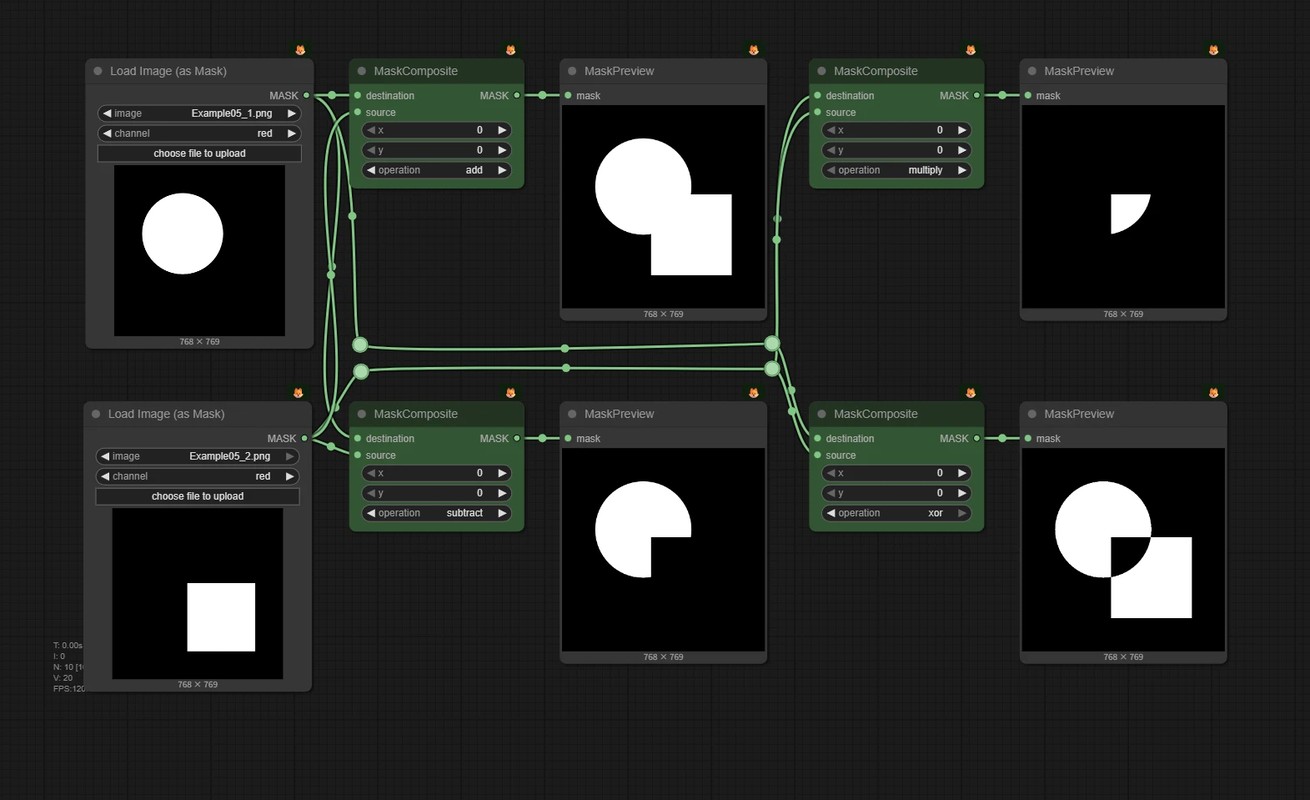
Composites two masks in various modes (addition, subtraction, multiplication, etc.).
Sample Images