What is RunPod?
RunPod is a service where you can rent cloud GPU power for short periods of time.
There are several similar services, but I feel RunPod has the best balance of price and ease of use.
Compared with simple image generation, model training needs more compute power and VRAM. You also keep the GPU running for tens of minutes or several hours.
If you only want to train a simple LoRA, it can be done for a few dollars, so it is easy enough to try.
This note walks through the flow from launching AI Toolkit on RunPod to downloading the LoRA you trained.
I plan to cover detailed training settings and dataset preparation for each model in separate notes.
Overall flow
- Create a RunPod account and buy credits
- Create a Pod
- Open the AI Toolkit UI
- Upload a Dataset
- Create a Job
- Run training
- Download the LoRA file
- Stop the Pod
1. Create a RunPod account and buy credits
Create an account
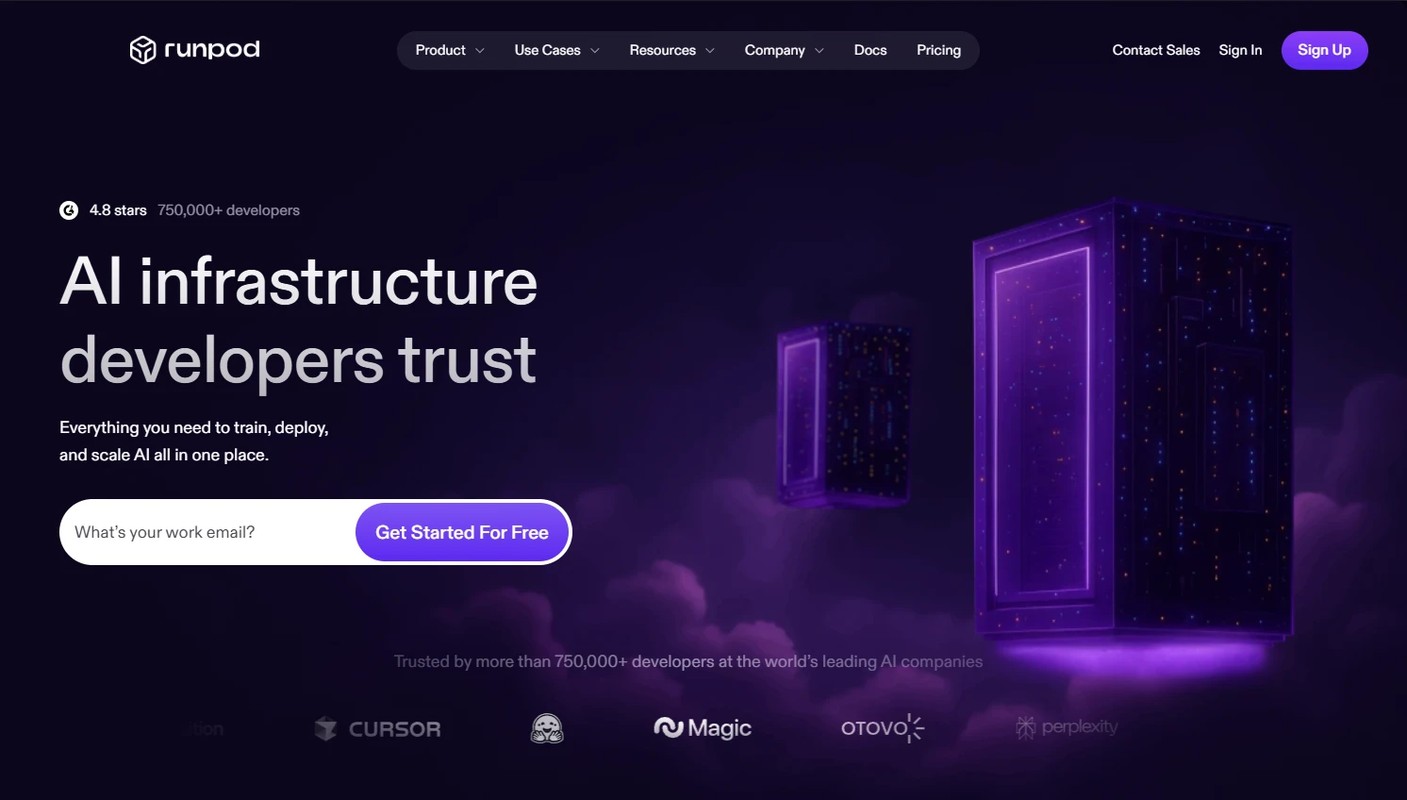
Open RunPod and create an account from Sign Up.
Buy credits
RunPod works by buying credits first and spending them as you use GPUs.
If you only want to try LoRA training, about 10 dollars is enough.
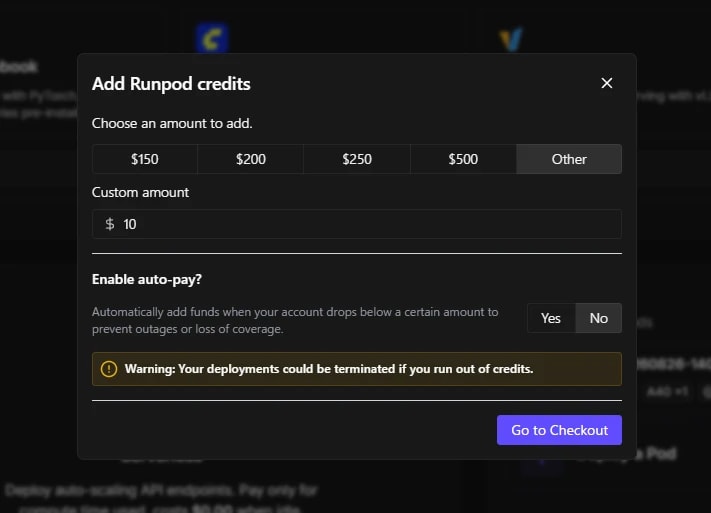
- Click the
+button in the upper right - Choose
Otherif you want to purchase $150 or less - Enter the amount and continue to
Go to Checkout
You do not have to use it, but this is my referral link. If you sign up from here and buy at least $10 in credits, you will get a little extra.
2. Create a Pod
What is a Pod?
RunPod has several features, but for this note you only need to understand Pod.
A Pod is like a customizable rental PC in the cloud.
You choose which GPU to use and how much storage to allocate, then rent that environment.
This time, we will create a Pod that can run AI Toolkit, open AI Toolkit from the browser, and train a LoRA.
Choose a Template
Open Pods from the sidebar and click Deploy.
- Search for
AI ToolkitunderSearch templates - Choose AI Toolkit - ostris - ui - official
- This is the template made by Ostris, the author of AI Toolkit.
- Many templates with the same name appear, so be careful to choose the right one.
After choosing the Template, change one setting from Set overrides.
- Open
Environment Variables - Change the value of
AI_TOOLKIT_AUTHto a password only you know
You will use this value when opening AI Toolkit. If you leave the default as-is, anyone can open it with
password, so use a different value.
Choose a GPU
The Compute section lists many GPUs.
It is easy to get lost, but the first thing to look at is VRAM.
If you do not have enough VRAM, training will fail with Out of Memory.
More expensive GPUs are generally faster for training, but twice the price does not mean twice the speed. It is a tradeoff between your wallet and how much time you have left.
I usually use an RTX A5000 or A40.
| GPU | VRAM | Note |
|---|---|---|
| RTX A5000 | 24GB | Its main advantage is the low price. However, there are not many available, so you may not find one depending on the time of day. |
| A40 | 48GB | This gives you 48GB of VRAM at a relatively low price. I use it when 24GB is not enough. |
Deploy Pod
Click Deploy Pod to create the Pod.
Credit usage starts at this point. Prepare your dataset before deploying the Pod.
3. Open the AI Toolkit UI
It takes a little while for the Pod to be created. Wait for it to finish.
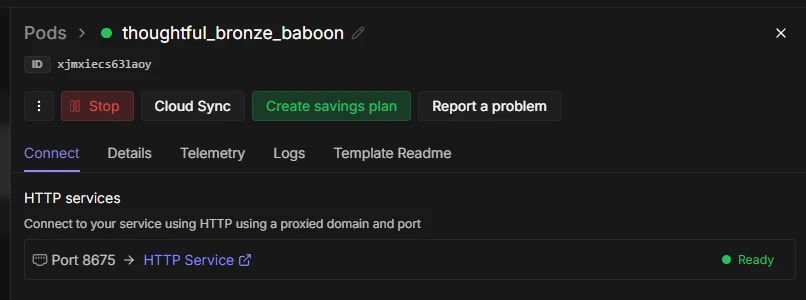
When the Pod is ready, it will show 🟢Ready, and a link for opening AI Toolkit will appear.
Click HTTP Service, and AI Toolkit should open.
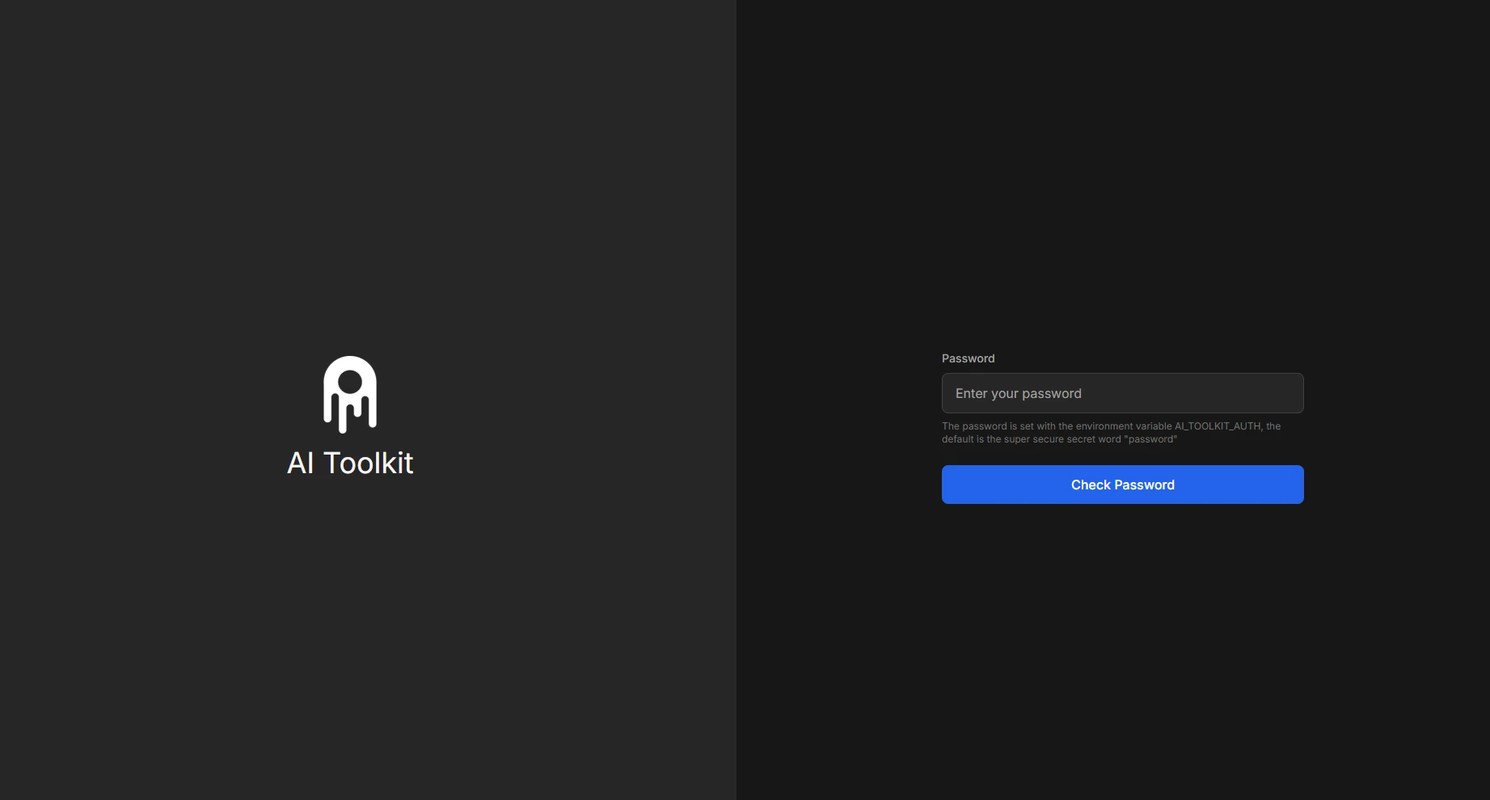
When it asks for a password, enter the value you just set in AI_TOOLKIT_AUTH.
From here, we will look at the rough training flow in AI Toolkit.
4. Upload a Dataset
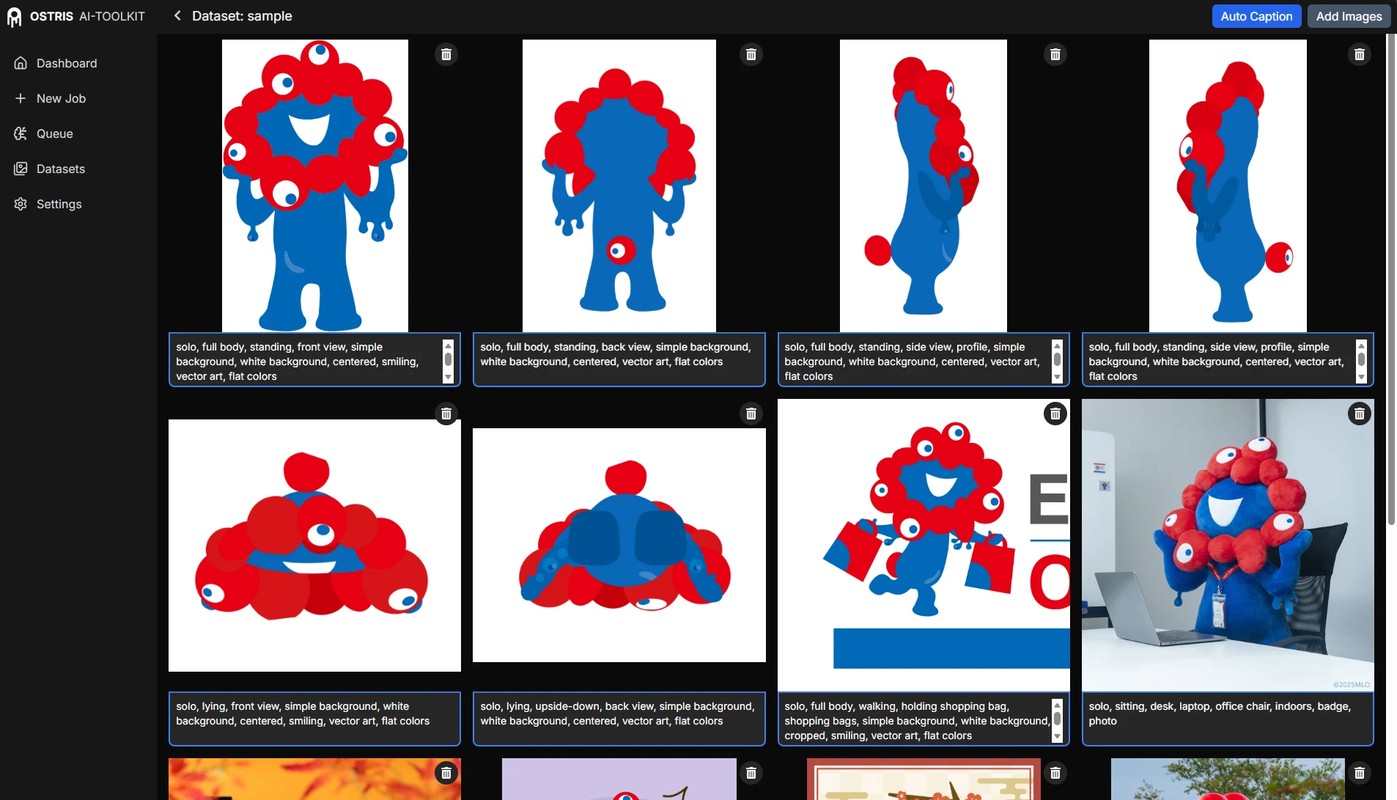
Upload the images and caption files used for training to AI Toolkit.
- Open the
Datasettab - Click
New Datasetin the upper right - Give the dataset a name
- Drag and drop the images and
.txtfiles
If the images and their matching caption files are loaded, you are ready.
5. Create a Job
In AI Toolkit, the flow is to create a training setup called a Job, then run it.
It is a bit like a workflow in ComfyUI.
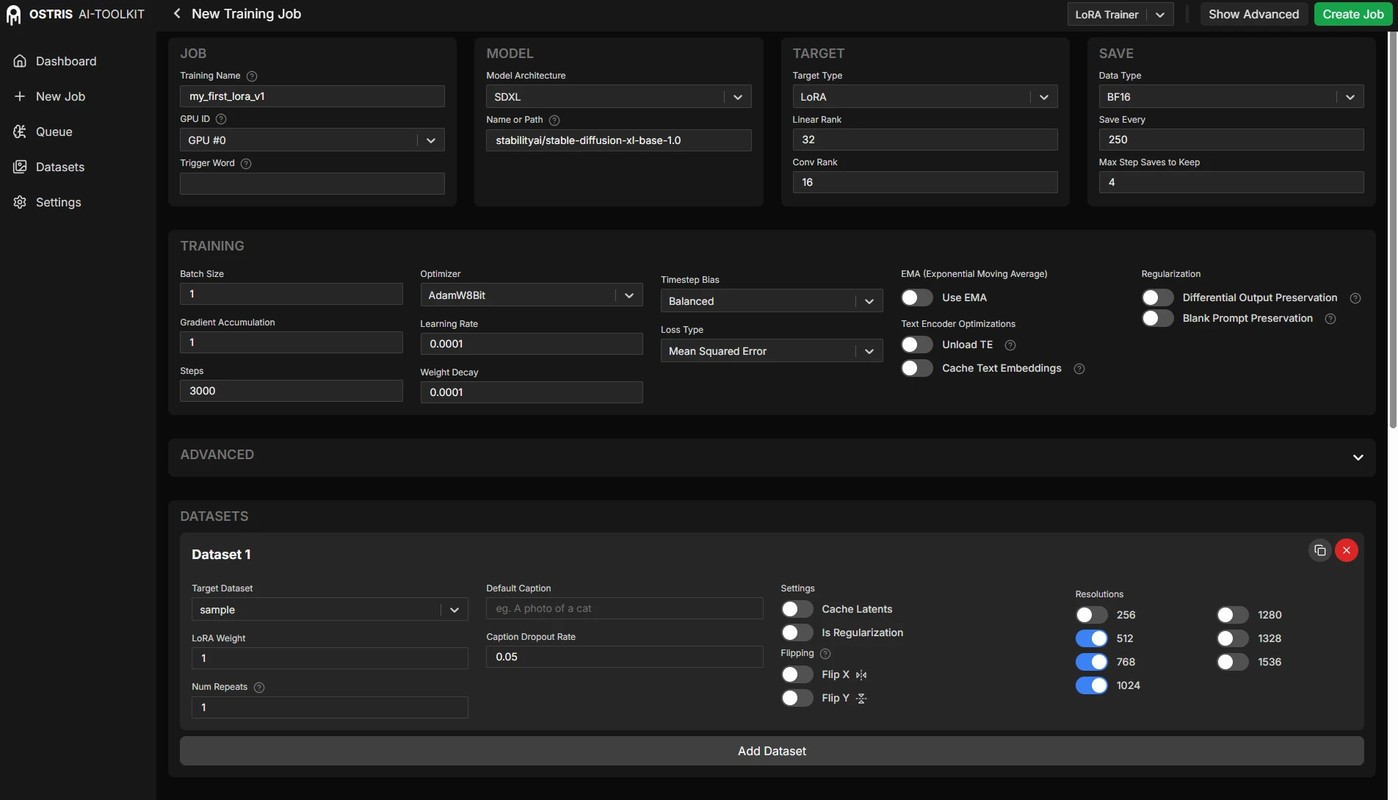
Set the base model, learning rate, dataset you just loaded, and other training parameters here.
When the settings are done, click Create Job in the upper right.
Before training starts, you can change the settings as many times as you want.
6. Run training
After creating the Job, run the training.
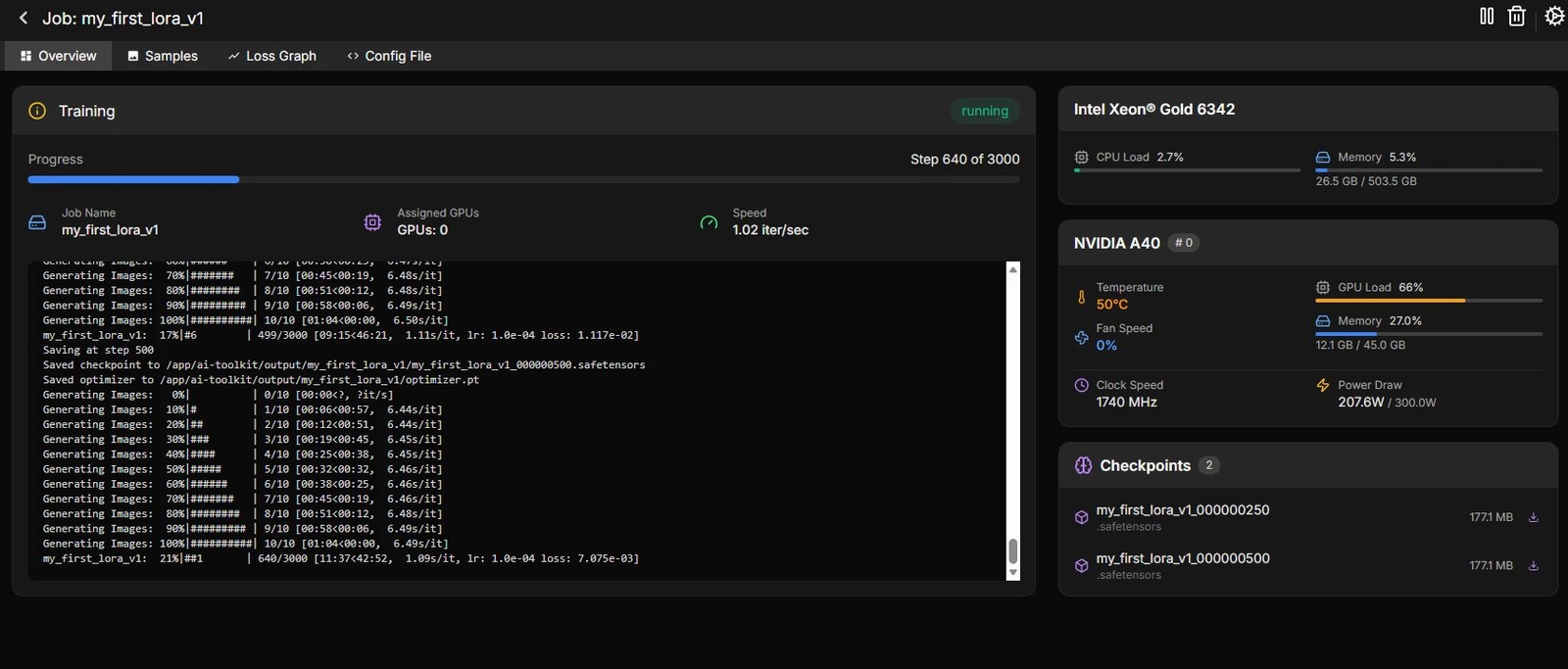
- Click the run button (
▶) in the upper right
If there is no error and the progress bar is moving, it is basically working.
You can stop training and resume it later.
You can also stop it, change parameters, and run it again, but some parameters can break the training state. If you are not sure, it is better to start again from 0.
7. Download the LoRA file
Depending on the settings, AI Toolkit periodically outputs LoRA files during training.
The only real way to know whether training went well is to generate images with ComfyUI or another tool. To be honest, the Loss Graph is not very useful for judging that.
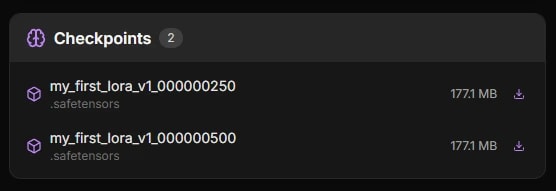
- Output LoRA files appear in the
Checkpointsarea - Click the download button and save them
That is the basic flow.
If you delete the Pod, the uploaded dataset and generated LoRA files are deleted too. Make sure to download every file you need.
It is also useful to save the config file that contains all the settings, so you can review it later.
8. Stop the Pod
RunPod charges while the Pod is running, even if you are not actively working.
Do not forget to stop it.
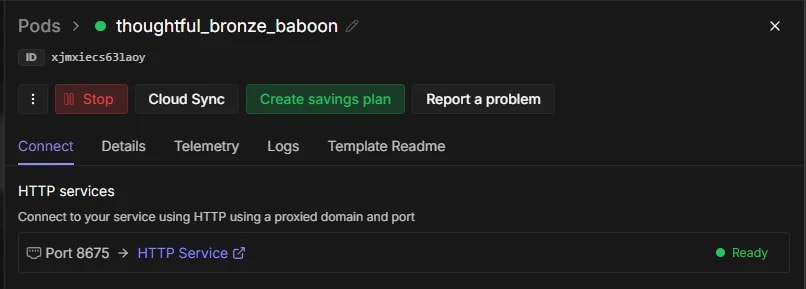
- Return to the RunPod page
- Open the running Pod
- Stop the Pod with
Stop - Confirm that you have downloaded all necessary files
Stop stops GPU billing, but the storage fee for the Volume disk remains.
If you no longer need AI Toolkit, run Terminate to shut it down completely.
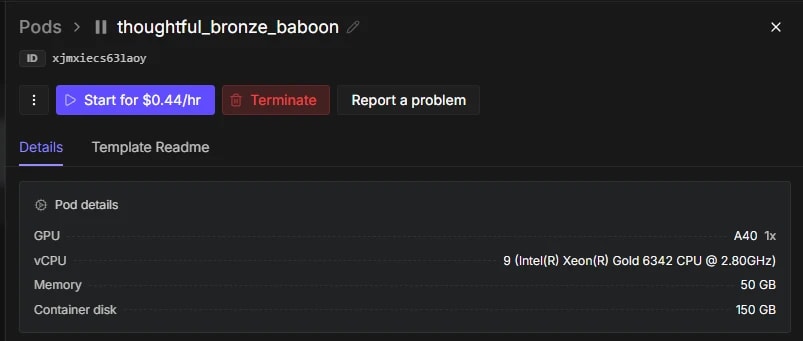
- Delete the Pod with
Terminate
Training a specific model
This note mainly covered the part up to launching AI Toolkit from RunPod.
For the concrete flow of training a model with AI Toolkit, see the following note.